Introduction
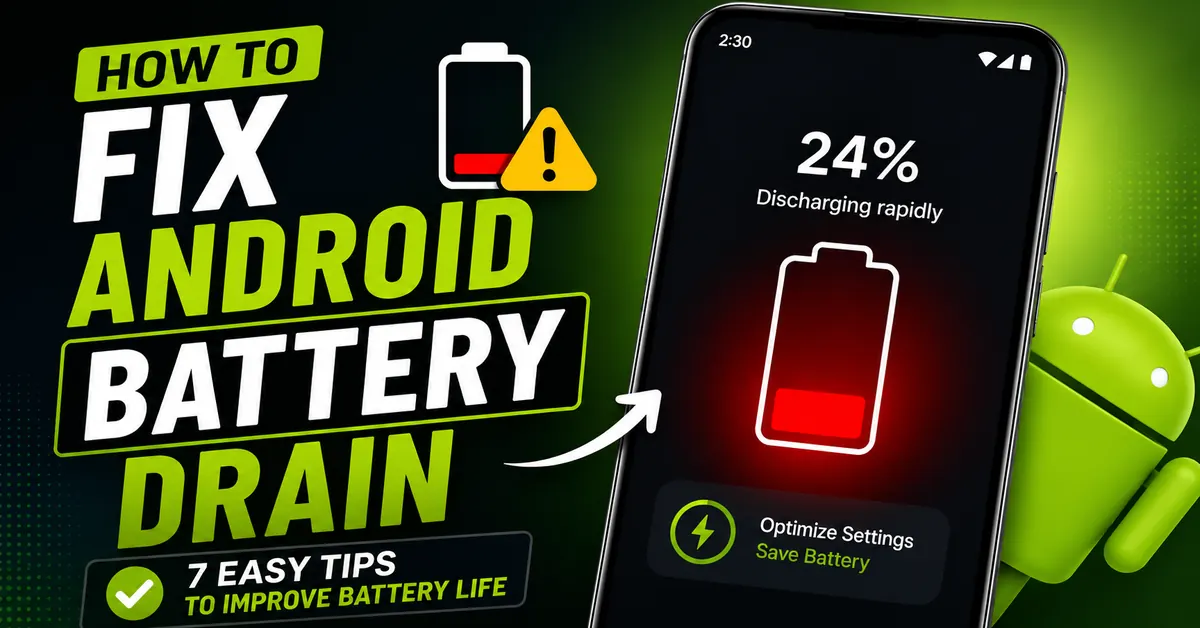
From the previous week onwards, my Android phone battery has been draining faster. I noticed slowly that the charging is getting drained very fast when compared to previously. I have done some of the fixes. So, actually, these issues are because of some apps which are present in my phone. If you are also facing the same problem like me, then this guide is for you. I have opened my settings and checked battery usage. So, I can see some apps that are using the battery heavily. So, in this article, I will share some effective tips that have been tested by me, and the tips that I am sharing about is how to fix Android battery drain. and also reduce battery drain, making your mobile avoid draining faster.
Stop Blaming the Wrong Things
Mostly people think that a single app can cause the battery to drain fastly. Even I used to think same. Whenever I open my settings and check i would see apps like Whatsapp or Instagram which uses a lot of battery.
However, now a days android phones are became more smarter. In many of the cases the real reason behind battery draining is not apps. It is due to some certain settings and habits that consumes more power overall day.
Common Causes of Battery Drain
1. High Screen Brightness
High screen brightness is one of the cause for battery drain. If you set your screen brightness to high then your battery will drain very faster. If you want to choose Adaptive Brightness it can also be a problem if it learns incorrect brightness levels and if it keeps your screen brighter than necessary.
2. Weak Mobile Network Signal
If you are in weak mobile network area, and your phone will try to maintain connection to the nearest cell tower. So, this effort can increase battery usage, even when you are not using your phone
1. Recalibrate Adaptive Brightness
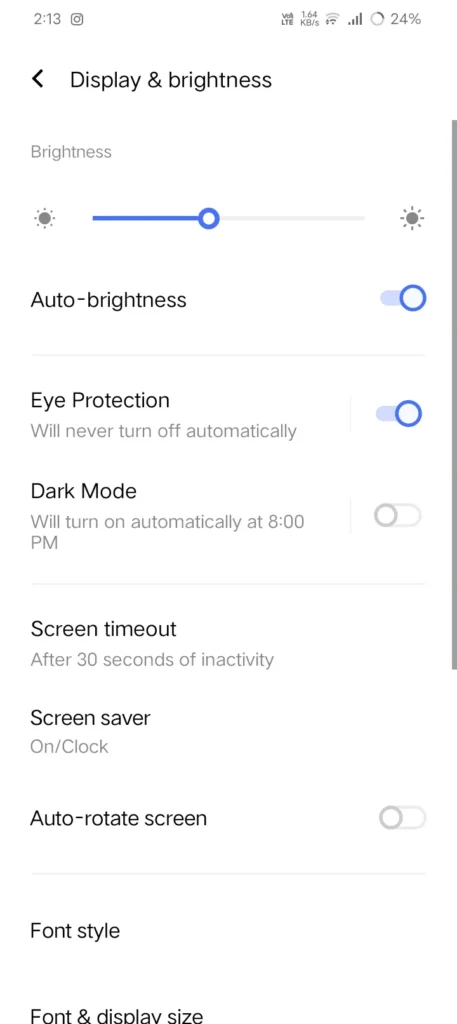
Adaptive brightness can automatically adjusts your screen brightness which is based on your surroundings. But some times it learns the wrong brightness levels and keeps your screen brighter unnecessarily that which can cause battery drain.
How to Recalibrate Adaptive Brightness
- firstly ,Open Settings.
- Go to Display.
- Turn off Adaptive Brightness.
- For the next few days, just adjust the brightness manually increase if required.
- After a few days, turn Adaptive Brightness back on.
Why This Helps
When you enable again Adaptive Brightness, Android starts learning your brightness based on your surroundings . This helps in avoiding fast battery drain
Expected Results
Most of the users notice improved battery life after recalibrating Adaptive Brightness. Because the display will consume more battery in every phone. So, if you minimize the brightness, you can save the battery life.
2. Check Your Mobile Signal
Many of the people will avoid about their mobile signal. Mobile signal drains battery very fast to avoid these follow below steps:
- Go to Settings
- then click on battery
- go to battery usage
Now you can check that how much battery is used by Mobile Network. If it is using more than 10–15% of your battery. This will be completely due to poor signal. Even when you are trying to find a maintain
What You Can Do
Turn on Wi-Fi Calling
- Go to :Settings
- Then select Network and Preferred Network Type LTE/4G
3. Use AccuBattery to Track Battery Usage
If you are not sure about why your phone battery is draining. Then, AccuBattery can help in finding the solution. This application is free to use and it provides a detailed information about battery usage.
For example, you may noticed while watching videos, playing games or scrolling apps like Instagram the battery gets drain quickly.
This information will help you to make small changes that will improve battery life. If you reduce time to spend on battery consuming apps. So, can see a big difference.
The best part is that you don’t need to stop using your favorite apps. You should just know how they are consuming your battery when you are using those apps.

4. Audit Your Location Access — This Is Usually Shocking
These also a main tip according to me. Audit your location access.m
Follow below steps:
- Go to Settings
- Choose Location
- App Permissions and check which apps have enabled “Allow all the time” in location access.
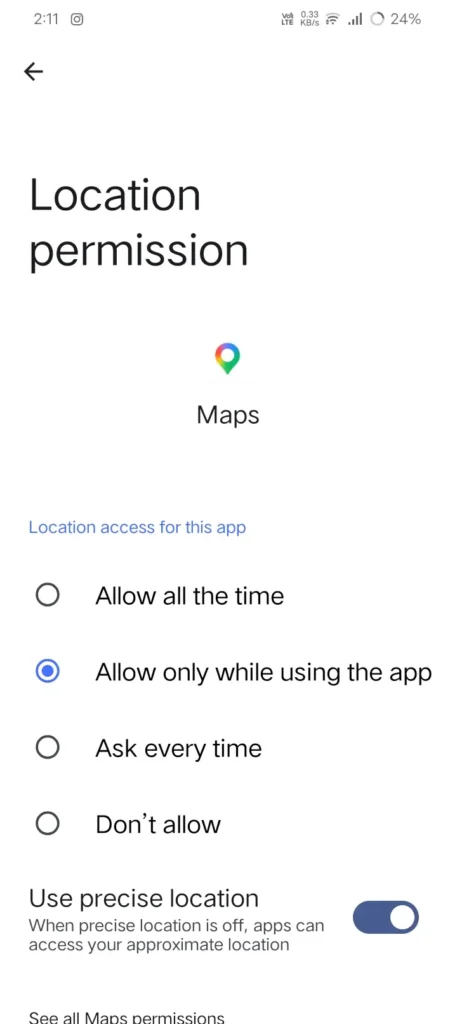
When I checked my phone, I found 14 apps using my location all the time. I only needed 3 of them, like Maps, Find My Device, and my fitness app that’s it.
The remaining apps like food delivery and shopping apps. I changed to “Only while using the app” because it helps in minimizing the battery drain. By making change in this setting will allow apps to use location when we use that specific application.
5. Change App Refresh Settings
Email apps: Check the sync settings in Gmail. Because, many of the phones will receive emails for every 10 minutes, which means it consuming you internet and draining battery very fast. If you don’t need instant updates change it every 2 hours or if possible use notifications only for important emails.
Social media apps: Turn off background refresh applications like Instagram and Facebook. Most of the people will open app for every 5 minutes and they will refresh feed manually.
News apps: If you want use applications like Google News, Try to set them to refresh the news when you are connected to Wi-Fi.
6. Use Battery Saver the Smart Way
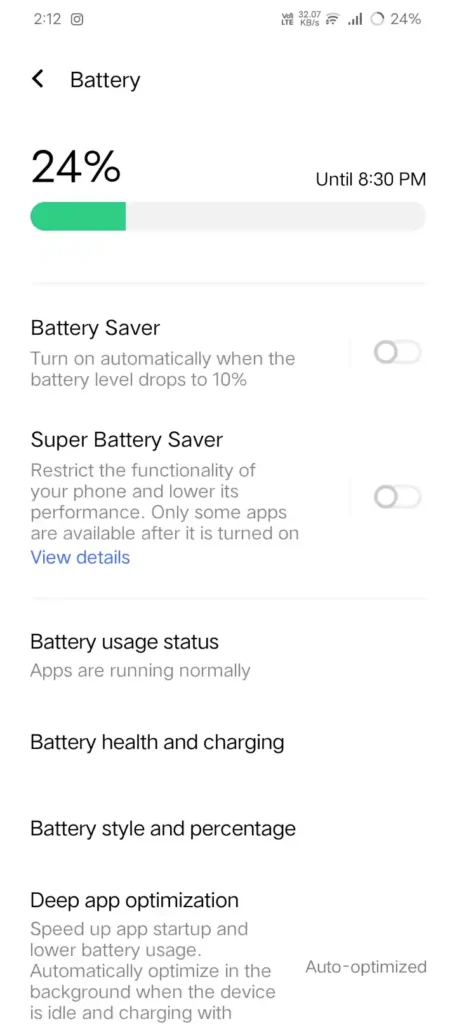
So, using the Battery Saver mode is the smartest way to protect you battery draining fastly.
Most of the Android phones have a feature called Battery Saver mode, but keeping it on at all the time can slow down your phone performance. Your phone may work some slowly, You can save your battery draining.
My suggestion is to set Battery Saver to turn on automatically when you battery percentage drops to 20%. This helps in saving you battery life.
Again you turn off your Battery Saver mode before you keep for charging.
7. Use Dark Mode to Save Battery
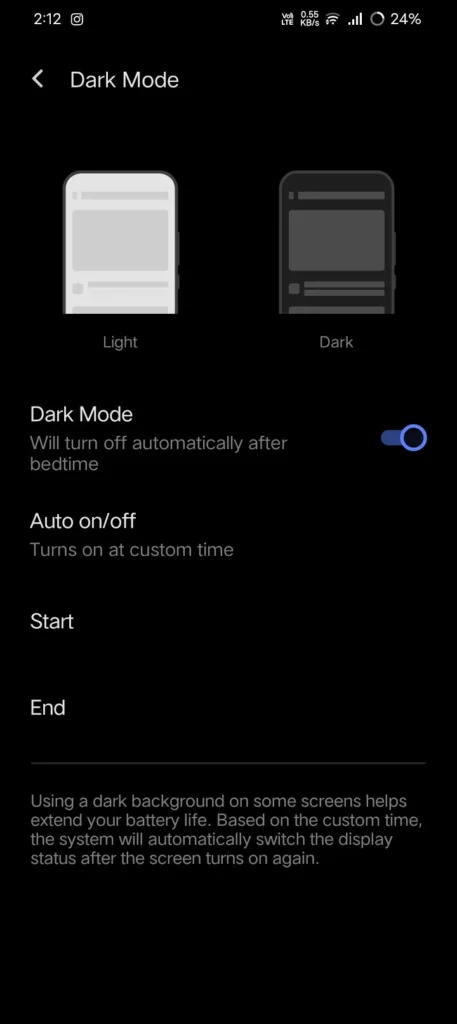
Using Dark Mode to Save your Battery is the best option. Even I would also prefer mostly Dark mode to save my battery.
Dark Mode will helps in saving your battery, but it works on best on phones that which consist with OLED or AMOLED displays.

On these screens, black pixels will use very little power, so Dark Mode can reduce your battery usage while you are using your phone.
If your phone has an LCD display, Dark Mode may still feel more comfortable on your eyes, but it will not save much battery.
If your phone want to turn on Dark Mode then
- Go-to Settings
- Then click Display
- Turn onDark Theme.
You can also schedule it to turn on or turn Dark mode automatically at a specific time.
So, this simple setting that will help’s in improving your battery life, especially if you spend a lot of time using your phone every day.
Also Read: How to Save Mobile Data on Android-10 Tips That Work
Also Read: Google Play Store tips and tricks India (2026)
Conclusion:
If your Android phone battery also draining faster don’t worry. In most of the cases, the problem is not your phone itself. but you to change few settings and find apps running in the background.
These is the main thin you should do is You don’t have to try every tip at once. Start with one or two small changes, And try to use your phone for a few days, and see how your battery performs. These Small improvements can make you to see big difference.
I personally tested all of these tips on my own Android device and Checked better battery performance. If you follow all above tips which mentioned you will be out of battery draining.
I can sure, that this guide will help you to get more battery life. Comment below that which tips are worked for your mobile.
FAQ’s
Frequently Asked Questions
1. Why is my Android battery draining so fast?
If your battery draining fast because of High screen brightness, background apps, poor network signal, and location services are common reasons.
2. Does Dark Mode save battery?
Yes, it can save battery on phones with OLED or AMOLED displays.
3. Should I keep Battery Saver on all the time?
It’s better to enable it automatically when your battery gets low.
4. Which apps use the most battery?
Mainly, Social media, gaming, navigation, and video streaming apps usually use the most power.
5. Can I improve battery life without installing apps?
Yes. you can improve battery life without installing any apps. Just follow these
- Lower screen brightness
- Limit background activity
- Review location permissions