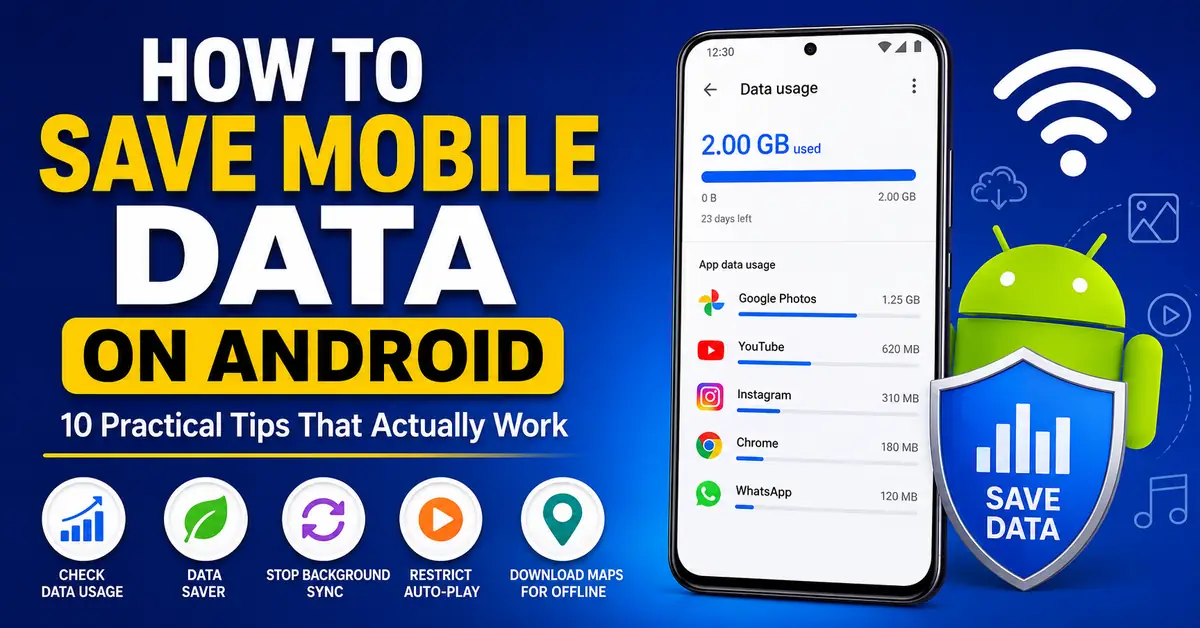
I have done work that takes only limited data, but 2GB got completed. I was stunned and began to wonder where all my data was going. After checking data usage in settings, I got the actual reason behind it. Background apps that I am not currently using have consumed my data. If you are also facing the same issue as me So, this article is for you. The main aim is to know is how to save mobile data on android, these you will learn efficently.
These are the real tips that helped me reduce data usage on my Android phone. I tested these steps on my device, which worked for me. Don’t worry these steps will work for all the devices.
1. Check Your Data Usage First Most People Skip This
These is the main step most of the people will skip. before trying to reduce you data usage find out what’s actually consuming it.
Follow steps to check data usage:
- Go-to settings and select network and internet.
- Then click on Data Usage.
Then you are able to see all list of apps which are showing how data they have consumed. When I check for the the first time, I got a clarity about my data. Google photos automatically started backing up photos and videos in the background.
Once if you know which apps are consuming data you can focus on those apps by fixing it. It is one of the quick solution to save your data.
2. Turn On Data Saver Mode (It’s Built Right In)
now a days most of the android phones has a built-in data saver feature, but mostly people won’t use it. And it is one of the most easiest way to reduce mobile data. When Data saver is turned on apps get restricted using mobile data in background. The main benefit is instead of constantly syncing and refreshing they will get updated when you open it.
To enable it:
- Go-to settings and select network and internet.
- Then click on Data Usage.
- Then select Data saver make it turn on
After I enabled Data Saver on my phone, I mainly seen difference that the apps like Instagram, Gmail, and X stopped using data. They only downloaded new content when I actually opened them.
If you want to run some of the apps in background such as google maps or any messaging app, then you can add it to your exception list so it will continues using data but limited only, because the data saver will be enabled.
3. Stop Apps From Syncing in the Background
This is also an important step even if you have turned on Data saver,some of the apps can still use mobile data in background through their sync settings. I have some apps on my phone which will sync data without knowing me.
To check this:
- Go-to settings and select Accounts.
Then you are able to see accounts which you have created such as Google Account or any other. And check what are getting synced like contacts etc..
Many apps have their own background data controls like Music streaming apps, podcast apps, cloud storage services, and news apps will continue syncing their content even if you are not using it actively.
By disabling unnecessary background sync, you can reduce your mobile data usage.
4. Restrict Auto-Play Videos — This One’s a Big Deal
Social media apps will play important role in consuming data. Facebook, Instagram, TikTok, Twitter/X. They all auto-play videos as you scroll. Each one of those videos will consume your data.
Every major app has a setting to restrict auto-play to Wi-Fi only:
So, mostly all find a section which is called Data usage for all apps like Instagram,Facebook, Twitter etc..
Then there you are able to see an option set it to on Wi-Fi Only this setting will save your data.
I made these changes and saved almost 2GB in my first month.
5. Download Maps for Offline Use
Google maps wil consume most of the mobile data. If you are navigating or going to new area. My best suggestion is to download the map of that particular city. So, that you can save your data.
Follow below steps:
- Tap on your profie icon
- Go-to Offline Maps
- select your own map and zoom it and download.
I started doing this before every trip and it’s saved my data. Navigation will work perfectly even you use it offline.
6. Switch to Lite Versions of Heavy Apps
A lot of popular apps have lighter versions which mostly designed for low data situations. These liter versions apps will actually work like a real Apps.
- Facebook Lite : It uses a fraction of the data Facebook normally does.
- Spotify Lite : It is great for streaming music without the data drain
- Google Go : It is the lighter version of Google search
I tried Facebook Lite for two weeks and honestly, speaking . It loads very faster and consume less network.
7. Set a Data Warning or Hard Limit
Android lets you set a warning alert when you hit a specific amount of data.
steps to set data limit:
- Go to Settings
- Then Network & Internet
- select Data Usage
- And click on Data Warning & Limit.
Setting a limit can save your data And. You will get a notification before things get dangerous
I used to just keep Data warning that’s it.
8. Use Offline Modes in Music and Podcast Apps
Streaming music is one of the silent data killers. If you listen to music during a specific work. That can consume more data without knowing you, later you will realize about it.
Most music apps let you download playlists for offline listening:
- Spotify: Find a playlist just tap the download toggle.
- YouTube Music: Same idea download before you leave Wi-Fi
- Pocket Casts / any podcast app: Set episodes to download on Wi-Fi overnight
I started downloading my gym playlist every Sunday night using Wi-Fi. Zero data used during the week for music.
9. Check App Update Settings
These play store updates will consume most of the data. People will ignore these. The updates are done in background you need to fix it.
Fix this in the Play Store app:
- Tap your profile icon go-to Settings
- Click on Network Preferences
- Auto-update Apps And select Over Wi-Fi only.
Also, turn off automatic app downloads when you switch from Wi-Fi to mobile.
10. Use Chrome’s Data Saving Features and Compression
Chrome on Android has a few data-saving tricks. The browser can able to compress pages before loading them, which reduces how much data each webpage will consume actually.
Also, consider switching to Brave browser for general browsing , because it blocks ads and helps in page loading with less data I switched to Brave for everyday browsing and it is very fast and low data consuming.
Conclusion:
If you are constantly running out of mobile data before the month ends. In many cases, the problem is not how much you are using your phone it’s all about the background activity happening without noticing you.
When I finally checked what was using my data, I realized that YouTube, social media are consuming my data. And also apps syncing, backing up files, refreshing feeds, and downloading updates in the background with out knowing me. Follow all above steps to get out of this problem.
Also Read: Google Play Store tips and tricks India (2026)
FAQ’S
1. What uses the most mobile data on an Android phone?
Video streaming apps, social media apps, cloud backup services, and automatic app updates usually consume the most data. Checking your phone’s data usage settings can help identify which apps are using the most data on your device.
2. Does Android’s Data Saver mode really work?
Yes. Data Saver limits background data usage for most apps, preventing them from constantly syncing and refreshing when you’re not using them. Many users notice a significant reduction in monthly data consumption after enabling it.
3. Will turning off background sync affect my apps?
Some apps may take a little longer to update when you open them, and notifications might not arrive instantly. However, for apps you don’t use often, disabling background sync can save a considerable amount of data.
4. Can I reduce data usage without uninstalling apps?
Absolutely. Features like Data Saver, disabling automatic backups on mobile data, restricting background activity, and using Wi-Fi whenever possible can greatly reduce data usage without removing any apps from your phone.