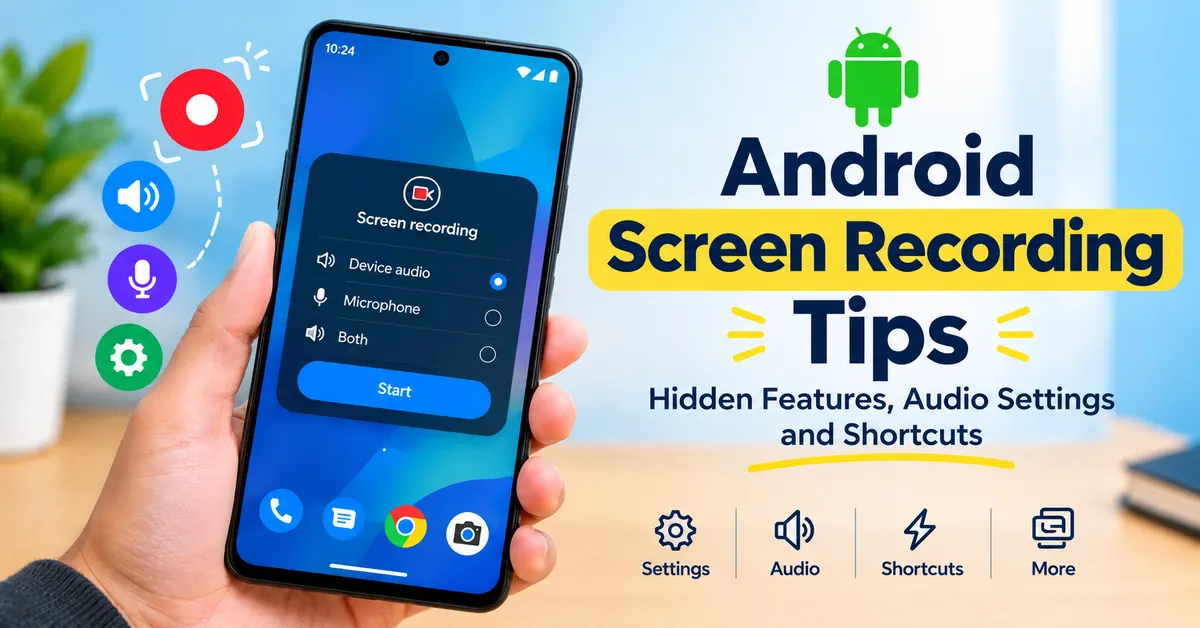
I use screen recording not only for making videos. Also showing problem on my phone while recording the screen. And also I also try to explain how an Android setting works, record a short gameplay clip, etc.
Firstly, I thought starting a screen recording would be very easy. Later on, I found that the recorded videos have no sound. While recording, private notifications will appear, so you will face many problems. And many recorded videos look very fine on your phone, but when you share them, you see so many problems. To overcome all these problems, I have gathered all the tips below.
Most of the newer Android phones have a built-in screen recorder. So I will recommend you guys check the application before installing. And normally, on most devices, you can find screen recording in Quick Settings. Here I will share with you guys the best Android screen recording tips based on my experience.
1. Put Screen Recorder where you can reach it quickly
This is my first tip for you all. Even this is the first thing which i have changed myself.
If you can’t find the screen recorder button in your mobile phone’s Quick Settings, you have to open the Quick Settings panel, and you need to find it for every time when you want to record your screen. This process wastes your time.
Swipe down to open the full Quick Settings panel and look for Screen record. If you cannot find it, just tap the edit option and check where you can add the screen recorder to Quick Settings.
Google also explains this method for supported devices, and Samsung lets you to add Screen Recorder to quick panel setting if it is not already there.
My tip: Try to keep Screen Recorder near the first few Quick Settings buttons. So that when you suddenly need to record a problem, you can start it within seconds.
2. Don’t start recording immediately — prepare the screen first
Before starting, you must prepare your screen. Even I will spend a few seconds before I start recording. And while recording, I will close unnecessary apps, and I will hide my private information.
This is the best option when compared to starting the recording and spending some seconds to navigate the things which i wanted to show. The preparation should be perfect before you press the start button.
3. Use the countdown as your setup time
On most of the android phone, built-in screen recorders show a short countdown before the actual recording begins. Actually, I use these seconds to put my finger away from the screen, and I will stop moving the phone, ready for the action. If I am recording a tutorial, I will make sure the settings are correct before I start the screen recording. This makes the final output video to feel more intentional.
4. Choose audio based on what you are actually recording
The audio selection is more important when compared to video resolution.
You know one thing: Before recording, I will ask myself a question:
Before recording, I ask myself one question:
What sound needs to be in this video?
- Recording gameplay: device or media audio may be enough.
- Explaining an Android setting: a microphone may be more useful. Because content explanation should be clear.
- Demonstrating an app while speaking: device audio and microphone can be useful.
A useful test I recommend :
Firstly, Record 10 seconds of your screen. Then try to play it back with headphones. And don’t record a 15-minute tutorial before clarification. This small test can save you from frustration.
5. Don’t assume every app will allow audio recording
You should keep in mind that not every app will allow audio recording.
If your screen recording has video but the audio is missing, then the issue could be caused by the app or the content that you are trying to record. Some of the apps or protected content can stop screen capture or audio capture. So, if one particular application behaves differently from another, don’t think that your phone recorder has a problem.
Try to test the recorder with another normal app first before assuming it’s a problem.
6. Record only one app when you don’t need the entire phone
You should record the one specific application if you don’t need the entire phone. On most of the devices, screen recording can be configured to record or capture a single application instead of the complete screen.
I find this useful while making tutorials. I will give one simple example so that you can understand easily.
For example: If I am showing my audience how to do something in Chrome, So Here i can just record Chrome instead of showing everything like my screen.
I mostly prefer recording a single app because it keeps the tutorial very clean and makes it easier for my audience so that they can easily understand.
And also important thing is that this option is not available exactly on every Android phone.
7. Use touch indicators only when they actually help
Showing touches can be useful in tutorials because the viewer can able to see where you are tapping.
But I always won’t use them, and I don’t keep them enabled for every recording.
If I am explaining a setting in my video, I prefer touch indicators so that they will have clear clarity about it.
If I am recording a gameplay video, then I won’t use touch indicators because I want my video output to be clean.
Actually, touch indicators are mostly used in teaching videos. Make sure you don’t use them in every video.
8. Use a selfie camera when your reaction matters
You should use a selfie camera to show your exact reactions to your audience. By using a selfie camera while recording the screen, the viewers or audience will not get distracted. They will be attracted to your video because you will show your actions while recording.
Mostly I would use the selfie camera for:
- Gameplay reactions
- App demonstrations
- Explaining something while showing my face
- Short social media clips
If you are recording a tutorial, I think the selfie camera is not necessary. If you use the selfie camera, the screen will become smaller.
9. Record vertically or horizontally based on where the video will go
If you want to record something, you should decide it before recording the screen. This is the first one I will decide before recording the screen.
If I want to make a phone tutorial for vertical video, I will keep my phone vertical. If I want to record gameplay, then I will record my screen horizontally.
So, you should decide yourself whether the screen should record in vertical or horizontal based on the video niche.
You should avoid this main mistake that is recording first and then you are trying to fix the orientation.
10. Don’t automatically choose the highest video quality
Make sure you don’t choose the highest video quality automatically. Actually, it is not always better. It will be good for some times.
Higher quality sounds better, but it isn’t always better for the job.
Here I would choose the video quality based on the purpose of the video:
Quick troubleshooting video: If Iam making a troubleshooting video, then I will prefer medium quality, which is more enough.
App tutorial: If I am recording an App tutorial, then I will keep the video quality at 720p or 1080p depending on how much small text needs to remain readable.
Gameplay: If I am recording gameplay, then I will prefer higher-quality video. So that users can see it clearly and enjoy the gameplay.
My quick screen-recording setup
| Recording type | My preferred approach |
|---|---|
| Android tutorial | Microphone + touch indicators |
| Gameplay | Device audio, higher quality if phone handles it |
| Bug report | Short recording + microphone if explanation is needed |
| App walkthrough | Single-app recording where supported |
| Reaction video | Screen + selfie camera |
| Quick support video | Short clip at moderate quality |
| Private demonstration | Check notifications and personal information first |
Actually, I will not use the same settings for every recording. The best setup depends on what I am trying to show to my audience.
Also Read: 10 Google Chrome Tips for Faster Browsing (That Actually Work)
Also Read: How to Fix Slow Charging on Android Phone (6 Real Fixes That Work)
Conclusion:
Before starting, I used to think screen recording was very easy, and it was all about just tapping a record button. After I started recording tutorials, I found small settings that made a big difference to me.
I will prepare myself and my screen before recording, and I will select the audio based on what I show in my video. Honestly speaking, you don’t need a very complicated setup for Android screen recording. You can simply start with your built-in recorder, which is available on your phone.
Make sure you are able to understand the options that are available on your device and adjust them based on what you are recording. Google also explains how to find and add Screen record to Quick Settings in its Android Help guide. I will recommend you to once check the guide for more clarification.
FAQ’S
Can I record my Android screen without installing an app?
Yes. Most newer Android phones have a built-in Screen Recorder, so there is usually no need to install a separate app. It can normally be accessed from the Quick Settings panel.
Can Android screen recording capture internal audio?
Yes, on supported phones. Before starting the recording, you can usually choose whether to record device audio, microphone audio, or both. The available options can vary depending on the phone and Android version.
Can I record only one app on Android?
Some Android phones allow you to record a single app instead of the entire screen. This can be useful for tutorials because the recording stays focused on the app being demonstrated.
Why can’t I find the Screen Recorder on my Android phone?
The Screen Recorder button may not appear on the first Quick Settings page. Swipe down to open Quick Settings and check the available tiles. If it is still missing, use the edit option to look for the Screen Recorder tile. The exact steps can vary between phone brands.
Where are Android screen recordings saved?
Screen recordings are usually saved in the Gallery or Google Photos app. Depending on the phone, they may appear in a dedicated Screen Recordings folder or under Videos. If a recording is difficult to find, check the Albums or Folders section.