Introduction
I have opened multiple tabs in Chrome for my work. I want to check my emails and browse multiple websites at once for new updates. When I opened it, it was working very smoothly. But, after some time, Chrome started lagging. Pages are taking more time to load, and while scrolling, it was not smooth. I know this lagging or unresponsiveness will waste your time.
Here, I have tried some of the tips for the above problem, which has shown a big difference after implementation. So, here I will help you by sharing 10 Google Chrome tips for faster browsing. After implementing these tips, your Chrome browser will be very fast. And these tips will work for both Android and Computer.
1. Stop Keeping Too Many Tabs Open
You need to stop keeping dozens of Chrome tabs. Try to open tabs whenever you want after working and close them. The background tabs, which consist of videos, these tabs will use system resources. You can also use Tab Groups to categorize the related tabs as groups, like shopping tabs, etc. If you don’t want to use group tabs, then close multiple tabs that you don’t want.
Make sure if you have opened multiple tabs after completing work close them immediately to overcome this problem.
When I want to make an Instagram reel, I will open tabs for downloading the reel, voice over like sarvam.AI, and one tab for video crop. After the things are done, I will close them immediately.
2. Clear Cache Regularly
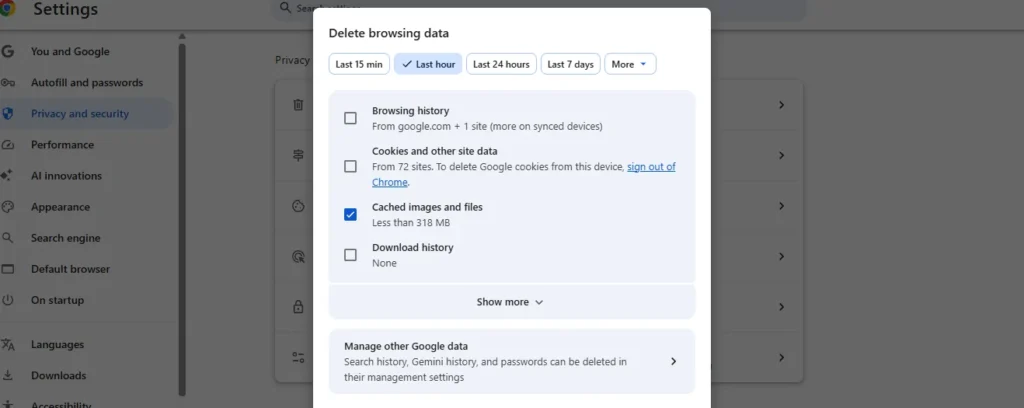
You should clear the cache regularly by clearing cached files, which helps in loading websites faster. So, an outdated cache will affect your browsing performance. If you want to clear your cached files on your desktop, then go-to settings, privacy and security click on clear browsing data and select cached images and files.
To clear cached data in Android, you should follow the same settings, but make sure you don’t select cookies and other site data, which helps you sign in to websites.
3. Remove Unused Extensions
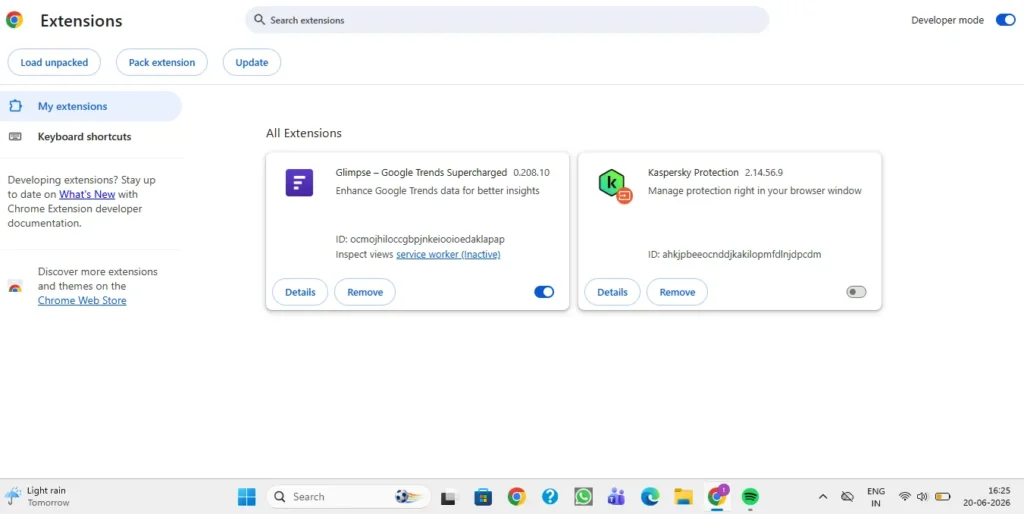
Try to remove unused Chrome extensions because they will affect your browser’s loading performance. Some of the extensions will continuously run in the background that use memory. To view your extensions, open chrome://extensions and filter extensions that you need for your work. If you have not installed any extensions, then disable them.
Keeping extensions limited will help in improving the browser experience. Even I have deleted all unused extensions that made a small improvement in browser loading. Currently, I have installed, and I am using only two extensions.
4. Enable Memory Saver
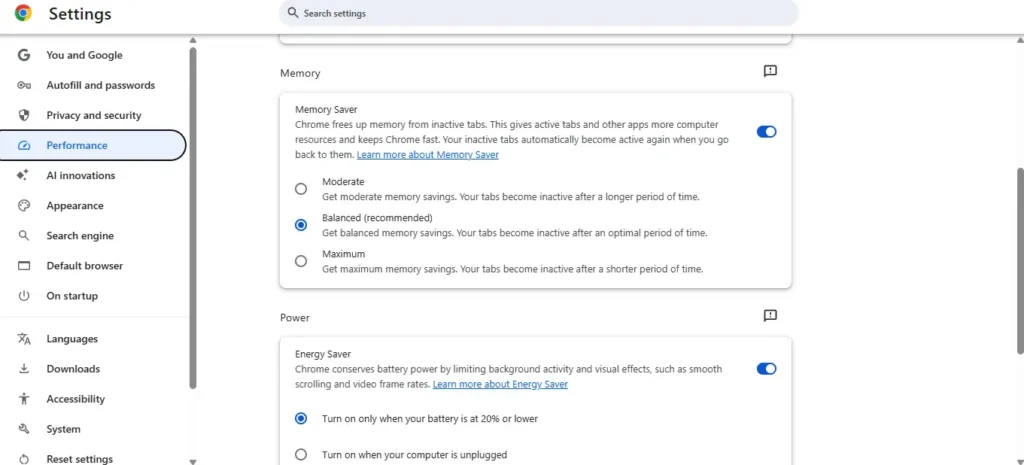

If you want to keep multiple tabs open, the Chrome memory saver feature will help you improve your performance. Firstly, go to settings, then performance, enable memory saver, which helps you by keeping inactive tabs into sleep and makes active tabs run smoothly. Here you can add your important websites to the Always keep these sites active list.
So, enabling memory saver helps in improving your website’s loading performance. I have enabled this option in my settings, which you can see in the above screenshot.
5. Enable Page Preloading
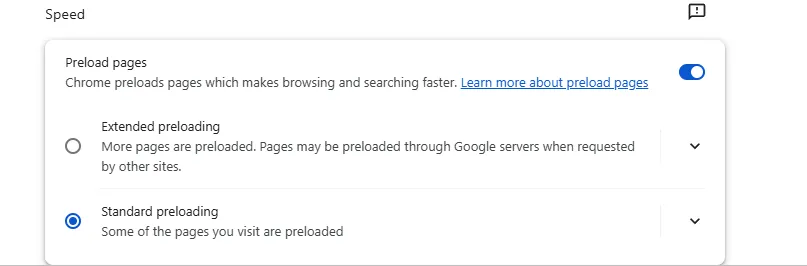
Chrome has a feature called Preload Pages. This feature helps in browsing faster. When you enable this option, Chrome intelligently loads only certain pages in the background, which is based on your browsing activity. To enable it, go to settings, then click on performance, turn on preload pages for a faster browsing experience. This makes you feel better when you open search results.
My recommendation is to turn it on. I have turned it on it is helping me in faster browsing and searching.
6. Run Chrome’s Safety Check
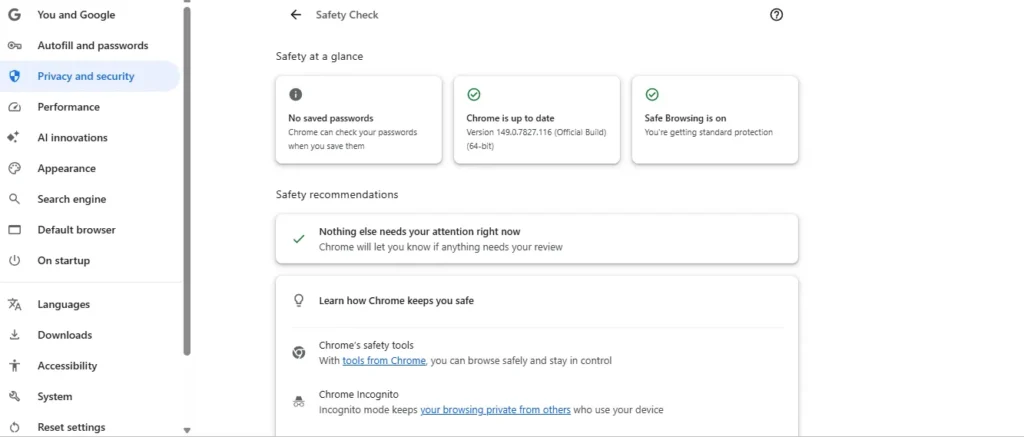
Chrome Browser has a Safety check feature in settings that helps you to keep your browser very secure and to run smoothly. To access it, go to settings, then privacy and security. There, you will be able to see an option called safety check. Just click on it, and you will see Saved passwords, Chrome version, and Safe Browsing. Safe browsing will warn you if you open an unsafe site. Here in recommendations you can see need attention if any unsafe extensions are installed. Always try to keep an eye on it regularly.
7. Keep Chrome Updated
This is the main tip you should keep you chrome Browser updated because it is one of the easiest way to improve speed and security of your browser. On Android open the Google Play Store and check if any Chrome update is available. Whereas on a desktop, go to Settings, then About Chrome, check for updates. If any updates are available, install them. After installing an update, restart your browser to see the applied changes. By using the latest version of Chrome Browser will help you in a fast browsing experience with optimization.
8. Clean Up Autofill Data
Make sure to clean up Auto fill Data majorly, which includes outdated autofill information like old addresses or payments, etc. This will not improve your browsing, but removing unnecessary data will keep your browser very organized. Go to settings, select Autofill and passwords, and then delete information which you are not currently using. Try to keep valid auto-fill information that you want to use currently for all websites.
9. Use Chrome’s Task Manager
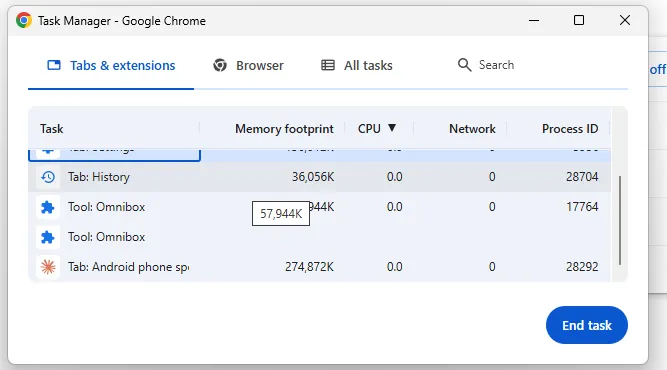
If your Chrome browser becomes suddenly slow, you can use the task manager feature to identify what is using more system resources. Whereas to open the task manager on the desktop, just press Shift+Esc. After opening Task Manager, you can see the memory and CPU usage of each tab. If you see any tab or extension consuming high resources, disable it. This tip can help you improve your Chrome performance in an easier way. It is one of the best ways to identify websites or extensions that affect your browsing experience.

10. Review Your Sync Settings
Try to review your sync settings. It is a useful feature that helps you to keep your bookmarks, passwords, and data across multiple devices. If you don’t use the syncing information disable option, because it creates unnecessary background activity. Keep important data like passwords and bookmarks, etc. So, by customizing your sync settings can help in reducing unnecessary data transfers. Make sure try to sync data that is useful for you.
Also Read: How to Fix Android Battery Drain: 7 Simple Tips That Actually Work
Also Read: How to Stop Spam Calls on Android (2026 Guide That Works)
Also Read: How to Fix Android Battery Drain: 7 Simple Tips That Actually Work
Conclusion:
If you are suffering with a slow Chrome browser, then don’t think that your phone is the problem. By making some simple built-in settings can make a big difference. By managing tabs and removing unused extensions, enabling memory saver, and keeping Chrome updated. These simple changes can improve your browsing speed.
You don’t need to apply every tip at once. My recommendation is to try all the tips which are mentioned above; you will see a big difference after implementing all the tips on your Chrome browser. These 10 tips will get you out of this problem. Comment down below which tip worked well for your browser. Enjoy your speed browsing experience.
FAQ’S
1. Does clearing Chrome cache make it faster?
Yes. Clearing outdated cached files can resolve loading issues and improve browsing performance, although the impact depends on your browsing habits.
2. Why is Chrome using so much RAM?
Chrome isolates each tab and extension into separate processes for better stability and security. Having many tabs or extensions open can increase memory usage.
3. Is Memory Saver safe to use?
Yes. Memory Saver is a built-in Chrome feature that reduces memory usage by putting inactive tabs to sleep. Your tabs remain available and reload when needed.
4. How often should I clear Chrome cache?
For most users, clearing cached files every few weeks or once a month is enough to keep Chrome running smoothly.