In last month, my friend sent me a handwritten price list photo which is for his small tailoring shop. He wanted that specific photo cropped and brightened to send to a customer. Then I took my phone, opened it, and tried to edit that photo. But my phone started lagging, and my screen froze for five seconds.
The actual reason behind this is that a phone with 2GB RAM will never give you 2GB. Because the pre-installed applications will usually take around 600MB to 700MB of space.
So I stopped trusting “Top 10 editors” lists written by people with flagship phones. I tested these best lightweight photo editors on budget hardware, the way most of us actually use our phones. Here’s what I found.
1. Google Photos (The Built-in Editor)
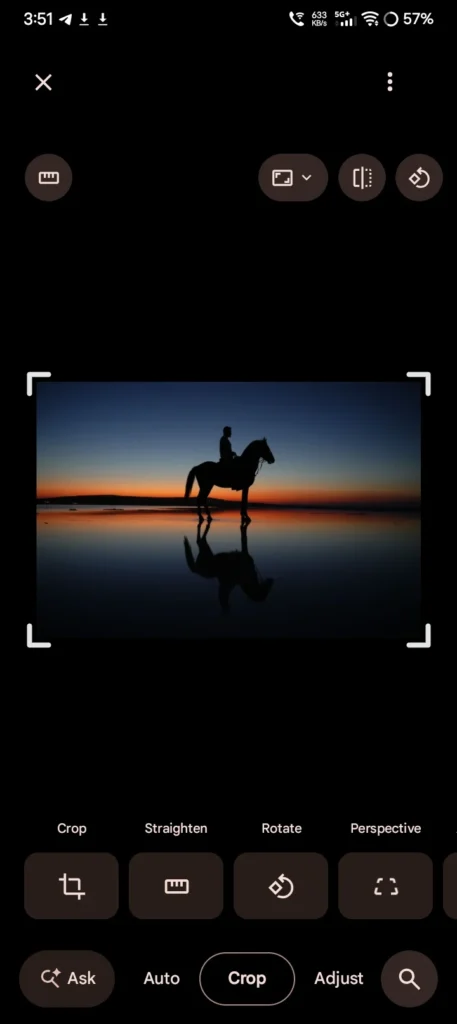
This is the first application I have tried because it is already available on my phone. Then open any photo from the gallery and tap on Edit; then you can see a row of tools that are available at the bottom of the screen, like Crop, Adjust, Filters, and Markup.
The crop helps you handle corners; you can drag the corners with your thumb, and you should make sure the image is not going out of the grid box. If you want to rotate the image, you can rotate it smoothly. In the Adjust section, you will see some sliders for brightness and contrast, etc. Markup helps you add text, but the text box will be very basic. You get some colours and a pen; there will be no fancy fonts. This is very much enough to edit a document photo like a price list
How it actually handles on a 2GB phone:
This application used active RAM around 50MB to 60MB while I was editing, which is more than enough for its work. Normally, loading the editor took only one second. And the main thing my phone temperature stayed in cool even after editing five photos in a row. For exporting a saved copy, it just took two to three seconds. Heavy effects will not be available in this application.
2. Photo Editor
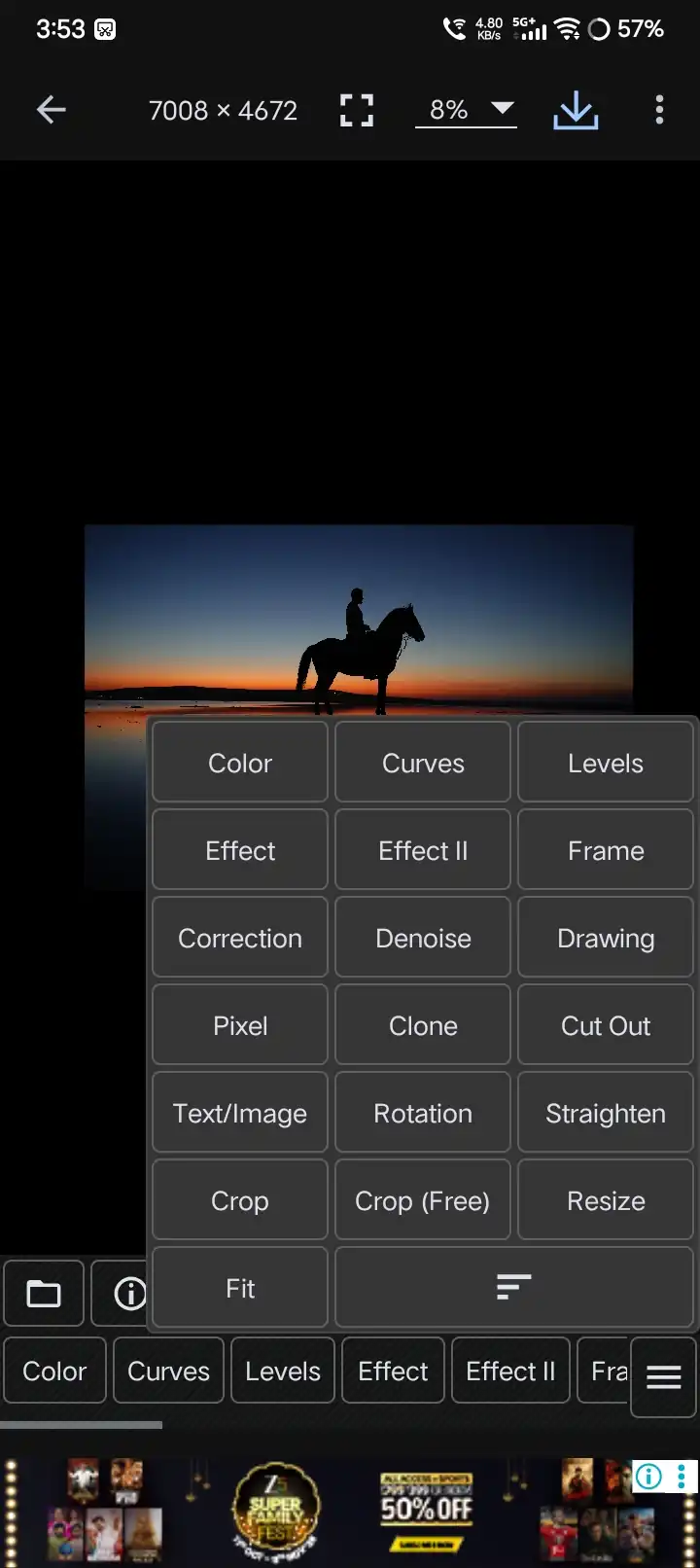
Photo Editor application is one of the best applications, and I kept this in second place, And important thing is that make sure the screenshots before installing this application, because there are dozens of applications are available which looks same. For me, it opened in two seconds with a gallery full of photos. It has a crop preset ratios those are (1:1, 4:5, 16:9), which will be very useful for Instagram and WhatsApp status. You can add text to the image, and you can resize and twist to rotate the image.
What annoyed me:
- It is showing ads between some actions; a couple of seconds of waiting after saving
- Effects menu looks cluttered, so you hunt for things
- Text box handles are a bit tiny; I had to zoom in to increase the text box.
My honest RAM footprint and processing speed review:
While I am editing, it took around 55MB of active RAM in normal editing, and it increased to 60MB when I open a collage. And my phone stayed very cool; the temperature did not increase. But after applying a blur filter, it caused a second hitch, but no crash. I can say that this application is great for simple stuff.
3. Pixlr
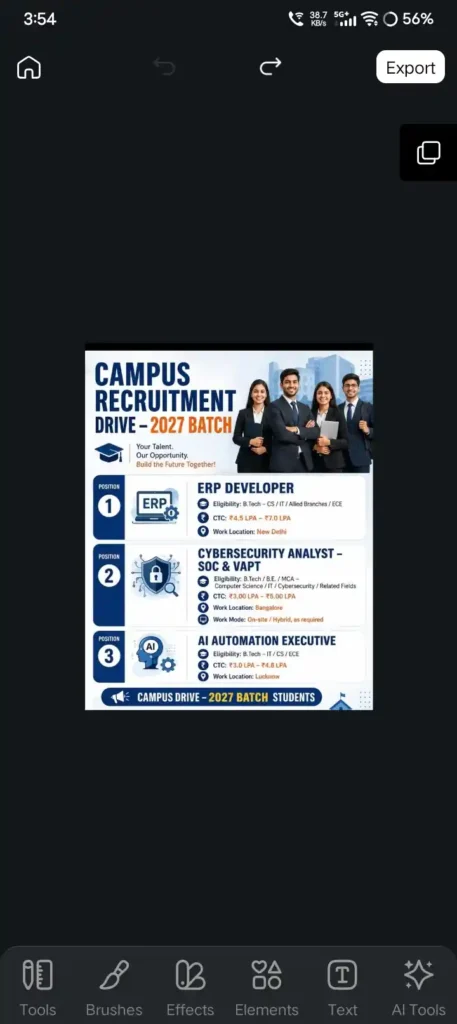
Pixlr feels like a real editor, but actually it does not act like a real editor.
How I used it: Open and select a photo from your gallery, then tap on Tools, and start with Crop. When I cropped, the photo grid aligned itself perfectly. And Next, go to Adjust section and try to use the Exposure and Contrast sliders. And here I have noticed that the preview updates very quickly when you drag the handles, showing your changes without any lag. For the text section, you need to tap Type, then type your words in the text box, and drag with two fingers to scale it perfectly. The text will be aligned on its own layer, so you can move it around without damaging the photo, which is behind it.
Battery and filter lag check:
It used 50MB to 58MB of RAM to edit a normal photo. And the main thing is that while exporting a 12MP image, my phone got slightly warm. When I tried the dual exposure with a second image, the app hitched for about a second before smoothing out. As for the battery, it barely took a hit, only dropping about 3% during a 15-minute session.
4. Toolwiz Photos
Toolwiz Photos is one of the wonderful applications, but the interface looks somewhat outdated; you can expect more from this application. According to me, the crop tool will stand out. Because here you will get a free-form box, and while dragging the edges, it feels tight and direct without any lag. The text tool looks very basic, but it works very well on weak hardware, like tap, type, drag to place on image, and use the slider to change the size of the text.
My honest RAM footprint and processing speed review:
It took very little active RAM, which is roughly 40MB to 48MB. The loading screen took two seconds. Exporting the image was very fast, and the phone stayed completely cool. But the final result was somewhat less polished when compared to Pixlr.
5. Polarr
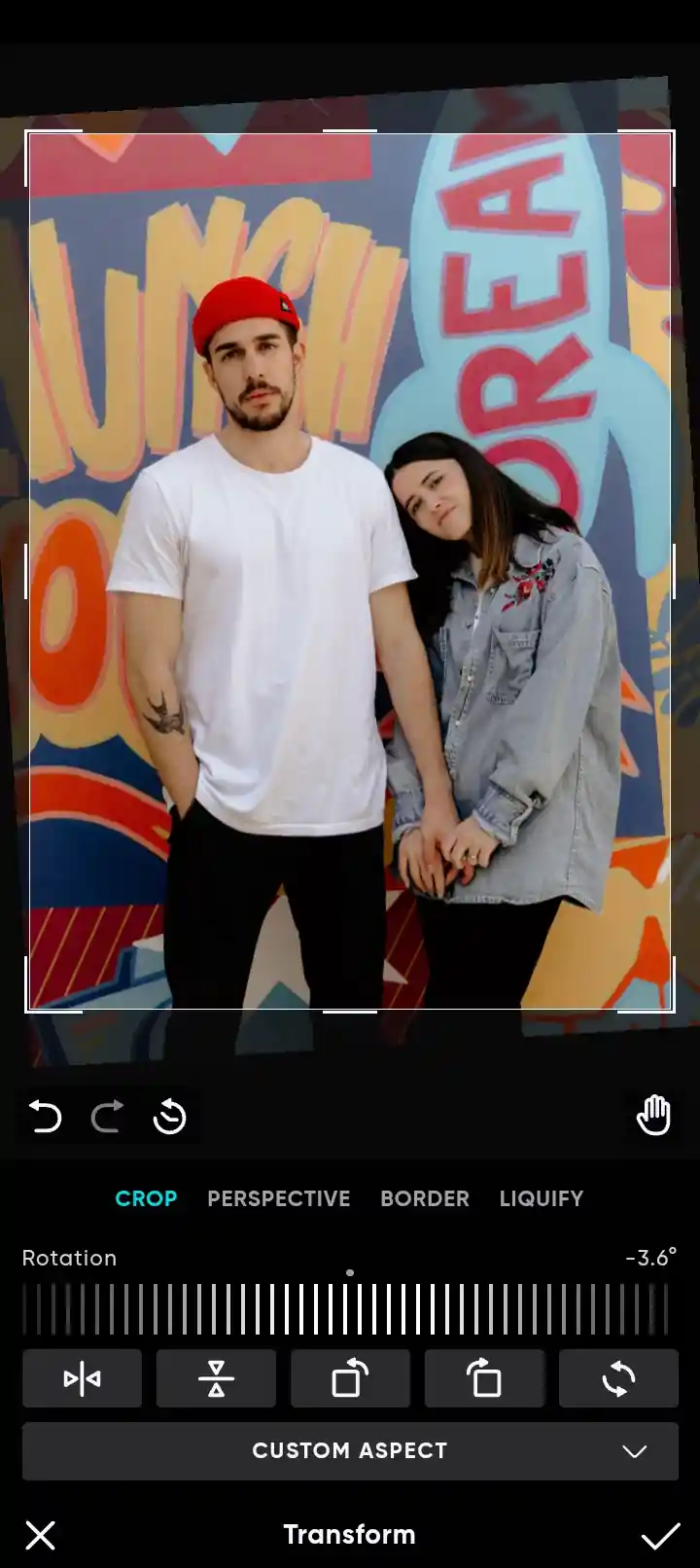
Polarr is known for being a heavy, advanced editor on a 2GB phone; I just stick to its basic presets and treat it like a simple filter app. You just pick a photo, and scroll through the row of presets at the bottom, tap one you like, and drag the slider to turn the effect up or down.
The reason to keep this application is how good the presets look, especially for portraits and street photos. The Skin tones looks very natural, instead of giving you that fake orange look which you get from cheap filters. The main thing is that the advanced tool panels, like curves, color isolation, and masking, will really slow down the phone. If you want to keep things very smooth, then you should stick to the basic sliders like Light and Color. The cropping tool works perfectly fine with normal handles, even though the rotation wheel feels somewhat jumpy when compared to Google Photos.
How it actually handles on a 2GB phone:
When I stick to presets, it will use around 55MB to 60MB RAM, and when I opened the advanced panels, it started using more active RAM, so I immediately avoided them. It just took four to five seconds to open. While exporting the photos, I noticed my phone started getting warm. And if you try to stack heavy effects like grain and blur at the same time, the screen will freeze up for a second or two.
6. LightX
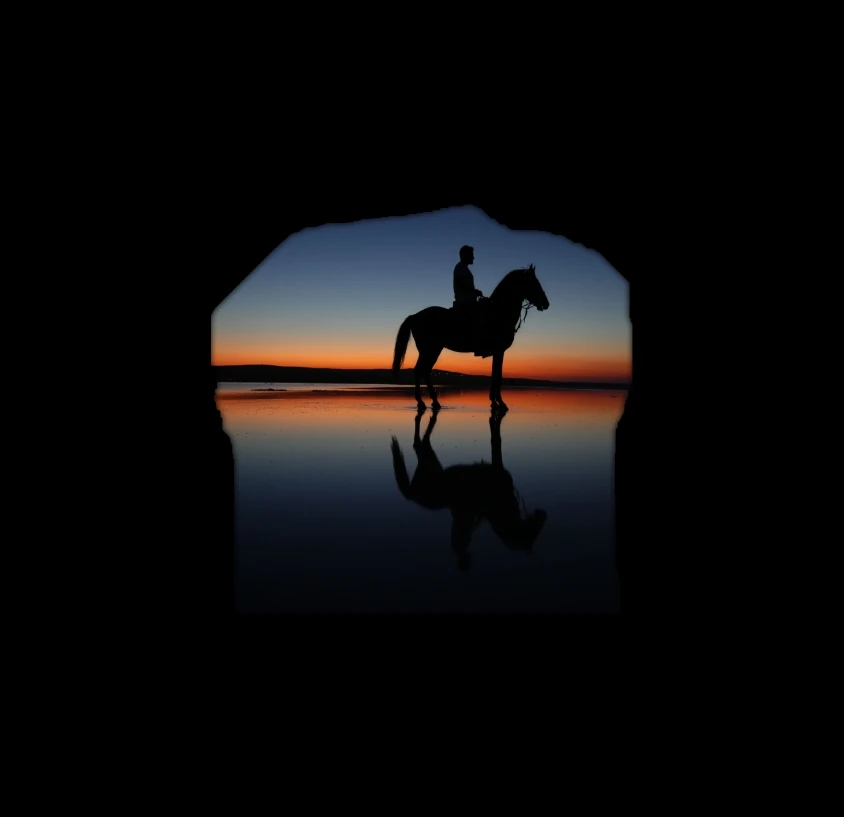
LightX is the app that I always prefer whenever someone asks me, “Hey, can you take the background out of this picture?” This is the only reason I even keep it on my phone.
Here is how the cutout tool actually works in real life. Once you open Cutout, you can do or either let the app try to do it automatically or you paint over the subject yourself. If your phone is not super fast, I highly recommend just painting it manually with a small brush. Because using the auto mode causes the app to freeze for a few seconds to process the image.
To find the edges, you just need to use two fingers to zoom in or zoom out, and then use the Refine tool to clean up any messy spots around hair or clothes. Once you are done cutting it out, then you can drop your subject onto a new background and just slide the blend bar until it looks natural.
My honest RAM footprint and processing speed review:
Roughly, it took around 52MB to 60MB with a medium-size photo. For loading, it took three seconds. After exporting a cutout, my phone got somewhat warm. If you just take your time and move the slider slowly, the whole thing stays perfectly smooth.
7. Fotor Photo Editor
Fotor Photo Editor consists of a lot of features, but you need to ignore most of them. And try to stay in basic editing tools like Crop, Adjust, Text, and also try to skip the AI templates and cloud features.
The text tool has a decent fonts and also you can resize it with a slider. When I was cropping, I got clear ratio options and solid corner handles that I can catch easily without zooming. And the Adjust sliders are labelled very clearly. It pushes you to take premium features you need to just close and continue your work.
Battery and filter lag check:
It consumed around 55MB to 60MB of RAM in basic mode, and the RAM increased when I went through templates. It took only four seconds to launch. The battery got drained by about 4% over a 15-minute session, which is pretty good.
Related Apps & Optimization Guides:
If your phone is running low on active workspace even after switching to lighter photo utilities, read my step-by-step tutorial on How to Speed Up Your Android Phone (No Fake Boosters)
To discover more highly optimized system tools that unlock premium layout features without draining your background memory, check out my field guide on the Best File Manager Apps for Android
Conclusion:
Honestly, if you are only keeping one app, just stick with Google Photos. It’s already built-in and never drains your phone down. If your device is really on its last legs, throw Toolwiz on there. If you want something cleaner that just works for everything, go with Pixlr. Then keep LightX on standby strictly for deleting backgrounds. Now, Polarr and Fotor can turn out some stunning edits, but the trick is staying away from the heavy settings so you don’t crash the app.
Look, none of these will magically turn a cheap 2GB phone into a high-end flagship. But they will absolutely get the job done right on the spot before your client loses patience.
FAQ’S
1. Why does my phone say “System UI isn’t responding” when I edit photos?
It means your phone completely ran out of free active RAM and the system process couldn’t keep up. To prevent this, always clear your background apps, edit a smaller-scaled copy of the photo, and switch to one of the lighter editors featured in this guide.
2. How much RAM does a basic photo editor actually need?
For standard cropping and text tasks, a well-optimized utility only needs about 50MB to 60MB of active RAM workspace. Heavy commercial software can easily request several hundred megabytes, which is more than a 2GB RAM phone has free.
3. Why does my device get warm while saving an edited image?
Compressing and compiling high-resolution visual assets pushes your mobile graphics chip to its maximum capacity. Keep your editing sessions short, avoid working under direct sunlight, and never charge your phone while rendering a project.
4. Should I clear the app’s cache or clear its data inside settings?
Always choose Clear cache. This removes heavy temporary preview files safely. Clicking clear data will completely reset the application layout and delete your saved custom settings and presets.
5. Why do my edited photos look blurry after saving them to the gallery?
This happens if the application’s default export configuration is set to a low-quality scale, or if your original starting image was low-resolution. Always double-check your export parameters before saving, and avoid re-saving the exact same file multiple times.