Introduction
I was facing with my phone which was getting very lagged while opening apps or using camera to capture photos. And when ever I open Instagram while scrolling I got worst experience. So, I solved this issue my self, In this article you are going to see how to speed up android phone. Follow All my tips and tricks you will be out of this problem. Here mainly you will know about real working tips and fixes that makes your mobile very fast.
What Doesn’t Actually Make Your Phone Faster
So, before getting into the topic, I will try to save your time please don’t trust cleaning apps like Clean Master or Phone Booster don’t dare to try them. Because I have already tried them already no application worked. But those apps shows you fake numbers on screen that it has cleaned your phone. Seriously, speaking uninstall them if you have installed any application.
And also some members will assume that by clearing cache will help. Cache is actually it stores the data of an application based on your usage. Ok now let’s get into the topic
Top 10 Tips speed up your Android phone
1. Turn Off or Uninstall the Apps You Never Use
This is the first thing you must do that is Uninstall the apps which you don’t use regularly. Because it consumes storage and battery, However you are not it then uninstall it immediately. Go-to settings and select the Apps section find all the apps which you are not using present and Uninstall them immediately because these applications will run in background.
On my own phone I found these applications:
- A food delivery app which is not using since 4 months itself.
- Two fitness apps I used for exactly one week.
- A bank app for an account I closed it.
2. Limit Background App Activity
Most of the apps will run in background even if you are not using them as we already discussed. you to stop them below some important steps are mentioned try to use it.
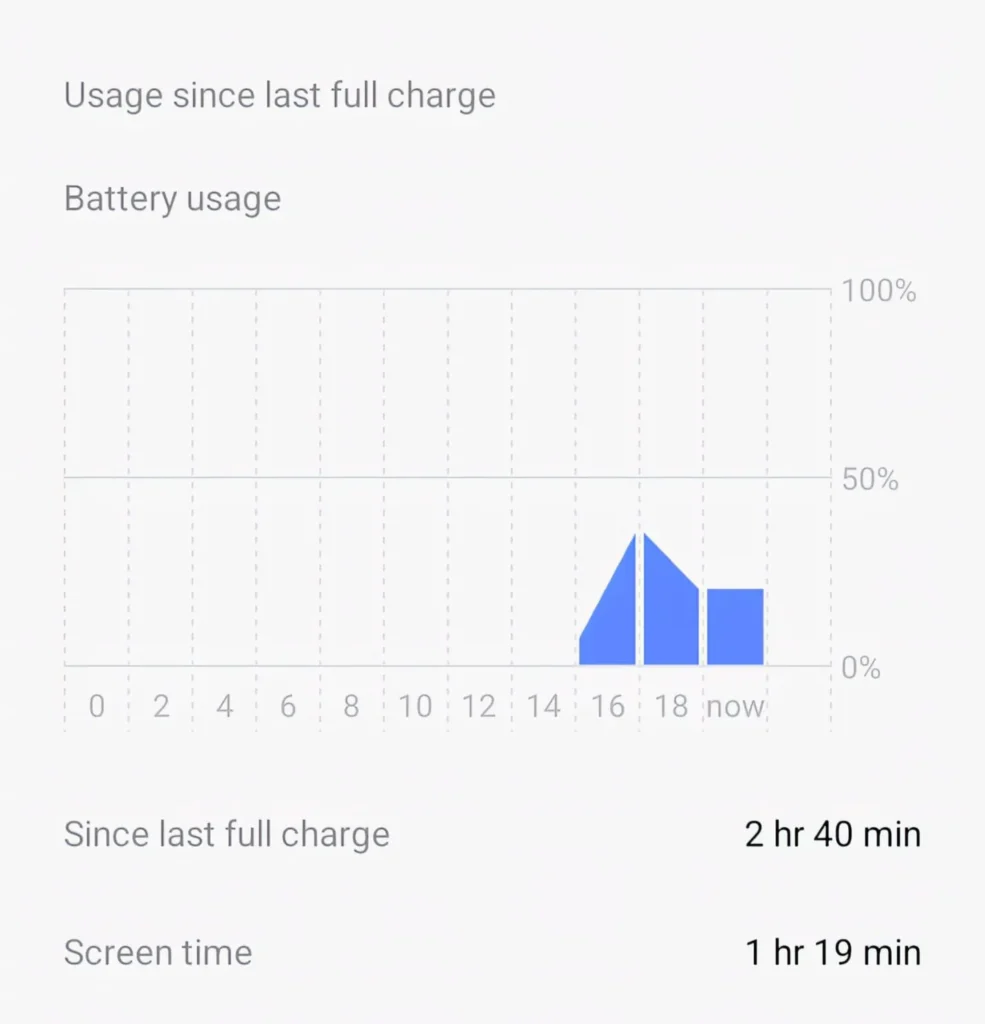
Step 1: Go to Settings then Battery select Battery Usage or Battery Optimization, depending on your Android version.
Step 2: Find apps that which are consuming high battery usage. Tap each one and set background activity to Restricted.
Step 3: For Samsung users, go to Settings and find Device Care select Battery and Background usage limits and add those apps which you don’t want to run in the background.
One mistake I made early that is I restricted WhatsApp from background activity where I was trying to save battery. Then It stopped getting notifications for hours . Don’t do that for messaging apps.
3. Reduce Animations (This One Is Underrated)
This is the tip that makes you to observe more difference and it may takes about 2 minutes that’s it.
Mostly Android phones has animations for everything like opening apps, them, And going back to the home screen. By default, these mostly run at 1x speed. You can change as you want just follow below steps.
Step 1: Go to Settings then About Phone and tap on Build Number seven times. This unlocks Developer Options.
Step 2: Go back to Settings and open Developer Options.
Step 3: Scroll down to find these three settings:
- Window animation scale
- Transition animation scale
- Animator duration scale
Step 4: Change all three from 1x to 0.5x.
Apps feel like they open faster because the animation will be quick. It’s a small psychological trick that makes a real difference in your day-to-day feel.
It will be completely depends on you can set them all to Off.
4. Switch Your Default Browser (If You Haven’t Already)
Seriously, speaking that this single tip surprised me when I tested it. make sure you also try it. If you are still using your default browser which is came with your phone, So try to switch to chrome or Firefox for a week . You can also try Brave, Because it blocks ads and makes you pages to load faster. You can change your Browser.
- Go to Settings
- Search for Apps
- Select Default Apps Browser and change it there.
5. Check Your Storage Android Slows Down When It’s Nearly Full
Most of the people always focus on installing applications, But they never check their storage.
When if your internal storage is above 80-85% full, Then Android starts struggling or lagging. It needs some free space to store some temporary files, that move data around, and makes apps to run smoothly.
Check it: Go-to setting search storage and select it and if you are storage is above 80% then you should follow below steps:
Photos and Videos : These are the main reason behind it. Use Google Photos and enable backup, find all duplicates if there. If you have laptop try to move them into a laptop. A single 4K video can be 500MB to1GB.
Downloaded files : Open your Downloads folder. It will be mostly full of PDFs, APKs, and random files which you have downloaded in past and that have never looked at again.
6. Update Android and Your Apps
So, the lot of people disable their automatic updates, because actually they don’t want that if the Google messing with their phone. But running outdated apps in 2026 is a really a bad idea that leads to performance issues.
So, In all the updates Developers will improve performance of that particular application. The YouTube app is upgraded, but when when you compare it with YouTube in 2023. It has a lot of difference right! Mostly in memory management etc…
- Go to the Play Store Click on Profile icon
- Select Manage apps and device
- Click on Update all.
7. Use Lite Versions of Heavy Apps If Possible
Use lite versions of Heavy Apps if possible, Because heavy apps like Facebook, Instagram will run background process in you phone like location tracking etc… So, my best suggestion is to use Facebook lite.
In 2026, most of the major platforms have lighter alternatives or Web Apps.
- Facebook Lite is still available on the Play Store with a limited size.
- Instagram Lite it is still available on play store you can install it
I replaced Facebook with Facebook Lite on my phone and it freed up over 800MB of storage space and it has reduced background data usage.
8. Reset App Preferences (Not a Factory Reset)
So, Resetting app preferences clears all of this without deleting any of your data or apps.
- Go to: Settings and find Apps
- Click on three-dot menu at top right
- Click on Reset App Preferences to reset.
Confirm. That’s it. Your apps will there with you, And your data is untouched, but it resets every thing make.
9. Consider a Launcher Swap
I switched to Nova Launcher on my device and the home screen scrolling got some more smooth. And Nova lets you to control animation speeds, disable effects, and you can customize everything which effects your performance.
So, Nova Launcher is free for basic use. There is a paid version available Nova Launcher Prime which consist of more features, But is not necessary for improvement of performance.
10. Restart Your Phone, But Do It Properly
Most of the people never restart their phone they will just lock the screen when they are done. The proper restart will be done which clears RAM, and stop’s the complete process and refreshes the system.
If your phone has been running for more than 5-7 days, you can make restart which will make a far difference when compared to previous condition.
But the main thing is that restarting and immediately you should not open apps immediately. After a restart, let the phone get settle for 2-3 minutes before using it. The system will run some background performances that will temporarily slows down things. Once if phone got settled it will run smooth.
Also Read: Mobile gaming setup under 10000: the real India edition
Also Read: Best Lifetime Deal Apps for Android (Pay Once, Keep Forever)
Conclusion:
If your Android phone is slow, So try to waste you money by buying a new phone. In many cases, the problem will be not the hardware.
I have personally used these tips on my own devices and on phones and also I tried to family members, It got worked and they all noticed a difference without spending a single rupee. You can absolutely make your phone feel smoother, faster, and more enjoyable to use every day. So, try these fixes you will see a big difference.
FAQ’S
1. Does restarting a phone really make it faster?
Yes. Restarting clears temporary processes and refreshes system resources.
2. How much free storage should I keep on Android?
Try to keep at least 15-20% of your storage free for the best performance.
3. Are phone cleaner apps useful?
Most aren’t necessary because Android already manages memory and background tasks efficiently.
4. Will reducing animations damage my phone?
No. It simply shortens visual effects and can make the phone feel faster.
5. Should I factory reset my phone to improve performance?
Only as a last resort. Most slowdowns can be fixed using the methods in this guide.