Introduction
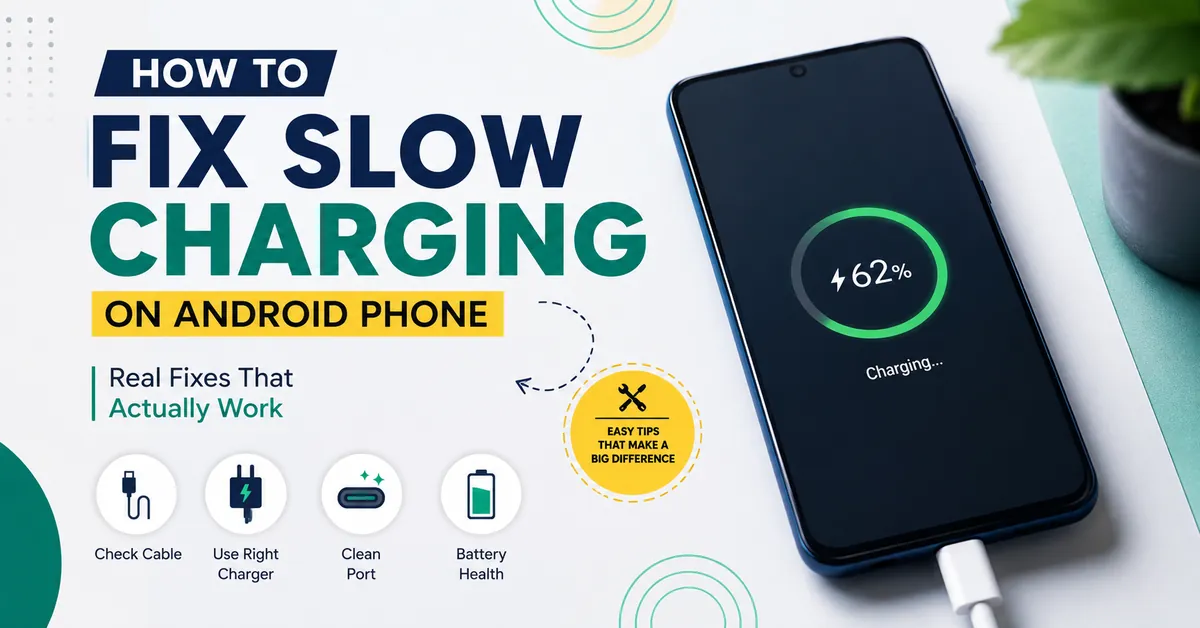
Slow charging is one of the most frustrating problems for Android Users. It will be more frustrating when your phone takes hours to charge, especially when you have a busy schedule. Most people think that the reason behind slow charging is due to phone. There will be some simple factors that may be the reason for slow charging, like charger cable damaged or an incompatible charger.
I used to suffer with this same problem. When I kept my mobile for charging, it would take hours to charge. One fine day, i have realized that I had to fix this phone, so I did complete research about fixing it. I have tried some fixes that actually helped me. So, in this article, I will share some of the tips to overcome slow charging on android phone.
First, Check If Your Phone Is Actually Charging Slowly
Firstly, you should confirm that your Android phone is charging slower when compared to previous. Charging speed also depend on your phone model, charger, battery level and temperature of the device.
There is a simple way to check how much battery percentage your phone is getting charged in 15-20 minutes after plugged in. If battery level increases using wall charger, then there will be an issue that affecting charging performance.
For more information about charging and battery monitoring you can use some apps that will display exact charging and battery information. And also helps in knowing that your phone getting enough power.
The Usual Suspects (And How to Fix Each One)
1. Check the Charging Cable
This is the first main step to follow because it is one of the most common cause for slow charging. This problem will occurs when you use low-quality cable or using damaged charging cable. If your phone is charging slower when compared to previous. Then check your cable most of the cable looks fine from outside Whereas internally it affects charging performance
Here are a few things to check:
- Try to use original cable that come with your phone.
- If unable to find problem then, test your phone with another compatible cable and see charging speed.
- Make sure the cable supports your phone’s charging requirements.
I have personally experienced this problems I have tried different cable it improved my charging speed. In many cases the phone and charger will work properly but cable may be a problem. Make sure it and fix.
2. Make Sure You are Using the Right Charger
You must check whether you are using the right charger because it plays an important role in the quick charging of your Android phone. However, using the lower-powered charger will increase charging times.
Most Android smartphones will support fast charging, but it requires compatible chargers to work properly. If your phone does not provide enough power, it may take more time to charge.
What to Check
- Check the power printed on the charger that which is expressed in watts(W).
- Check your phone specifications to know the recommended charging speed for your device.
- Make sure your charger should support the same charging level that your phone.
- Try to test with another compatible charger if available.
For the best charging performance try to use charger that is recommended by your phone manufacturer. So, using the correct charger you will notice a difference in charging speed,
3. Clean the Charging Port
You should check your charging port to see if it is clean or not, because it causes slow charging on Android phones. Dust or lint inside the charging port can prevent a secure connection.
These are common issues for people who regularly keep their phones in pockets, bags, and dusty environments. Even though there are some small dust particles, it may cause slower charging.
How to Check the Charging Port
- Just turn off your phone.
- Use flashlight clean the port carefully.
- If you see and visible dust, just clean it because it may block the connector.
How to Clean It Safely
- Power off your device before cleaning.
- Use a wooden toothpick .
- Try to remove any visible dust if there.
- Avoid using metal objects, because it may damage pins inside the port.
Why This Matters
If there is dust in the port, it prevents the charging cable from fitting properly. The connection between the charger and phone becomes weak. So, the device may charge slowly when compared to previous charging.
Doing this can help in maintaining charging performance and also prevent unnecessary issues.
4. Reduce Background Activity While Charging
Background apps is one of the cause for slow charging speed. Even if you are not actively using your phone some of the apps can run in background like syncing data, downloading updates etc.
When multiple apps are consuming power by running in background while your phone is charging. Some of the power is used to complete those background activities. This is one of the reason to charge slower than normal.
How to Manage Background Battery Usage
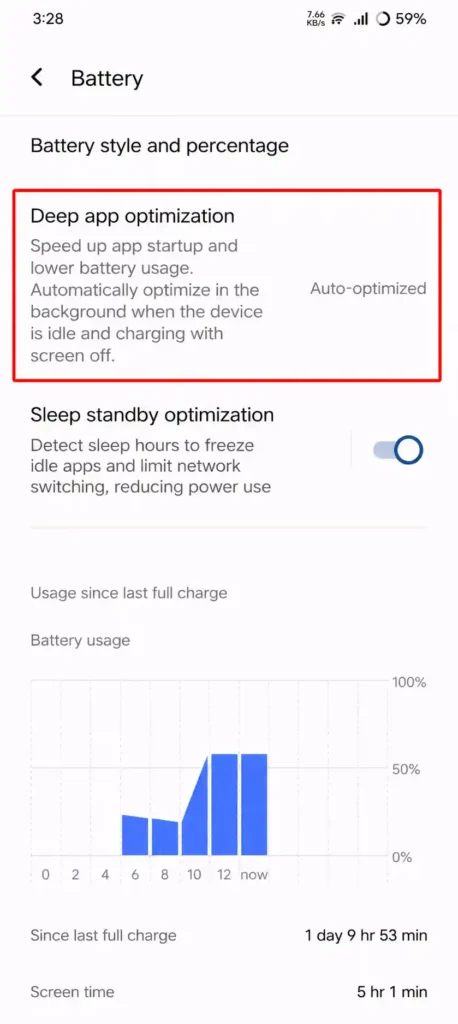
- Open Settings and navigate to Battery settings.
- View battery usage information to identify apps that are consuming power.
- Enable battery optimization features available on your device.
Just follow above steps to manage back ground battery usage.
5. Avoid Heavy Phone Usage While Charging
Using your Android phone while charging can reduce charging efficiency. Doing Activites such as watching videos, playing games, video calling or using the screen at high brightness level can consume power while device is in charging.
Common Activities That Can Slow Charging
- Streaming videos or music
- Playing mobile games
- Video calling
- Downloading large files
- Using GPS navigation
- Keeping the screen brightness at maximum
How to Improve Charging Speed
- You should lock the screen and avoid unnecessary phone usage while charging.
- Reduce screen brightness if you need to use the device.
- Close apps which are running in the background.
- Try to place the phone on a flat surface while charging.
Why It Helps
While charging if your phone uses less power, the power will directly goes into charging battery. This improves charging speed and also reduce heat generation.
For fastest charging connect your phone to a compatible charger. Don’t try to use your phone while charging.
6. Your Battery Might Be Worn Out
If your phone is old and charging slowly battery aging may be the reason. Most of the smartphones has lithium-ion batteries which will lose its efficiency after some hundreds of charging cycles.
If your phone battery is wears out it will take more time to charge and it holds less power. It will drain faster during everyday use. You will be noticed if your phone gets warmed while charging.
How to Check Battery Health
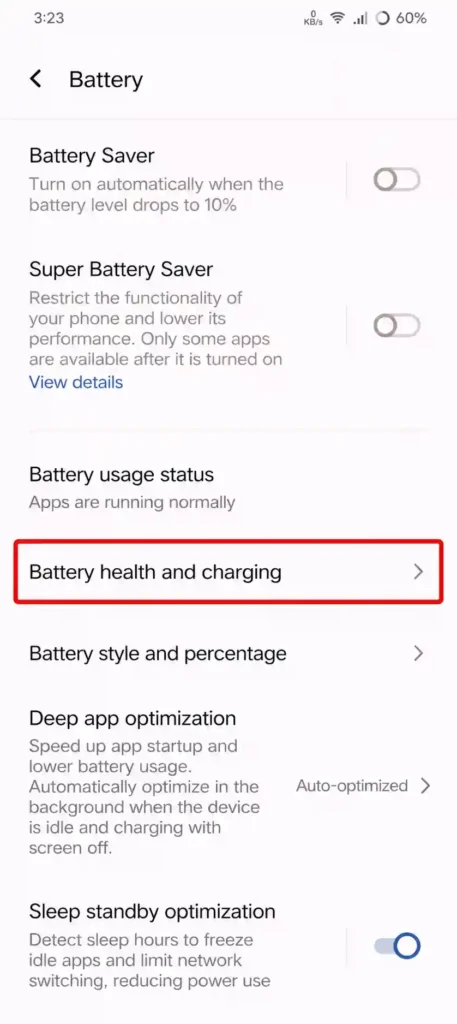
Many Android phones has battery health information in their Settings app
- Open Settings
- Go to Battery or Battery & Device Care
- Find for Battery Health, Battery Status, or similar options
What to Do Next
If your battery is worn, Replace the new battery with old battery, because it may improve both battery life and charging performance. Replacing a new battery is the best option when compared to buying a new phone.
When Nothing Works
If you have tried all the above tips and still if charging is slow then there will two major things you need to check:
Software issue: If there are any software issues in updates that will also slow down your charging speed. Check for the latest software update under settings.
- Go-to Settings then click on Software Update.
Hardware damage: If your phone’s hardware is damaged, such as the charging port or battery connector. So, you should go to a mobile repair shop. The above fixes will also not work if your phone has any hardware damage.
Common Causes of Slow Charging and Their Solutions
| Problem | Possible Cause | Solution |
|---|---|---|
| Slow charging | Faulty cable | Replace cable |
| Charging disconnects | Dirty port | Clean port |
| Fast charging not working | Wrong charger | Use compatible charger |
| Battery drains quickly | Background apps | Optimize battery usage |
| Phone is old | Battery wear | Check battery health |
Also Read: 10 Google Chrome Tips for Faster Browsing (That Actually Work)
Also Read: How to Transfer WhatsApp Chats to New Phone – Easy Guide
Also Read: How to Stop Spam Calls on Android (2026 Guide That Works)
Conclusion
Slow charging on Android phone is an common issue as we discussed above. These are the reasons such as using damaged charging cable or incompatible charger, dust in the charging port, background activity or battery wear are responsible for slow charging speed.
When you wanted to fix it start with simple fixes like checking your charging cable and charger, clean your charging port if any dust in it. Try to reduce unnecessary background activity. These are the steps to identify the problem and improve charging speed.
If no solution are worked, then you should consider for checking software updates or hardware related issues. By following the above tips in this guide, you can improve your phone’s charging speed.
FAQ’S
1. Why is my Android phone charging slowly?
Slow charging is usually caused by a damaged cable, incompatible charger, dirty charging port, background apps, or battery wear.
2. Can a bad charging cable affect charging speed?
Yes. A damaged or low-quality cable can limit the amount of power reaching your phone.
3. Does Airplane Mode help charging?
Yes. Airplane Mode reduces background activity and can help your phone charge more efficiently.
4. How often should I clean my charging port?
Inspect it every few months and clean it carefully if you notice dust or lint buildup.