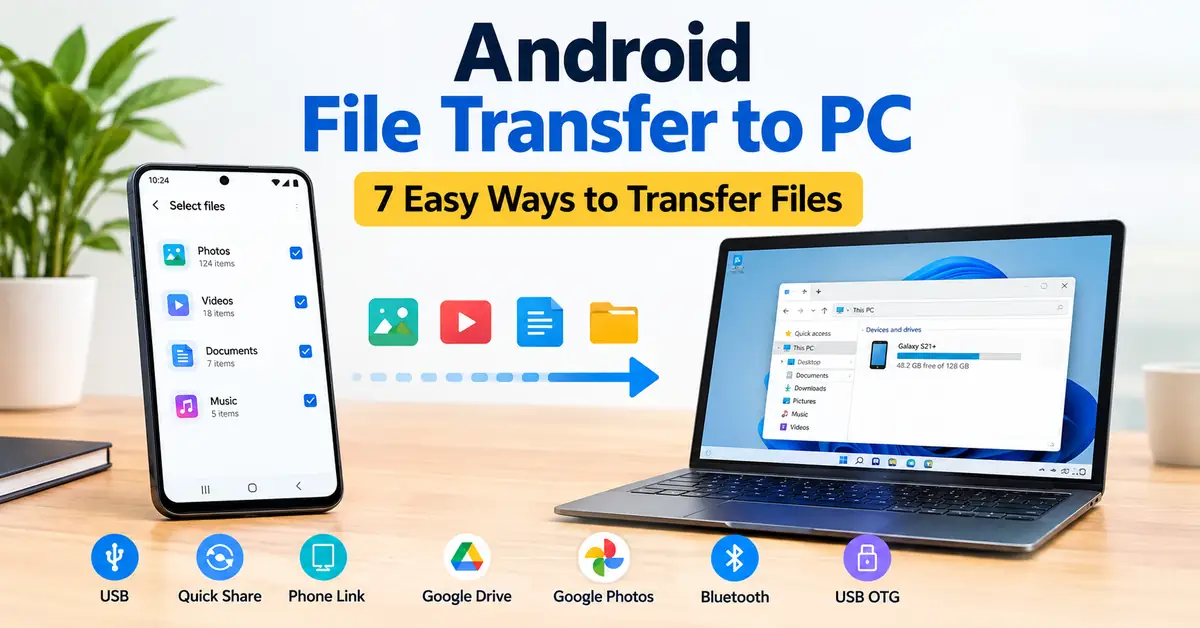
I used to think that moving files from my Android phone to PC it will takes less than a minute. But when I wanted to move my large videos and folders full of photos to my computer, I connected to my phone with a USB cable and waited for Windows to recognize it.
After connecting with a USB cable, my phone started charging, but nothing happened. Again, I reconnected the cable to my phone; still no use.
I got a USB notification on my phone. It was set to charging instead of file transfer, so I changed the setting to file transfer. Then I could see my storage on my PC.
Actually, it looks like a small problem, but it made me realize how file transfer can be more confusing. And according to me, USB is not always the most convenient option. Because sometimes there is no availability of my phone or PC at same place. Here we will dicuss about Android files transfer to PC
1. Use a USB cable for large file transfers
Make sure try to use USB cable for large file transfers, like a collection of photos, videos, or documents; it is my first method. The advantage is that the files will be available on your phone, so you can transfer them directly to the PC without uploading them to the cloud service.
So, firstly connect the Android phone to the computer, then unlock it. After connecting the USB cable to both pc and android. Then check the notification on your phone.
On your phone, you can see a notification like “Charging this device via USB.” Click on the notification and look for the USB options. Select File Transfer. After changing it, you will see your Android device in PC File Explorer.
Why USB is useful for large transfers
USB is more useful for large transfers because you don’t need to upload all the photos and large videos; you can transfer them directly. Also, you don’t need to depend on an internet connection. Some of the USB cables do not support data transfer. So if you face any problems with it, try to change the cable and try.
For large transfers, USB is the best and most straightforward, time-saving option because it lets you copy files directly, and you can organize them on your PC at the same time.
2. Use Quick Share when you only need a few files
If you want to move a few photos or screenshot or PDF files, then you can go with Quick Share. It supports wireless file sharing between Android devices and Windows PC. On your Android phone, you can select the file you want to send, tap Share, choose Quick Share, and select the computer when it appears on your computer.
The Windows PC needs the appropriate Quick Share software; you can open the application and receive files from this application
If your computer name is not available on Android while sending. make sure the basic connection requirements, like Bluetooth and Wi-Fi, may need to be on. Make sure the devices need to be close for fast transfer.
When Quick Share makes more sense than USB
Quick Share is also more useful if you regularly move screenshots and documents between the same phone and computer. The most important point is that wireless is not automatically better. Quick Share makes more sense when compared to USB.
3. Use Phone Link if your Android phone and Windows PC are part of the same workflow
Phone Link is a completely different approach. Instead of every file transfer as a separate task, it connects your Android phone and Windows PC so that they can work together more closely.
If you use the same Windows computer every day, then it can be easier and more useful for transferring individual files. Phone Link can provide access to supported phone functions from the PC.
Microsoft also supports file sharing through Phone Link. This method makes more sense when your phone and PC are used together frequently.
4. Use Google Drive when the phone and PC aren’t together
A direct connection works very well when your phone and PC are on the same desk. But if they are not available on the same desk, you can’t use a direct connection. Suppose you have a PDF, ZIP file, or document on your phone when you are away from your computer; then you don’t need to wait until you’re back home.
To overcome this, you can upload the file to Google Drive from your phone, and you can access it from the PC later.
It is a simple process to upload your files to Google Drive:
- Open Google Drive on your Android phone.
- Upload the file.
- Open Google Drive on the PC.
- Find the uploaded file.
- Download it to the location you want.
But a small disadvantage is that cloud storage will become less attractive and to when you are dealing with a large collection. It also uses internet bandwidth, and it needs to depend on your connection.
If the phone and PC are in different places, accessibility can become more difficult.
5. Use Google Photos for selected photos and videos
If your main goal is moving photos or videos, you don’t need to browse your phone storage completely. When your photos and videos are already backed up to Google Photos, you can easily access them from a computer, and you can download them instantly.
This is the best and easiest way if you are looking for an older picture.
For example, if you want a photo that you took several months ago, searching for that photo in your Google Photos library may be easier than connecting your phone and manually checking folders.
6. Bluetooth is slow, but it can still be useful
Bluetooth is not always my first choice for transferring a large collection of files. If you are trying to move several videos or photos through Bluetooth, this process can become unnecessarily slow when compared to other available options.
One of the main advantages is that it can work without a USB cable or cloud upload.
Actually, Windows supports Bluetooth file transfers between different devices. After pairing the phone and PC, you can use Bluetooth to receive files and then send the selected file from the phone.
This process will completely depend on the Android Phone and Windows setup. You can pair the devices and transfer the file easily and wirelessly.
When Bluetooth makes sense
Bluetooth makes more sense if you have one small document to transfer and you don’t have a suitable USB cable, Quick Share is not available, and you don’t want to upload the file to the cloud. But you can still do your job.
7. Use a USB flash drive as a middle step
You can use your USB flash drive as a middleman. And if your Android phone supports USB OTG, you can easily connect a USB-C flash drive directly to your phone.
The basic process is: first, you need to connect the USB drive to your phone, then copy all the files to the drive, and remove the drive from Android. Then connect it to a Windows PC and copy the required files from the drive and paste the required files into your PC, and safely disconnect from PC.
This is the best option when the phone and computer are not able to communicate properly through a normal USB connection. It also helps you to move a large amount of data without uploading everything to cloud storage.
Which Android file transfer method should you use?
| Situation | Method to consider | Why |
|---|---|---|
| Several GB of photos or videos | USB cable | Direct and practical for large transfers |
| A few photos or screenshots | Quick Share | Convenient for small nearby transfers |
| Regular phone-to-PC workflow | Phone Link | Useful when both devices are used together |
| Phone and PC are in different places | Google Drive | Files can be accessed remotely |
| Selected backed-up photos or videos | Google Photos | Easy to find and download specific media |
| Small file when other options aren’t available | Bluetooth | Doesn’t require a cable or cloud upload |
| Normal USB connection isn’t working | USB flash drive | Provides another transfer route |
What to do when Android only charges instead of showing files
If the phone is charging but you can’t see its files on the PC, just follow simple steps:
1. Unlock the phone
Keep the phone unlocked while connecting it, and check the available options.
2. Check the USB notification
USB notification will appear when you connect it to your phone. If it is set to charging, change it to file transfer.
3. Try another USB cable
Make sure the cable is working. If the cable is damaged, try another cable. Some of the cables do not support USB data transfer.
4. Try another USB port
Move the cable to another USB port on the PC and check whether Windows recognizes the phone or not.
5. Restart the phone and PC
A restart is not an exciting solution, but it can clear a temporary connection problem.
6. Test another computer
If another computer recognizes the phone immediately, that gives you useful information.
The problem will be the original PC rather than the phone itself.
Also Read: Android Screen Recording Tips: 10 Hidden Features & Settings
Also Read: How to Fix Slow Charging on Android Phone (6 Real Fixes That Work)
Conclusion:
Moving files from an Android phone to a PC is not as complicated as you think, but you should know which method fits your situation. USB will be more useful for large transfers, whereas Quick Share is easier when you want to share a few files. Google Drive and Google Photos make more sense when your files are already backed up in Drive so that you can access to another computer. Phone Link can be useful for regular Windows users. If your phone is not showing on your PC, check the USB mode and cable. Before deleting anything from your phone, open a few transferred files on the PC and make sure the copying is completed successfully and correctly.