Introduction
I upgraded my phone the night before going for a work, and it will take minutes to switch to the upgraded version. I moved my SIM card to a new phone, installed WhatsApp, and also verified my number. I thought that by morning, all my previous chats would appear.
But actually, I skipped back up. I made my WhatsApp chats backup in Google Drive. I remembered it. And all the chats, photos, and conversations have been restored in my new phone.
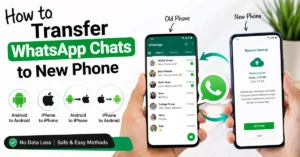
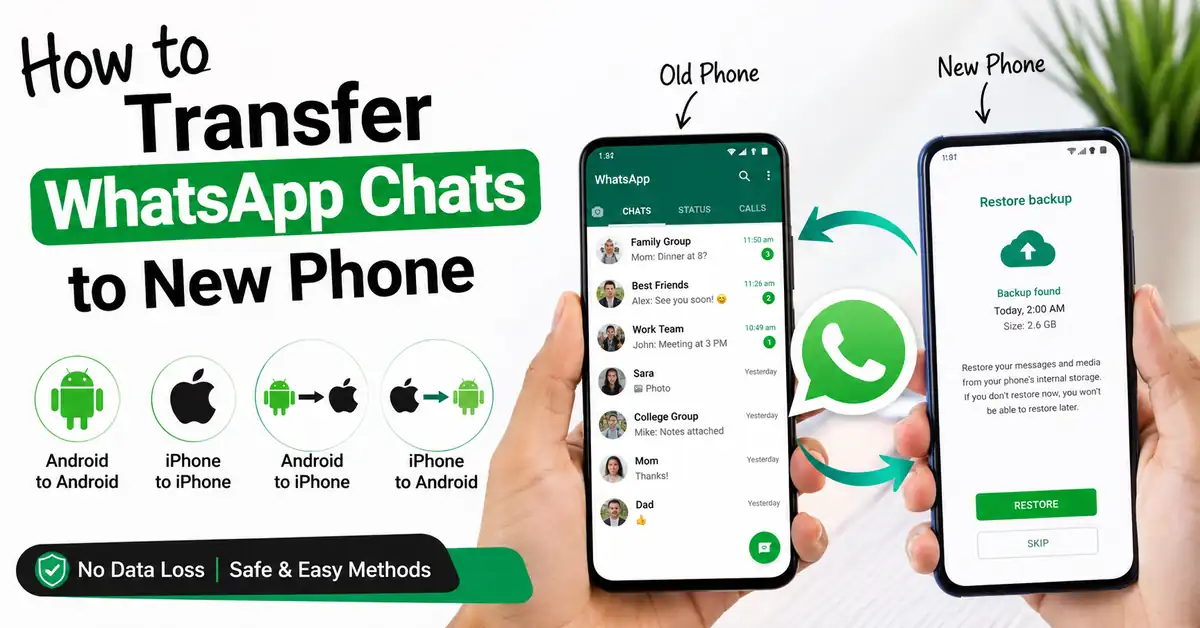
Actually, you can transfer your chats from Android to Android, iPhone to iPhone, Android to iPhone, across all the different operating systems. Transferring chats from one device to another is very easy. In this article, I will help you how to transfer WhatsApp chats to new phone without losing your data like messages, photos, and conversations.
Before You Start: Choose the Right Transfer Method
Before you start transferring your WhatsApp chats, firstly, you should identify whether you are transferring from Android to Android or Android to iPhone. You should follow specific methods.
So, if you want to switch from Android to Android or iPhone to iPhone, the transferring process will be straightforward. WhatsApp provides us with a chat transfer feature using that you can easily transfer chats. You can back up your data using Google Drive on Android or iCloud on iPhone.
If you are moving chats between Android and iPhone, the process will be somewhat different. Google Drive and iCloud use separate backup systems for the purpose of backup.
Make sure before transferring, to create a fresh backup on your old phone. So, an updated backup will help you to get the latest messages, photos, videos, etc. Here, I will explain the correct method for every combination of devices.
How to Transfer WhatsApp Chats from Android to Android
if you want move from old android phone to new android phone it is very simple process. Actually we have to methods to transfer data. You can transfer your chats directly between two phones or restore all data to google drive as backup. I have used above two methods both will work perfectly. if you follow below steps carefully.
Method 1: Use WhatsApp Chat Transfer (Recommended)
Whats app chat transfer will copy your chats photos all the data etc. You can transfer data directly from old phone to new phone using a local Wi-Fi connection. SO, here the data will move directly between the devices. you don’t need to upload or download a cloud backup.
Follow these steps:
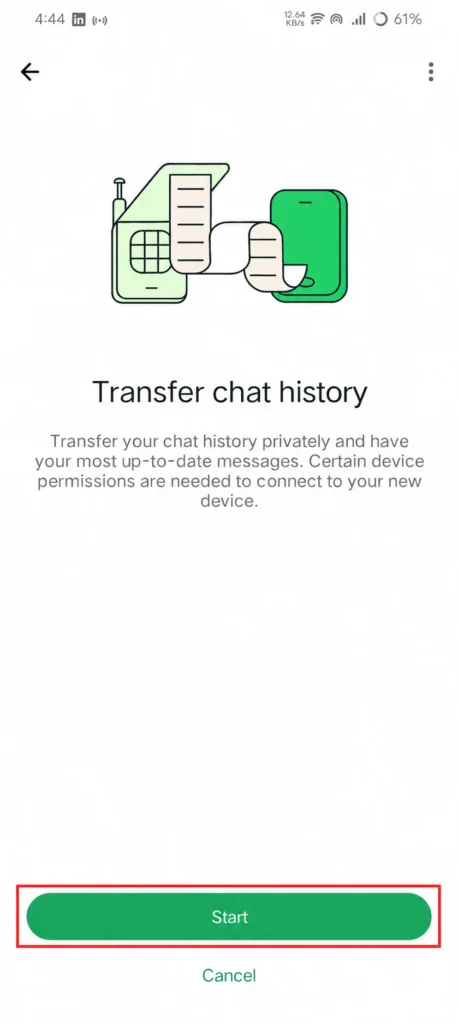
- open your old Android phone, then open WhatsApp and go to Settings select Chats click on Chat Transfer. In some of the devices this option may be like Transfer Chats.
- Make sure try to connect both phones to same Wi-Fi network try to keep them close to each other this helps in fast data transfer.
- While making WhatsApp setup on your new phone, Choose the option to transfer from a nearby device.
- Scan the QR code which will be available on your old phone using the new phone.
- Make sure keep both phones unlocked until the transfer is complete.
This is the best method which is very fast especially if you have more number of chats.
Method 2: Restore from Google Drive Backup
This is an another method to transfer chats from Android to Android. If you have already backup of chats in google drive, You can restore that backup into your new Android phone.

Steps:
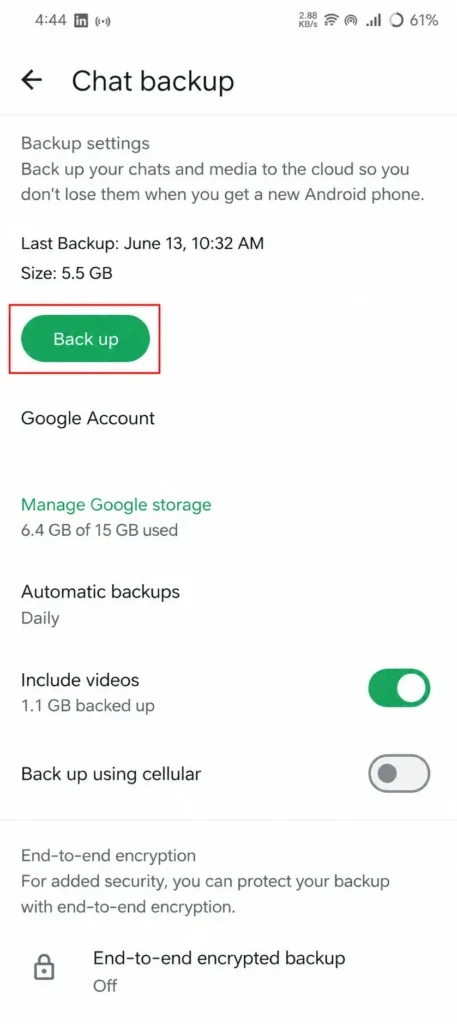
- Open your old phone, open WhatsApp then select Settings to-to Chats click on Chat Backup.
- Tap on Back Up to create a fresh backup before switching data into new phone.
- Install WhatsApp on your new Android phone and verify the same phone number.
- Make sure sign in with the same Google account which you want to use for backup.
- Tap Restore and wait for the process to Complete before using the app.
iPhone to iPhone
Transferring WhatsApp chats from one iPhone to another is very easy process and straightforward. Here you can restore you chat history from an iCloud which both devices so use same Apple ID and same phone number.
Follow these steps:
- Open your old iPhone, then open WhatsApp and go to Settings select Chats click on Chat Backup. Click on Back Up Now to create the latest backup of your chats.
- Make sure you are signed in to the same Apple ID which on your old iPhone and iCloud Drive should be enabled. Make sure that your iCloud account has enough storage to complete the backup.
- Try to set up your new iPhone with the same Apple ID. While setuping process, choose Restore from iCloud Backup if you are restoring your device from a old backup.
- After completing setup process, install WhatsApp from the App Store and login with same number which you have used previously.
- When WhatsApp detects iCloud backup, tap on Restore Chat and wait to finish the process. So, try to keep your iPhone connected to stable Wi-Fi network until your restore is complete.
iPhone to Android
You can transfer your WhatsApp data from iPhone to Android which is more tough. To move your data you need some accessories.
- A USB-C cable is required to make a connection between both the devices. One of the side is connected to Android and another side to iPhone.
- Make sure both WhatsApp versions should be updated.
Steps:
- On the old iPhone, open your WhatsApp, then go to Settings, then Chats, then Move Chats to Android sometimes it will be like Transfer Chats to Android.
- Connect the two phones using the cable where connection will appear between two devices.
- Start the process to set up your new android phone.
- There will be a QR code appears on the Android screen. Scan it using the iPhone’s camera.
- Make sure Keep both phones unlocked and nearby until you confirm whether transfer is done or not.
Android to iPhone
You can transfer or move your data from Android to iPhone follow below steps:
- Before setup install the move to iOS app on your old Android phone.
- Start the setting up process in iPhone and choose data and move data from Android.
- Here the iPhone will show code. Type that code into the Move to iOS app in your Android Phone.
- Select WhatsApp to move data, And leave the both phones a side.
- Once it get finishes, install WhatsApp on the new iPhone, and Login with same mobile number and tap on Restore.
Common WhatsApp Transfer Problems and Solutions?
| Problem | Solution |
|---|---|
| Backup not detected | Verify that you’re signed in to the correct Google or Apple account and using the same phone number. |
| Not enough cloud storage | Free up storage space or upgrade your cloud storage plan before creating a backup. |
| QR code won’t scan | Clean the camera lens, increase screen brightness, and keep both phones close together. |
| Chat transfer is slow | Connect both devices to the same stable Wi-Fi network and keep them unlocked. |
| Transfer interrupted | Restart the transfer and make sure both devices remain connected throughout the process. |
| Missing recent messages | Create a fresh backup on the old phone before starting the transfer. |
What WhatsApp Data Can You Transfer?
| WhatsApp Data | Android to Android | iPhone to iPhone | Android to iPhone | iPhone to Android |
|---|---|---|---|---|
| Messages | Yes | Yes | Yes | Yes |
| Photos | Yes | Yes | Yes | Yes |
| Videos | Yes | Yes | Yes | Yes |
| Voice Messages | Yes | Yes | Yes | Yes |
| Documents | Yes | Yes | Yes | Yes |
| Stickers | Yes | Yes | Yes | Yes |
| Starred Messages | Yes | Yes | Yes | Yes |
| Profile Photo | Yes | Yes | Yes | Yes |
| Chat Settings | Yes | Yes | Partial | Partial |
| WhatsApp Call History | No | No | No | No |
| Payment History | No | No | No | No |
Also Read: How to Stop Spam Calls on Android (2026 Guide That Works)
Also Read: How to Fix Android Battery Drain: 7 Simple Tips That Actually Work
Also Read: How to Save Mobile Data on Android-10 Tips That Work
Conclusion:
So, By concluding I can say transferring WhatsApp chats to a new phone will be very easy. Whether you are switching from Android to Android or iPhone to iPhone, Android to iPhone, or iPhone to Android, it is very easy. But, from iPhone to Android, it will be somewhat difficult.
Before you start a backup, create a fresh backup that helps you to get the latest chats and conversations.
Take enough time while setting up the process, and keep both devices connected until the process gets completed. By following the above tips, you can transfer your data. Comment below which process you have used to transfer your WhatsApp data.
FAQ’S
1 Can I transfer WhatsApp chats without Google Drive?
Yes. Android users can use WhatsApp Chat Transfer over Wi-Fi.
2. Will my photos and videos also transfer?
Yes, if you use the official transfer method or restore from a recent backup.
3. Can I use a different phone number?
It is recommended to verify the same phone number during the transfer process.
4. How long does WhatsApp transfer take?
It depends on the size of your chats and your internet or Wi-Fi speed.
5. What happens if the transfer is interrupted?
Restart the process and ensure both devices stay connected until the transfer finishes.