Google Play Store tips and tricks India (2026)

Google Play Store tips in India nobody actually tells you

You probably think you know the Play Store. Search app. Hit install. Ignore everything else till an ad pops up inside some random cricket game and you wonder how this got here.

Most 18–25 year olds in India use the Play Store like a vending machine, not like the control panel it actually is. It decides what apps you see, how safe your payments are, how much storage dies quietly in the background, and even how many times you rage at “This app isn’t available in your country.”

This site is about tech that fits real Indian use: UPI, low storage phones, random side-loaded APKs, that one OTT subscription you forgot you’re still paying for. So this isn’t “Top 10 hidden secrets of Google Play” with the same 2018 tricks.

This is the stuff that actually matters if you live in India, pay with UPI, use budget or mid-range phones, and don’t want to get scammed, throttled, or stuck with 2 stars worth of regret later.

THE THING NOBODY ACTUALLY SAYS OUT LOUD

Here’s the truth nobody says directly: most people use the Google Play Store like they’re in a hurry to make a mistake.

You search for whatever your friend mentioned on WhatsApp, tap the first result, glance at the stars, hit install, and only then start wondering whether this app is safe, bloated, or fake. The Play Store has turned into this giant bazaar where the loudest stalls (ads, boosted games, trending apps) stand right in front, and the good stuff is often one scroll lower. India is one of the biggest Android markets in the world, so every company is fighting to show up on your screen.

The second quiet truth: the Play Store is not “just an app store” anymore. It’s:

  • Your subscription manager (Netflix, Spotify, in‑app subs).
  • Your payment router (UPI, cards, Play balance).
  • Your storage bouncer (auto‑archive, app updates).
  • Your gaming hub (Game Trials, PC section, cross‑platform games).

But the UI doesn’t push you to use it that way. It pushes you to install more.

We all know at least one person who installed a “Loan app” that looked legit on Play Store and then spent weeks dealing with spam calls. Or someone who subscribed through Play Billing and forgot they were paying extra every month because the money quietly leaves via card or UPI autopay. That is the real Play Store story in India. Convenience with just enough friction removed that you can mess up your money, privacy, or storage in two taps.

There’s also the psychological bit: if something is on Google Play, people assume it’s automatically safe. But Google itself regularly blocks and removes thousands of harmful or policy‑violating apps every year — they literally write blog posts about how they’re tightening store rules because of abuse. So obviously, some garbage still slips through before it’s caught.

You’re not supposed to live in paranoia. You’re supposed to respect that this one app controls your entire Android life. The Play Store decides which apps survive, which games you see, what payment options you have, and even whether your phone has free space for the next update.

So no, “Just open Play Store and install” is not a plan.

HOW THIS ACTUALLY WORKS THE REAL MECHANICS

Let’s strip it down. Play Store is basically three things: a catalog, a gatekeeper, and a cashier. If you understand those three, every “tip” makes sense instead of feeling like random tricks.

The catalog part is obvious: millions of apps and games, ranking, categories, search results, “Top charts,” “For you.” But those lists are not neutral. Ranking depends on downloads, ratings, reviews, user behavior, and app quality signals. That’s why shady clones sometimes show up near legit apps — they piggyback on popular keywords and icons.

The gatekeeper part is more invisible. Google checks apps before and after they go live — for malware, policy violations, spam, etc. But it’s a constant cat‑and‑mouse game. When something is flagged later, apps get pulled. You, however, only see: “This app is no longer available” or worst case, nothing — just a quietly broken link. In practice, this means never trusting just the fact that something is “on Play Store” as your only safety filter.

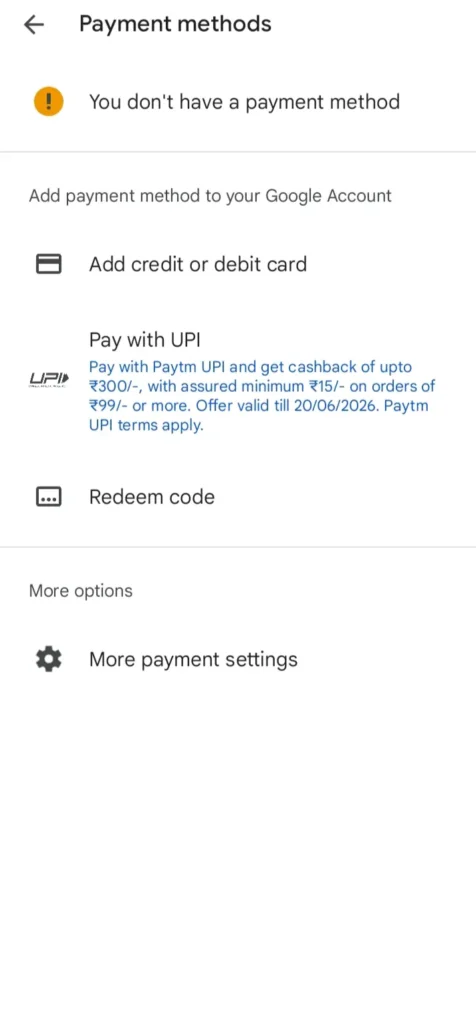
Then there’s the cashier role. In India, Google Play lets you pay with UPI, credit and debit cards (including RuPay for one-time purchases), and Play balance from gift codes or rewards. You can use this to manage subscriptions centrally instead of giving your card to ten different random apps. But you can also burn through money faster if you don’t track renewals, because renewals hit your card/UPI quietly until you stop them.

The niche angle most generic “tips and tricks” miss: Play Store also controls how apps live on your phone — auto‑updates, auto‑archive, beta programs, and even pre‑registration for games that later show up on mobile and PC. Used right, this can save you data, storage, and time. Used badly, you wake up to 20 auto‑updated apps that ate your morning data and still lag.

Some mechanics with opinions:

speed up
How to speed up your Android phone in 2026 (no fake “boosters”)
  • Auto‑archive apps
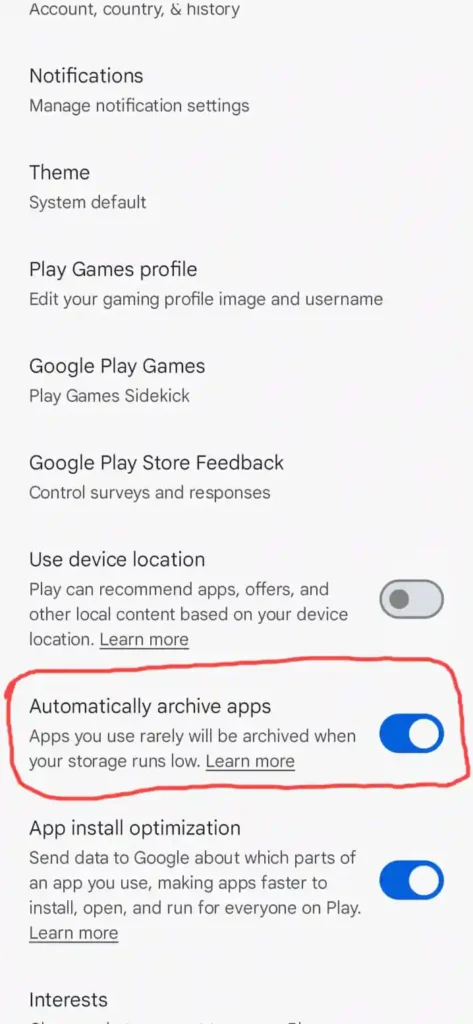
    Auto‑archive partly removes unused apps while keeping the icon and your data. It triggers when storage is low or you enable it in Play Store Settings. This is brilliant for India, where 64 GB phones still dominate. The catch: archived apps still take a bit of space and need re-downloading to fully use.
  • Game Trials and cross‑platform “buy once, play anywhere”
    New features like Game Trials let you try paid games for free before buying, and some titles support cross‑play between mobile and PC with one purchase. For students who don’t want to waste money on trash games, this is gold. Most people don’t even know it exists because they never scroll the Games section properly.
  • Subscriptions via Play Billing
    Paying via Play keeps all your app subscriptions in one place and lets you cancel from your account rather than hunting inside each app. The flip side: it’s so easy that you sign up and forget, especially with free trials.
  • Payment choices and UPI
    Google supports major cards and UPI for India, so you can avoid saving your card directly in ten shady apps and just go through Google Play’s system. That extra layer matters with UPI rules tightening security and adding extra verification.

So the real game is not “find hidden menu X.” It’s “make the store work like a sane default instead of a floodgate.”

COMPARISON WHAT’S ACTUALLY DIFFERENT BETWEEN YOUR OPTIONS

OptionWhat it actually doesWho it’s forThe catch
Auto‑archive apps in Play StorePartly removes unused apps, keeps data and icon, frees storageUsers with low storage phones and many rarely used appsArchived apps still need data/time to re‑download when opened
Pay via UPI on Play StoreLets you pay for apps and in‑app content using UPI apps in IndiaAnyone without credit card or who prefers bank accountStill easy to oversubscribe; needs secure UPI and extra auth rules
Manage subs via Play BillingCentral dashboard for app subscriptions and renewalsPeople juggling OTT, games, productivity app subscriptionsYou still have to manually cancel; Play won’t judge your decisions
Game Trials and PC gamesTry paid games free; some games work across mobile and PC with one purchaseGamers who hate wasting money and like playing on laptopLimited to supported games; not every title offers trials or cross‑play
Auto‑updates & data settingsKeeps apps up to date automatically on Wi‑Fi or mobile dataUsers who don’t want to babysit app versionsOn mobile data, it can quietly eat your daily limit if left on

If you’re overwhelmed, start with two: enable auto‑archive and set payments to UPI with strong security, then slowly fix auto‑updates and subscriptions when you feel like being an adult for 10 minutes.

WHAT ACTUALLY HAPPENS WHEN YOU TRY THIS

When you start actually tweaking Play Store instead of just using it as a download button, you realise how many default settings were quietly messing with you.

First time you enable auto‑archive in Play Store Settings → General, nothing dramatic happens. Life goes on. Then one day, you try to install a new game, and instead of yelling “Storage full,” your phone calmly archives some unused apps in the background. A few weeks later you tap some old airline app and see the little cloud icon and a quick download bar — that’s when it hits you: your phone has been cleaning up behind your back.

When you switch your main Play Store payment to UPI, it feels oddly satisfying. No card details saved in every second app, just your UPI ID popping up at checkout. The surprise here is how normal it feels — Google added UPI in India years ago, but many people still think Play Store is “card only.” Then security rules tighten and your UPI app asks for extra verification, and suddenly those impulsive in‑app purchases feel slightly more real.

The part nobody really talks about: subscriptions. The first time you go to Play Store → your profile → Payments & subscriptions → Subscriptions, you’ll probably find at least one ghost subscription you forgot. Some random app you tried for a week. An OTT service you only used during IPL. A productivity app you used for exactly three days of “new year, new me” energy. Canceling them from one place feels weirdly powerful and slightly embarrassing at the same time.

Another pattern you notice: reviews are trash and gold together. For popular apps, the top reviews are often angry essays or generic “nice app” comments. The helpful ones are usually 3–4 star reviews with specific complaints about bugs, payments, or battery drain. When you actually scroll and read 5–10 of those before installing something financial, you start avoiding pain before it hits instead of ranting on Instagram after.

One genuinely surprising moment: checking the “PC” or cross‑platform sections in the Games tab. You realise some titles actually let you buy once and play across phone and PC. If you’re on a tight student budget, that is a huge deal. But it’s hidden enough that only people who click around for fun ever see it.

So when you actually engage with Play Store settings, two things happen. One, you stop blaming “Android” for stuff that was basically your default choices. Two, you start to see it less like a mindless app store and more like a dashboard  with just enough ropes that you can either climb or hang yourself, depending on what you touch.

THE ADVICE EVERYONE GIVES VS WHAT ACTUALLY WORKS

1. “Only install apps with 4.5+ rating.”
Sounds smart. Feels safe. Reality: ratings can be gamed, and early-stage apps solving real problems may have fewer installs and a lower-looking average. Also, some apps drop from 4.5 to under 4 just because of a bad update or angry users on a single feature.

What works better: use rating as a filter, not a verdict. Anything under 3 is usually trouble, but between 3.5 and 4.5, read recent reviews. Look for comments in the last 30 days about bugs, ads, and payments. Don’t install a financial or loan app without checking reviews mentioning “scam,” “data,” or “harassment.”

2. “Always update apps automatically; latest is safest.”
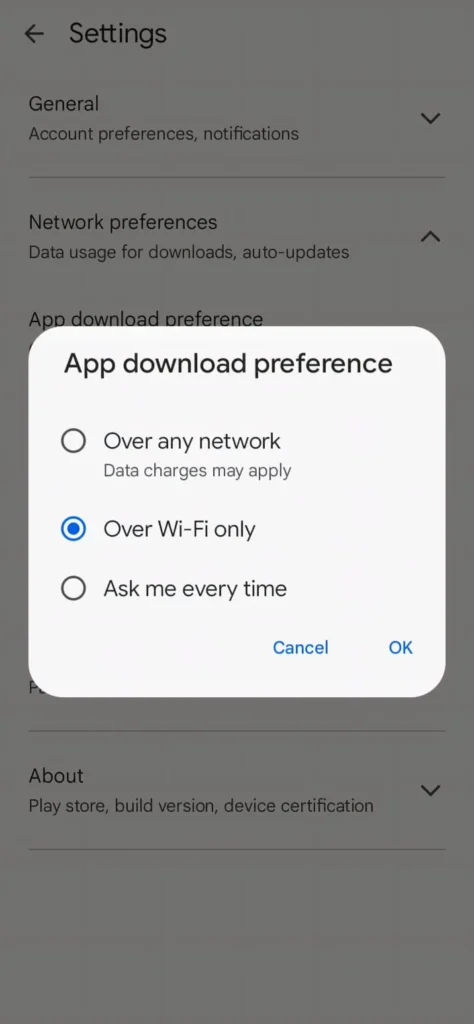
Security-wise, updates are good. But auto-updating everything, all the time, over any network can destroy your daily data and sometimes break apps right when you need them. A bad update on game or banking apps the night before an exam or trip is… memorable.

Better approach: set Play Store to auto-update on Wi‑Fi only, and leave critical apps (banking, payments, exam apps) on manual control if you’re paranoid. Skim the “What’s new” section for big apps you rely on. If reviews are full of “new update ruined everything,” wait a bit. Security matters, but so does not breaking your life mid-semester.

3. “Never pay for apps, free alternatives are enough.”
Sure, if your hobby is watching ads and getting half-baked features. Many good apps use a fair one-time payment or subscription to stay alive. “Free” often means you’re paying in data, attention, or frustration. For serious study, budgeting, or creative work, the ultra-free option is rarely the best long‑term deal.

The realistic middle ground: use Play Store Game Trials or free tiers to test, then pay for the 1–2 apps that genuinely make your life easier. Keep those subs visible in your Play account so you can cancel if you’re not using them. Paying for one solid app is usually better than juggling five free disasters.

4. “If it’s on Play Store, it’s safe.”
Google’s screening is miles better than side‑loading from random sites, but it’s not some magical shield. Bad actors get in, get flagged later, and get removed. You also have data-hungry but “legal” apps that spam notifications or push predatory loans, especially in markets like India.

What actually protects you: check publisher name, website link, and app permissions. Does a torch app need contact access? Does a wallpaper app need SMS? No. Combine that with review reading, and you avoid a good chunk of nonsense without needing to be a cybersecurity expert.

THE PRACTICAL PART WHAT TO ACTUALLY DO

1. Fix your auto‑updates before they destroy your data
Open Play Store → tap your profile photo → Settings → Network preferences → Auto‑update apps. Set it to “Over Wi‑Fi only” so updates don’t eat your mobile data. If you’re on limited Wi‑Fi too (hostel, PG), you can even set “Don’t auto-update” and manually update key apps weekly. This one change stops your phone from secretly chewing through gigs just because ten apps decided to update at 9 AM.

2. Enable auto‑archive so storage stops being a daily drama
Go to Play Store → profile → Settings → General → Automatically archive apps and turn it on. Now, when storage gets tight, Play will automatically archive apps you haven’t used in a while, freeing space without deleting your data or icon. The next time you open that app, it downloads again. Perfect for those random travel, shopping, and contest apps you only need sometimes.

3. Switch your main Play Store payment to UPI (safely)
In Play Store, tap profile → Payments & subscriptions → Payment methods → Add UPI ID. Link the same UPI handle you use on Google Pay, PhonePe, or your banking app. This lets you pay for apps and in‑app purchases directly from your bank account without over-sharing card details. Combine this with strong UPI security and extra verification rules coming in, and your impulse buys at least go through proper authentication.

4. Audit your subscriptions like a responsible adult once a month
Head to Play Store → profile → Payments & subscriptions → Subscriptions. You’ll see every app and service billing you via Google Play. Cancel the ones you haven’t used in the last 30 days. No drama, no emails, just tap Cancel. This simple ritual can save you hundreds or thousands of rupees a year if you’re the “free trial, forget forever” type.

5. Read reviews like a detective for money and data-related apps
Before installing anything that touches your money, documents, or personal data, scroll to the ratings and tap “See all reviews.” Filter or skim for 1–3 star reviews from the last month mentioning bugs, login issues, harassment, or spam. If multiple people from India mention the same payment or privacy issue, believe them. It’s cheaper than learning the hard way.

6. Explore Game Trials and PC games before buying
Go to the Games tab and look for sections like “Try now” or information about Game Trials and PC-optimized games. Here you can test some paid games before spending, and some titles support “buy once, play anywhere” across mobile and PC. If you game on both phone and laptop, this is an easy way to get more value from the same purchase.

7. Join beta programs only for apps you actually care about
On an app’s Play Store page, scroll down and see if there’s a “Join the beta” option. Joining gives you early features but also early bugs. Do this for 1–2 apps you really care about — like your favorite keyboard, launcher, or notes app — not for everything. It’s a nice way to feel like a “power user” without turning your whole phone into an experiment.

QUESTIONS PEOPLE ACTUALLY ASK

What are the best Google Play Store tips and tricks in India?

Set auto‑updates to Wi‑Fi only, enable auto‑archive, and move your Play payments to UPI for safer purchases. Learn to check subscriptions in Play instead of hunting inside apps. Read recent reviews before installing anything financial or sensitive. And if you game, use Game Trials and PC sections to get more out of each purchase.

How do I enable auto‑archive apps from Play Store?

Open Google Play Store, tap your profile picture, go to Settings → General, and enable “Automatically archive apps.” Once it’s on, Play will partially remove apps you haven’t used in a while when storage is low, keeping your data and icon intact. You can unarchive an app by tapping its faded or cloud icon, which re‑downloads the needed files. It’s one of the easiest ways to avoid “storage full” without manually uninstalling everything.

Can I pay on Google Play Store using UPI in India?

Yes, Google Play supports UPI as a payment method in India. You can add your UPI ID under Payment methods and then pay using your preferred UPI app like BHIM, Google Pay, Paytm, or PhonePe. It works for buying apps, games, and in‑app content, and many subscriptions too. Just remember that UPI is still real money leaving your bank, so treat those ₹59 and ₹99 purchases like actual expenses, not game coins.

How do I check and cancel subscriptions from Google Play?

On your Android phone, open Play Store → tap your profile → Payments & subscriptions → Subscriptions. You’ll see a list of active and expired subscriptions tied to your Google account. Tap any active one to see renewal date, price, and options to cancel or change the payment method. Canceling from here is usually easier than going through app settings, and stops future charges while letting your current paid period run until expiry.

Are all apps on Google Play Store safe in India?

Play Store is much safer than random APK sites, but not every app is automatically safe just because it’s listed. Google removes harmful apps when they’re detected, but some slip through temporarily. Your best defense is to check publisher details, permissions, and recent reviews, especially for loan, finance, and “cleaner” apps. Stick to known developers when dealing with money or sensitive data.

How do Game Trials on Google Play work?

Game Trials let you try certain paid games for a short time for free before you decide to buy. You’ll see options like “Try” or “Game trial” on supported titles in the Games tab. Some games also offer “buy once, play anywhere,” where one purchase gives you access on both mobile and PC through the new PC games section. It’s especially useful if you’re careful with spending and don’t want to regret paying for a game after 10 minutes.

Why is my storage full even after deleting some apps from Play Store?

Because apps are only one part of the story. Media, cache, and data inside apps usually take far more space than you expect. Auto‑archive helps, but you also need to manage storage from system settings, clearing app cache and large files, and deleting offline content from games or streaming apps. The idea is to let Play handle unused apps while you manually handle heavy data in the apps you actually use.

Should I join beta programs of apps on Play Store?

Only if you’re okay with bugs and you care enough about that app to tolerate them. Beta programs give you early access to features and design changes, and your feedback can help developers fix issues. But beta builds can also crash more, break specific features, or misbehave on certain phones. Use beta for 1–2 important apps you enjoy experimenting with, not for your banking or exam apps.

SO WHERE DOES THIS LEAVE YOU

You’re not going to turn into some Play Store monk doing weekly setting audits and reading every single permission screen. You’re going to install things half-awake at 1 AM because a friend said “Bro, try this app.” That’s fine.

What you can do is stack the odds in your favor. Fix network and update defaults once, so Play Store stops silently burning data in the background. Turn on auto‑archive so your phone doesn’t freak out every time you install something slightly large. Shift payments to UPI or a controlled card so you at least know where money is going and can manage subs from a single screen.

If you do just one concrete thing after reading this, open Play Store today, go to Payments & subscriptions, and cancel one subscription you don’t really need. Small move, but it gives you more control than any “secret Play Store trick” ever will. This stuff won’t be perfect apps will still misbehave, bad updates will still happen but at least you’ll know how to push back instead of just mashing “Install” and hoping for the best.

You made it through an article about Play Store settings. That alone says a lot about either your curiosity or how bored your lecture is right now. Respect either way.

The messy reality is this: the Play Store is not just where your apps live; it’s where your money, time, storage, and sometimes your data quietly leak away if you don’t pay attention. Google keeps adding new features  UPI, auto‑archive, Game Trials, PC games but doesn’t exactly hold your hand through them. So you either dig a little, like you just did, or you stay on default mode and deal with the consequences later.

You don’t need to become a “settings nerd.” You just need a few choices that work in your favor, on autopilot. And next time someone says “Just install it from Play Store, it’s safe,” you’ll know that’s only half the story — and you’re finally handling the other half.

Santhosh is the creator and editor of TechMyApp, with over 5 years of experience testing 500+ Android apps and games. Launched the platform in January 2026 and shares simple, practical guides on apps, mobile performance, and AI features to help users better understand and optimize their smartphone experience.

Leave a Comment