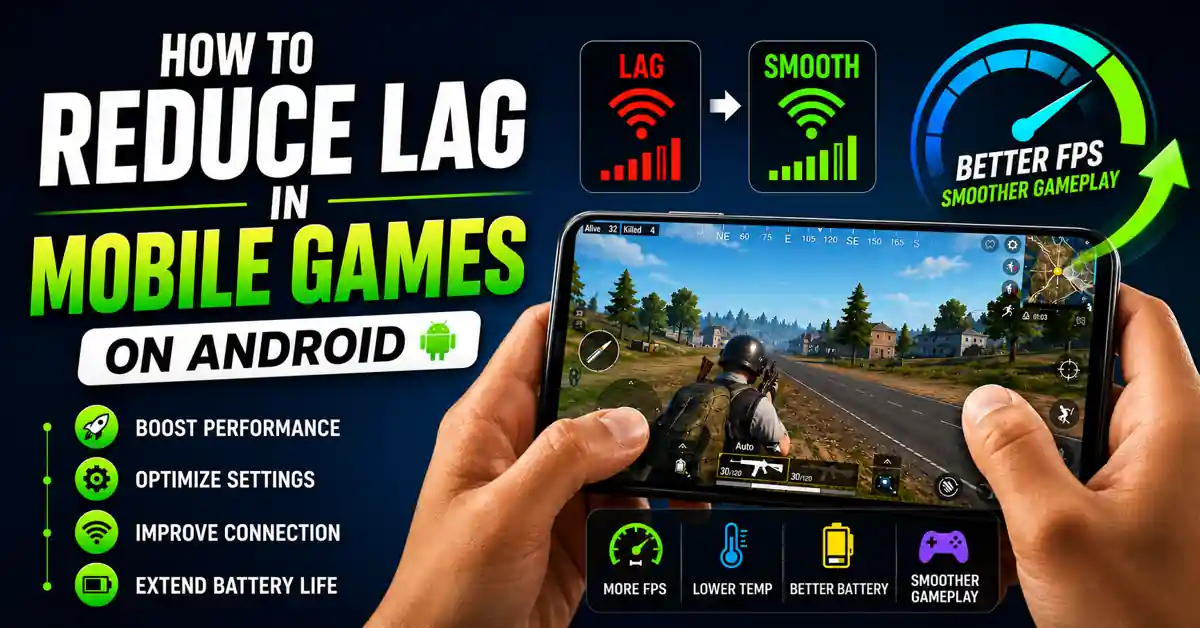
You know that moment: you’re about to clutch, one enemy left, your fingers are doing everything right… and your screen turns into a stop-motion film.
Your squad blames you, you blame “lag only for me bro,” and secretly you’re wondering if your phone hates you personally.
This site exists for people exactly in that mess — Indian 18–25 year olds who use tech hard and don’t have unlimited money or patience.
You’re not reading this for “clean your cache” one-liners. You want your Android games to stop stuttering every second fight.
Here’s the annoying part: lag is not one problem.
It’s three — your network, your device, and your own chaos — teaming up against you.
Most articles pretend the fix is some miracle app or one magic setting hidden in Developer Options.
It’s not.
But the good news is: you can make your games feel a lot smoother with changes that are boring, simple, and very doable on a regular Indian Android phone.
THE THING NOBODY ACTUALLY SAYS OUT LOUD
Let’s be honest: half the “lag” people complain about in mobile games is not the phone’s fault.
It’s 14 open apps, bad Wi‑Fi, 3% battery, and your cousin streaming reels on the same network.
You’ve seen the usual advice: “close background apps, use gaming mode, clear cache.”
Cool, but nobody tells you this: Android is not your obedient servant.
It’s juggling social apps, notifications, system services, and your game at the same time — on a device that cost less than what some people spend on just a GPU.
Here’s the part people don’t say out loud because it sounds rude: your usage habits are often a bigger FPS killer than your hardware.
Think about a normal Indian day.
You wake up, doomscroll Instagram, check WhatsApp groups, open Chrome, maybe stream something, then later launch BGMI or COD Mobile without restarting anything.
Your RAM is already tired before the game even loads. Google itself warns that phones start misbehaving when storage drops under roughly 10% free space, and yes, that directly affects speed and lag.
Most polished blogs dance around it because “you might be the problem” doesn’t sound nice in an SEO heading.
But you know it’s true.
You’ve felt how much smoother the same game feels right after a restart.
Then there’s the network lie.
We’re told to chase “high speed” internet, but online gaming cares more about ping — the delay between your phone and the game server.
You can have 100 Mbps and still rubberband everywhere if the connection is unstable or full of jitter.
People in networking forums point out you can literally game at “world-class levels” with 5 Mbps if the connection is responsive and clean.
And for Indian players, there’s another layer: sharing.
You’re in a hostel where 10 people are on the same Wi‑Fi, or at home where someone is streaming OTT in 4K while others are on video calls.
The server doesn’t care that it’s “your last match.” It just sees a congested network.
Most articles also skip how emotional this gets.
Lag makes you feel like you’re bad at the game when actually your inputs are landing late, your frames are dropping, and your shots register half a second after you fire.
You tilt, you play worse, and suddenly it’s not just a technical problem, it’s a mental one.
So let’s say it plainly:
If you want to reduce lag in mobile games on Android, you have to treat it like a system problem — not a “download this app and everything is fixed” problem.
Phone, network, and habits. All three.
Once you accept that, the fixes stop feeling mysterious and start feeling like… regular adult decisions. Unfortunately.
HOW THIS ACTUALLY WORKS THE REAL MECHANICS
Lag in mobile games is basically the delay between what you do and what you see.
On Android, that delay comes from two main sources: your device struggling and your network struggling.
Device-side lag is things like frame drops, stuttering, overheating, and your game “hanging” while the sound continues.
This happens when:
- Your CPU and GPU are overloaded by graphics settings and background apps.
- Your RAM is full, so Android keeps killing and reloading stuff.
- Your storage is nearly full, slowing down read/write operations.
- Your phone gets hot and throttles performance to protect itself.
Network-side lag is different.
That’s the rubberbanding, delayed shots, or your character teleporting.
It’s caused by high latency, unstable ping, packet loss, and congestion — often from too many devices on the same Wi‑Fi or poor mobile coverage.
Now here’s the niche angle most generic articles skip:
On budget and mid-range Android phones (which is what most Indian 18–25 gamers actually use), the sweet spot is not “maxing everything.”
It’s finding a balance where your device never hits thermal throttling and your network has the least chaos during your usual playtime.
Some real-world mechanics that matter:
- Android absolutely hates low free storage.
When you drop below roughly 10–15% free, performance can dip hard.
Big games like BGMI, COD Mobile, Genshin pack in multiple GBs of data and keep caching more with updates. Keeping space free is not “optional hygiene,” it’s performance. - Too many background processes directly steal resources from your game.
Tech sites and gaming guides keep repeating it because it’s true: multiple open apps = less RAM and CPU headroom = more lag.
You don’t need to go mad with third-party killers, but you do need to stop leaving everything open forever. - Graphics settings matter more than you want to admit.
Pushing high resolution, anti-aliasing, shadows, and effects on a mid phone is like loading five passengers plus luggage into an auto and expecting race car handling.
Guides consistently recommend lowering graphics and frame caps to reduce lag and keep gameplay smooth. - Network quality beats raw speed.
ISP and router brands love shouting about Mbps. Gaming cares about ping and stability.
Wi‑Fi congestion from many devices or sitting far from the router kills that stability faster than a slightly “slower” but cleaner connection.
Here’s a short list of core levers, with opinions attached:
- Storage management.
If your phone has 64 GB and you’re at 61 GB used, that cute anime game you played once is not “memories,” it’s lag.
Freeing space will do more than any “RAM booster” app ever advertised. - Background app discipline.
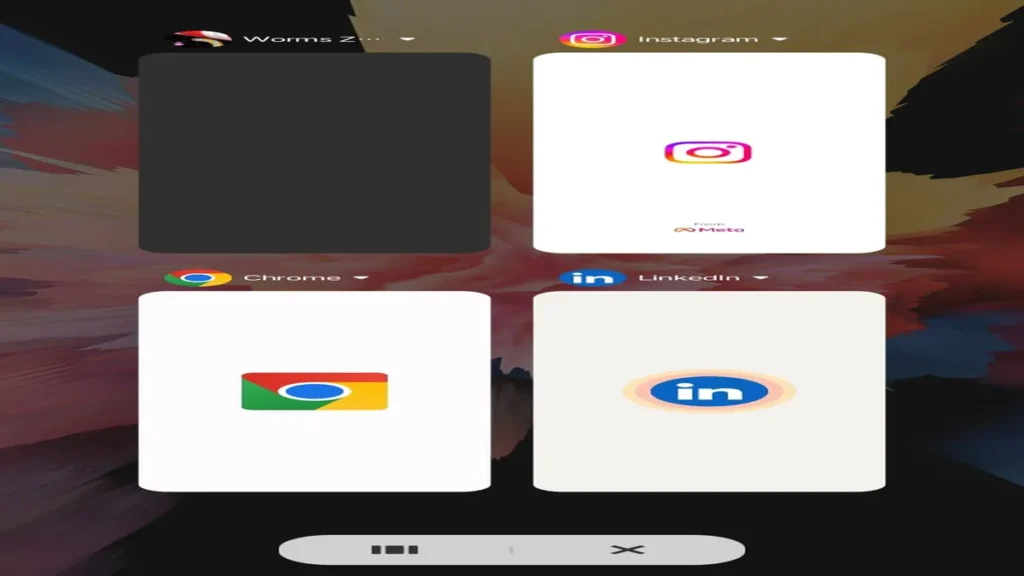
Instead of trusting random cleaners, manually close social apps, browsers, and downloads before gaming.
Yes, it’s boring. Yes, it works. Tools like Developer Options’ “background process limit” can help, but they can also make daily use annoying if abused. - Graphics sanity.
Target stable 40–60 FPS on low/medium settings rather than unstable high FPS on max settings.
This is where serious mobile gaming guides and even brands converge: consistent FPS feels better than chasing numbers. - Wi‑Fi and router positioning.
A badly placed router behind a cupboard will ruin games more than your “cheap” plan ever will.
Central, high, open placement is boring advice. It also works. - Thermal control.
Your phone is not an iron box.
Gaming while charging, high brightness, and thick cases trap heat, which leads to throttling.
That’s where lag suddenly appears mid-match for “no reason.”
Once you understand these mechanics, lag stops being this mystical curse and becomes a list of specific things you can attack one by one.
COMPARISON WHAT’S ACTUALLY DIFFERENT BETWEEN YOUR OPTIONS
| Option | What it actually does | Who it’s for | The catch |
| Change in-game & system settings | Lowers load on CPU/GPU, frees RAM, reduces frame drops | Everyone, especially budget/mid phones | Needs some trial and error, not a one-tap fix |
| Optimise network (Wi‑Fi/data) | Reduces ping, rubberbanding, packet loss | Players of online multiplayer games | Depends on your ISP and physical environment |
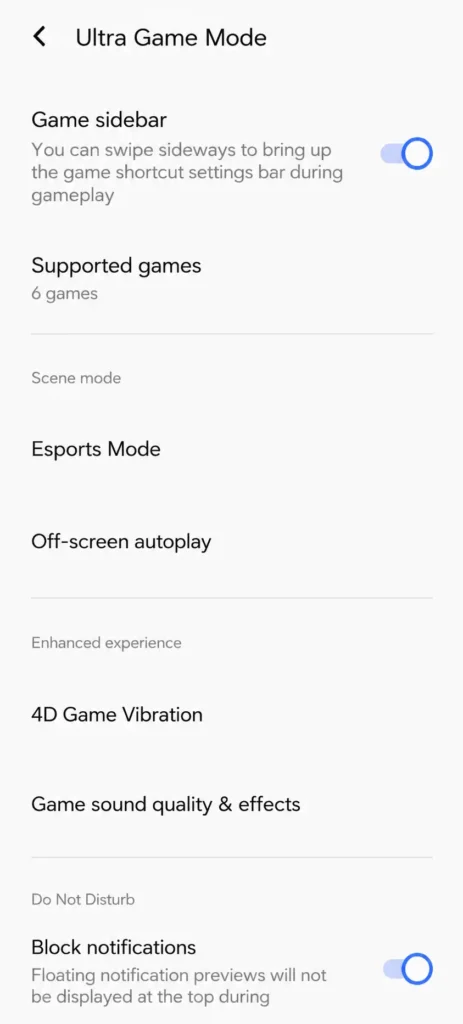
| Use “gaming mode” / performance mode | Prioritises game process, blocks notifications, boosts CPU | Phones with built‑in game modes | Can heat device faster, drains battery quicker |
| Third-party cleaners/boosters apps | Remove junk, close apps temporarily | People who won’t manage things manually | Many are shady, show ads, or do almost nothing |
My take: spend your energy on settings + network optimisation first, gaming modes as a bonus, and treat third‑party “boosters” as last resort if you know exactly what they’re doing.
If you only change one thing this week, fix your graphics and network spot that duo usually kills 70% of your lag.
WHAT ACTUALLY HAPPENS WHEN YOU TRY THIS
When you actually sit down and decide, “Okay, today I fix this lag nonsense,” it doesn’t feel glamorous.
It feels like cleaning your room.
You start by restarting your phone — already an improvement, because Android support literally lists that as step one for slow devices.
Then you open Settings, check storage, and realise you’ve been hoarding 8 GB of memes, 4 GB of “sent” WhatsApp media, and offline songs from some app you stopped using six months ago.
You delete ruthlessly, restart again, and your phone already feels lighter, even outside games.
The first time you open your favourite game after this “clean-up,” you notice something small: menus load faster.
No half-second pause when you switch tabs.
Then you go into settings, drop graphics from “HD” to “Smooth/Balanced,” turn off extra shadows and motion blur, and cap FPS to what your device can realistically hold. Guides from tech and gaming sites say the same thing: lower settings = smoother play on budget phones.
The surprising part is how quickly the game feels different.
Not prettier, but more responsive.
You swipe to aim and the reticle actually keeps up. Your screen doesn’t freeze for a microsecond right when you peek a corner.
Next, you deal with the network.
You test ping on your Wi‑Fi in the room where you usually play, then you take your phone closer to the router or window and test again.
Sometimes you see a 20–40 ms drop, sometimes the line gets more stable — fewer random spikes. Network experts and even ISP guides talk about how router placement and congestion cause noticeable lag and jitter.
You play a few matches in the “new” spot.
Rubberbanding is less. Shots register closer to when you fire. Voice chat doesn’t cut off every third sentence.
It doesn’t feel like some magical transformation, more like “oh, so this is how the game was supposed to feel.”
What nobody warns you about here is how quickly you adjust.
After a few days of smoother, more stable gameplay, the old laggy setup feels unbearable.
You realise half your rage was about inconsistency — some games felt smooth, some felt cursed — and now that baseline is higher.
The pattern that most articles miss is this: once you get the basics right, small things start to matter more.
You notice how playing while charging slightly increases lag halfway through a long session because the phone heats up and throttles.
You notice that 10 PM on your hostel Wi‑Fi is objectively worse than 7 PM, simply because the network is more loaded.
So you start staggering updates, closing apps before gaming, and picking your playtime like someone booking a gym slot.
Not because you became a nerd overnight, but because you can feel how each change affects your game now.
No, you won’t always have perfect ping or zero frame drops.
But your “worst case” becomes way better than before and that’s what makes gaming fun again instead of a constant exercise in blaming your device for everything.
THE ADVICE EVERYONE GIVES VS WHAT ACTUALLY WORKS
Advice 1: “Just clear cache and you’re done.”
Clearing cache does help sometimes, especially for big games that pile up junk data.
But if your phone is low on storage, full of background apps, and overheating, clearing cache is like throwing one bucket of water at a burning building.
What actually works: cache clearing as part of a bigger routine — freeing storage, uninstalling unused apps, and restarting the phone. Do it weekly, not once in a blue moon when things are already broken.

Advice 2: “Install a game booster / cleaner app.”
Most third-party boosters close apps, clear memory, and sometimes flip system flags you could have changed yourself.
Some are fine. Many are ad-heavy, drain battery, and do almost nothing you couldn’t do manually — or even cause more lag by running themselves in the background.
What actually works: know what you’re doing. If your phone has a built-in game mode or performance mode from the brand, use that first — brands tune those for their devices. Only consider extra apps if you understand their permissions and see real results, not placebo.
Advice 3: “You need faster internet, upgrade your plan.”
Faster plans can help if you have many users at home, but speed alone doesn’t guarantee lower lag.
Network guides and ISPs themselves say that issues like router placement, Wi‑Fi congestion, and latency matter more for gaming than pure Mbps.
What actually works: first, optimise what you already pay for — better router position, 5 GHz if available, fewer devices on the same network during gaming.
Only then decide if you need a better plan or even a different provider.
Advice 4: “Turn on every fancy graphic option for competitive edge.”
High graphics look great in screenshots, terrible in long sessions on a budget phone.
They strain the CPU and GPU, heat up your device, and eventually lead to throttling and stutters.
What actually works: treat graphics like clothes in Delhi summer — lighter is smarter.
Smooth or balanced settings, reduced effects, and a frame cap your phone can hold for 30–60 minutes will give you a more stable, predictable gaming experience.
THE PRACTICAL PART WHAT TO ACTUALLY DO
- Do a full “lag health check” once.
Restart your phone, check storage, and aim for at least 10–15% free space.
Uninstall apps you don’t use, especially big games you’ve abandoned and video-heavy social apps with massive caches.
Then open your main game and play 2–3 matches without changing anything else — just to feel the baseline after cleanup. - Dial in your in-game settings for your actual phone.
Go to graphics settings and drop resolution and effects one notch below what you’re currently using.
Turn off extra shadows, motion blur, and sometimes ultra-high textures that your screen size doesn’t even fully show.
Play for at least 30–40 minutes and see if your frames feel more consistent and if your phone stays cooler. - Create a “pre-game” routine that takes 30 seconds.
Before you start gaming, manually close social apps, browsers, video streaming apps, and downloads.
Turn on your phone’s gaming or performance mode if it has one, and enable Do Not Disturb so notifications don’t interrupt or use resources.
This small ritual keeps your CPU and RAM focused on the game instead of twenty background tasks. - Fix your network spot, not just your network.
If you’re on Wi‑Fi, move closer to the router, preferably with fewer walls in between — or move the router itself to a central, higher, open position.
If you’re on mobile data, test in different parts of your room/house and mark the spot with the most stable ping (not just the strongest bar count).
Whenever possible, game during times when fewer people at home are streaming or downloading. - Control heat like it’s your job.
Avoid long sessions while charging from a wall socket — that’s when the phone cooks the most.
Use a thinner case or remove it for intense sessions, and keep brightness at a sane level rather than blinding-max all the time.
If the phone gets too hot, take a 5-minute break; long-term performance and battery health will thank you. - Update smartly, then leave things alone.
Keep your Android version and game updated; devs ship performance and lag fixes through patches.
But don’t install every random beta or shady APK “FPS unlocker” you see.
Update on Wi‑Fi when you’re not gaming, restart once after big updates, and then test performance before changing more things. - Know when the problem is your hardware, not you.
If, after all this, your games lag even on lowest settings, your phone overheats in minutes, and basic tasks feel slow, it may be a hardware limit.
Reports on the Indian gaming market show how quickly games are growing heavier as the industry booms toward billions of dollars in value.
At some point, a 2–3 GB RAM device from years ago just can’t keep up.
That’s when planning an upgrade — not another tweak — is the honest move.
QUESTIONS PEOPLE ACTUALLY ASK
how to reduce lag in mobile games android without buying new phone
Start with the basics: restart your phone, clear storage to have at least 10–15% free, and close background apps before gaming.
Then lower in-game graphics and effects so your CPU/GPU can breathe.
Fix your network spot — closer to the router or better mobile signal and avoid gaming while charging to reduce heat and throttling.
These changes usually make a bigger difference than any “booster” app.
why does my game lag even with good internet
“Good internet” on paper can still mean bad latency in practice.
You might have high speed but unstable ping because of Wi‑Fi congestion, router placement, or too many devices sharing the connection.
Try moving closer to the router, using 5 GHz if available, or playing at times when fewer people are streaming.
Also check that background apps on your phone aren’t using data while you play.
how to fix ping issues in bgmi on android
Ping issues are usually about your route to the game servers, not just raw speed.
On Wi‑Fi, position yourself nearer the router and switch to 5 GHz for lower interference if your router supports it.
On mobile data, play where your signal is strongest and 4G/5G is stable, often near windows or open areas.
Avoid downloads, streaming, and large updates on the same network while you’re in ranked matches.
does clearing cache really reduce lag in android games
It can help, especially for large games that store a lot of temporary data that becomes outdated.
Clearing cache frees storage and sometimes removes corrupted or old files that slow loading.
But it’s not a miracle fix; it works best as part of an overall cleanup where you uninstall unused apps and keep enough free space.
Think of it as maintenance, not a magic button.
is gaming mode on android actually useful or just hype
On many phones, gaming mode isn’t just marketing — it can prioritise game processes, block notifications, and sometimes boost performance modes.
It helps reduce interruptions and keep more resources focused on your game, especially on mid-range hardware.
But it can also increase heat and battery drain if you play for long sessions.
Use it, but combine it with sensible settings and breaks instead of expecting it to fix everything.
how to reduce lag in mobile games using wifi instead of data
First, place your router in a more open, central, higher location to reduce walls and interference.
Use 5 GHz Wi‑Fi if your phone and router support it, as it often gives more stable gaming performance at short range.
Limit the number of devices active on the same network while you’re playing — especially video streaming.
A quick router restart before long sessions can also help clear temporary issues.
can background apps cause lag in online games
Yes, absolutely.
Background apps use RAM, CPU cycles, and sometimes data, which all compete with your game.
Tech sites and even mainstream guides recommend closing unnecessary apps before gaming to free resources and reduce game lag.
Messaging apps, browsers, downloads, and social media all quietly sit there and eat performance if you never close them.
why does my phone overheat when i play games and then lag
Games push the CPU and GPU hard, and if you’re charging, on high brightness, or using a thick case, heat builds up fast.
When it gets too hot, the phone throttles performance to avoid damage, which shows up as lag and frame drops.
Lowering graphics, taking short breaks, avoiding wall charging while gaming, and improving airflow around the phone all help reduce this.
If even lightweight games overheat your phone quickly, your hardware or battery may be aging
SO WHERE DOES THIS LEAVE YOU
You’re not crazy, your games are lagging.
But the fix isn’t a single hidden toggle, it’s a small stack of boring tweaks that add up.
The Indian gaming market is exploding billions of dollars, majority young players but that doesn’t change the fact that most of those players are on regular Android phones, in shared homes, on not-perfect networks.
So yes, you’re trying to have “competitive” matches in conditions that were never designed for esports-level stability.
The honest version is: you can’t control everything.
Servers, ISP routing, random outages that chaos stays.
What you can control is your side of the equation: how clean your phone is, how heavy your graphics are, where you sit, what your network is doing, and whether your device is cooking itself.
So here’s one concrete thing you can do today: pick your main game, drop graphics one level, close all background apps, move closer to your router or window, and play three matches like that.
Don’t touch anything else. Just feel the difference.
It won’t turn lag into zero, and some days will still be scuffed.
But if you stack a few of these fixes, you’ll go from “why is this game unplayable” to “ok, today the problem is definitely me, not the phone.”
Oddly enough, that’s when gaming starts being fun again.
You stuck around till the end instead of rage-quitting this article like a bad ranked match, which already says something.
Now you know the unsexy truth: reducing lag on Android is less about secret tricks and more about small, consistent habits the kind nobody flexes but everyone who plays seriously quietly uses.
Remember this one line the next time someone tells you to just “get better internet” or “buy a new phone”: stable beats shiny every single time, whether it’s your ping, your FPS, or your setup.
You don’t need perfection to enjoy your games. You just need your phone and your network to stop fighting you every match.
So go do one boring fix today restart, clean storage, move the router, drop graphics and see how your next lobby feels.
If nothing else, at least you’ll know you tried something smarter than installing the 37th “phone booster” from the Play Store.