Introduction
Screen recording is an important feature for all Android mobiles. It is mostly useful if you are creating tutorials or recording gameplay, capturing any bugs to show the support team, and saving important moments from your screen. With the help of a screen recorder, you can record your screen very easily.
Most of the Android phones include a built-in screen record if you want more advanced features like facecam recording, high quality video, or some with some editing tools while recording the screen. You need to choose the best screen recorder that exactly fits you.
I have tested some popular Android best screen recorder apps. In that some of them have worked very well while others had some audio lag, So let’s get into the topic.
Check Your Phone’s Built-In Screen Recorder First
Before downloading a third-party screen recorder. You need to check whether your phone has a built-in screen recorder App. But most of the phones consist of built-in screen recorder apps.
Most of the users will record the screen using another mobile, which will be very frustrating. Here is the excellent solution. Now you don’t need to record with another mobile. I have listed the best screen recording apps for Android users. Which makes you out of this problem now. You can record your screen by yourself.
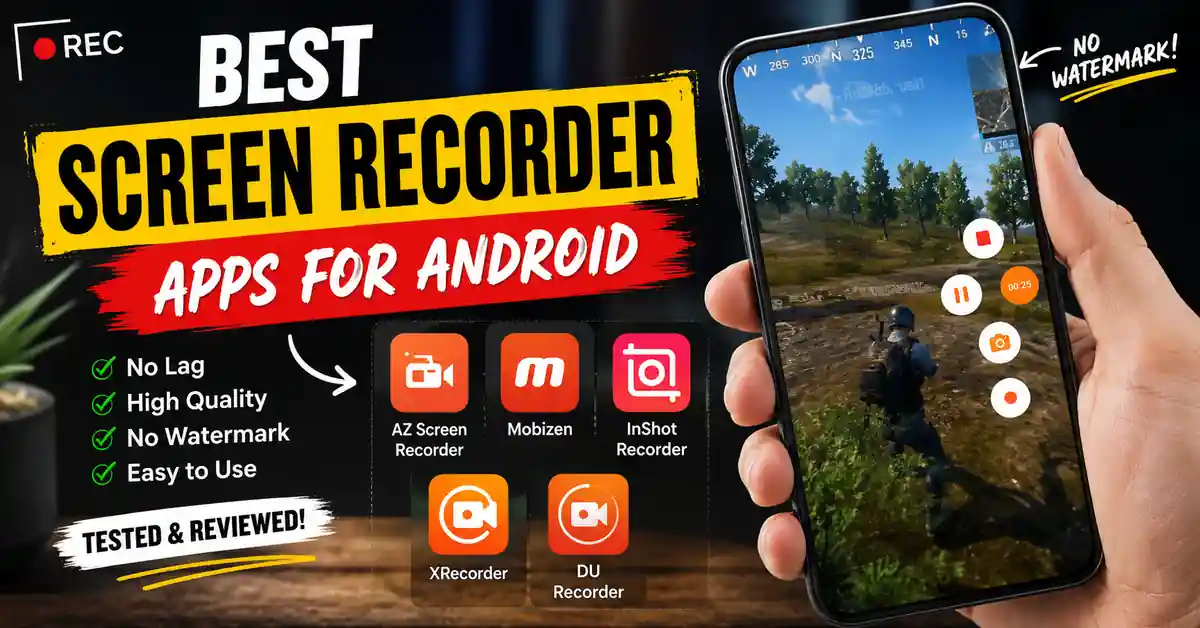
Quick Comparison:
| App | Best For | Watermark | Free Version |
|---|---|---|---|
| AZ Screen Recorder | Tutorials | No | Yes |
| Mobizen | Quick Editing | Optional | Yes |
| InShot Screen Recorder | Content Creators | Yes | Yes |
| XRecorder | Gaming | No | Yes |
| DU Recorder | Older Devices | Varies | Yes |
The Best Screen Recorder Apps Which I have Used
1. AZ Screen Recorder
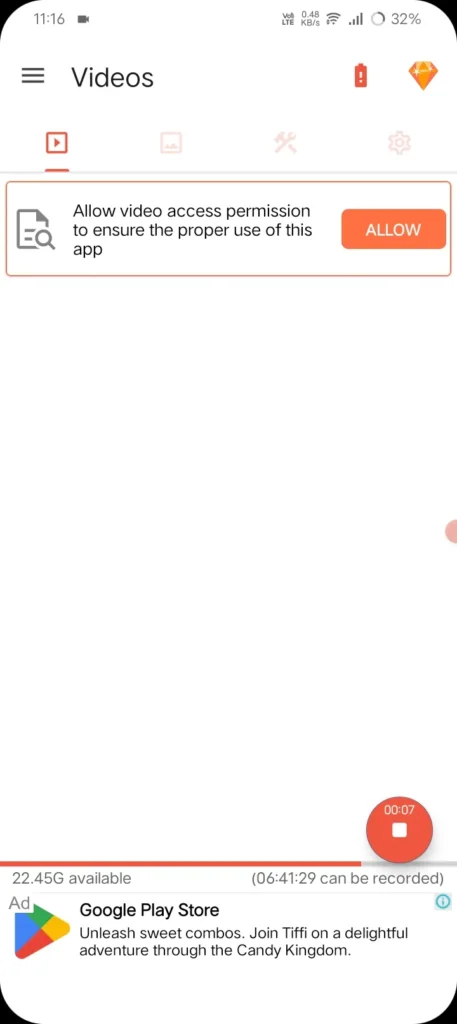
AZ Screen Recorder is the first app that I have tried. It is mainly because it has download Indians of downloads with more positive reviews on the Play Store. I used this app it has recorded video very smoothly with decent quality. After recording, while extracting the video, it will not add any watermark. It has a feature that consists of floating control buttons, which make it easy to start, stop, and pause the recordings.
Whatever the task may be, AZ screen recorder will provide the best experience. The user interface will be very simple, and beginners can get easily understand.
The main disadvantage is that while recording longer sessions, the audio gradually fell out.
So, AZ Screen Recorder remains one of the most helpful screen recording apps I have used, which helped me to record tutorials.
Pros:
- There will be no watermark in the free version
- Easy to use with floating controls
- It provides Good video quality
- It has Beginner-friendly user interface,
Cons:
- Audio sync issues can occur during very long recordings
- Some advanced features require the premium version
2. Mobizen Screen Recorder

Mobizen Screen Recorder is an solid app. Most users will prefer for their screen recording. It has a built-in editing feature, which is the main reason to attract the users. It helps in you trim the clips and you can cut the unwanted sections, you can also add the text overlays. This is the best application for beginners who make content creation.
If your main goal is to record gameplay, app tutorials, etc. It will provide you a best experience. For this app, the free version includes ad interruptions while using it. Using the free version can waste your time by watching ads. I reached this app when I wanted to record and make a few edits.
Pros:
- It has Built-in video editing tools
- Easy for beginners to use.
- Good quality of recording.
- Quick record-and-share workflow
Cons:
- Not ideal for users who dislike ad-supported apps
- Ads in the free version can be some what frustrating
3. Screen Recorder by InShot
InShot is one of the most popular mobile video editing apps. But it also has a feature to record the screen, and after screen recording, you can edit the video right there itself. The recording quality will be very high-quality and impressive. After recording videos looked sharp and clear. While recording, the app has a dark theme. I tested these very deeply after recording a tutorials the output quality was very professional.
But the main disadvantage is that when you go with the free version, there will be a watermark after output. If you are content creators, then you should go with premium so there will be no watermark on your video.
Screen recording by using Inshot is a great choice for users who want their recordings high-quality with easy access of edititng tools.
Pros:
- It is excellent recording quality
- Works simultaneously with InShot’s video editor
- It consists of User-friendly interface
- Great for content creators
Cons:
- Watermark in the free version
- Premium subscription required for some advanced features
- Less appealing for professional use unless upgraded to premium
4. XRecorder
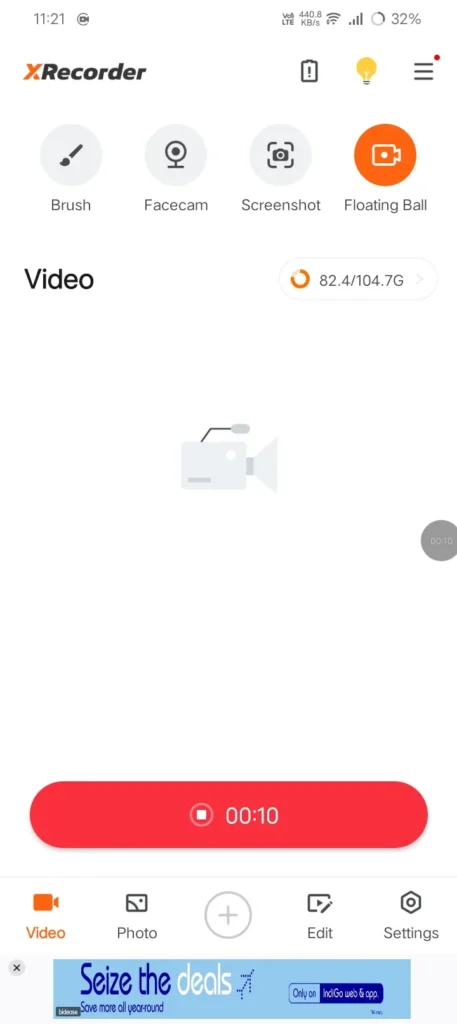
XRecorder is one of the best applications for recording mobile games. After testing several screen recording apps. This is one of my favourite apps because it provides the best video quality and performance.
The best feature that I liked is adjusting recording settings before recording. I used this app for recording Call of Duty Mobile. It worked perfectly, so there were no issues while recording. The recordings are very smooth and clear when compared to other apps that I have tried. If you want to make content creation by uploading your game play videos, then you can go with XRecorder.
XRecorder will ask you for some permissions during setup. It may ask like camera, a microphone, storage, etc. All these permissions are necessary for FaceCam recording and audio capture, etc.
XRecorder is the screen recorder that is mostly recommended for mobile gamers.
Pros:
- It is excellent for recording mobile games
- High-quality video output
- Smooth performance during gameplay
- Supports facecam and audio recording
Cons:
- Requests several permissions during setup
- Some advanced features require premium access
- Settings may feel overwhelming for complete beginners
5. DU Recorder
DU Recorder is still a recommended application in 2026. Because it works perfectly without any major issues. Even I have tested DU Recorder on older Android devices, and this application worked very well. The recording quality was very decent. And the user interface was easy to navigate. But DU Recorder will work perfectly with older versions. But when it comes to new versions, it is not compatible.
Pros:
- It is very simple and easy-to-use
- Good recording quality on supported devices
- Includes useful recording features
Cons:
- Stability issues on some newer Android devices
- Random crashes may interrupt while making recordings
Step-by-Step: Setting Up Your First Screen Recording
Here is the step by step process setup for your screen recording. It is more useful if you are beginner.
Step 1: Open your phone go-to Quick Settings (swipe down twice from the top to get settings).
Step 2: Look for “Screen Recorder” or a similar icon. If it’s not showing, tap the edit icon to customize your quick settings and add it.
Step 3: Before starting record, if you want sound. There will be an option “media sounds,” “microphone,” or both. For tutorials you should turn on mic.
Step 4: Tap on record, wait for the countdown, and do your thing.
Step 5: When you are done with recording, swipe down again and tap stop. Your video saves automatically to your folder, and it will name folder as “Screen Recordings” in your gallery.
Also Read: Best Offline Music Apps for Android – Listen Anywhere
Also Read: Best Free VPN Apps for Android in India 2026 – Tested
Also Read: Best Lifetime Deal Apps for Android (Pay Once, Keep Forever)
Conclusion
After trying all these screen recorder apps, I realized there is not a single “best” option for everyone. Choosing the best application will completely depend on your work. If you want to record only some moments and report app issues, then you can go with built-in screen recorder. For tutorials, gaming videos, or content creation, you must use apps like AZ Screen Recorder, XRecorder, Mobizen, and InShot. Because they provide extra features that can make you recording much easier. I can say you to try a couple of options and see what works best for you, and stick with that one application. Comment below which application has worked for you in the above-mentioned list.
FAQ’s
1. Does Android have a built-in screen recorder?
Yes. Most Android phones released in recent years include a built-in screen recorder accessible through Quick Settings.
2. Which screen recorder is best for gaming?
XRecorder is one of the best choices because it provides resolution controls for smoother gameplay recordings.
3.Can I record internal audio on Android?
Many modern Android devices allow internal audio recording, although some apps may restrict it.
4. Do screen recording apps slow down phones?
Long recordings at high quality can increase battery usage and consume more system resources, especially during gaming.