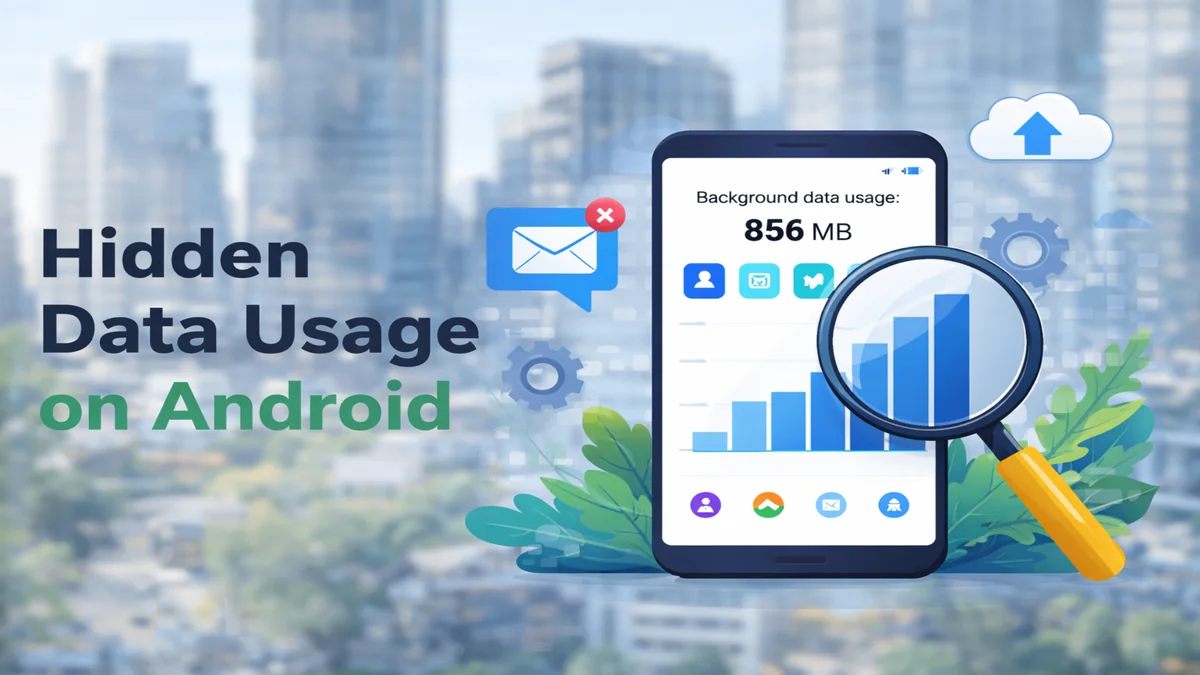
I first started paying attention to hidden data usage on Android when I noticed something odd: and my phone would consume 300-400MB of mobile data on days when I barely used it. No video streaming. No large downloads. Just normal messaging and light browsing. When I checked the data usage breakdown, most of it was marked as background. That forced me to dig deeper into how Android actually handles background network activity.
This article explains what is really happening at the system level when apps consume data in the background, why it happens, how Android tries to control it, and where things can still go wrong.
What Hidden Data Usage on Android Actually Means
Hidden data usage on Android refers to network traffic generated by applications when they are not actively being used on screen. Android tracks this separately under:
You will see two categories:
- Foreground data.
- Background data.
Foreground data is straightforward it is consumed while you are actively interacting with the app. Background data is any network activity triggered while the app is running in the background, scheduled by the system, or responding to server communication.
This is not a bug. It is part of how modern mobile software is designed.
Why Modern Apps Depend on Background Data
Most apps today are cloud connected by design. They are not standalone programs storing everything locally. Instead, they constantly sync with remote servers to keep content current.
Examples:
- Email apps syncing new messages.
- Messaging apps maintaining notification channels.
- Cloud storage apps uploading changes.
- Social media apps refreshing feeds.
If these apps waited until you opened them to connect, the experience would feel slow and outdated. Background communication solves that but it consumes data.
System Level Mechanisms That Allow Background Network Activity
Android does not allow apps to run freely without limits. Over the years, the operating system introduced structured background controls.
1. JobScheduler and WorkManager
Apps do not usually open random connections whenever they want. They schedule tasks using system APIs such as JobScheduler introduced in Android 5.0 and later WorkManager.
These frameworks allow apps to define conditions:
- Require network connection.
- Require unmetered network (Wi-Fi).
- Require device charging.
- Run only when idle.
Android then batches multiple apps network tasks together. This reduces battery drain and radio wake cycles.
However, batching does not eliminate usage. If 20 apps each request periodic sync, the total data transferred across a month can be significant.
2. Doze Mode (Android 6.0 and Later)
Android 6.0 introduced Doze Mode. When the phone is stationary and the screen is off, background activity is restricted.
Network access is deferred to maintenance windows. During those windows:
- Pending sync jobs execute.
- Deferred uploads resume.
- Analytics logs are transmitted.
This is one reason mobile data sometimes increases overnight. The device appears inactive, but queued background operations are being processed.
If the phone moves for example, while in your pocket during travel, Doze may not activate fully. That means background traffic continues more freely.
3. App Standby Buckets (Android 9+)
Android 9 introduced App Standby Buckets. Apps are categorized based on how often you use them:
- Active.
- Working set.
- Frequent.
- Rare.
- Restricted.
Apps placed in lower priority buckets have limited background execution windows and reduced network access frequency.
In practical testing on a device with over 30 installed apps, rarely opened shopping apps showed significantly lower background activity after being moved to the “Rare” bucket.
4. Foreground Service Restrictions (Android 12+)
Recent Android versions tightened rules around foreground services. Apps can no longer start persistent background services freely without showing user-visible notifications. This reduces hidden long-running network operations.
However, push messaging and scheduled jobs are still permitted within system guidelines.
How Apps Consume Data in the Background in Real Terms
Let’s break down actual behaviors that generate traffic.
Push Notification Token Maintenance
When an app registers for notifications, it receives a device token. Periodically, the app verifies or refreshes this token. These exchanges are small but constant.
If you have 40 apps with notification permissions enabled, each one contributes minor network activity. Over weeks, this adds up.
Polling vs Push Architecture
Push-based systems are efficient because the device maintains a shared connection for multiple apps. Polling-based systems are less efficient because they check servers repeatedly.
Poorly optimized apps may poll servers every few minutes instead of waiting for push triggers. That increases Android background data usage significantly.
Media Preloading and Prefetching
Many social and content apps preload data to reduce perceived loading time.
For example:
- Loading thumbnails before you scroll.
- Buffering the next short video.
- Downloading suggested article images.
In one observation over five days using mobile data only, a short-video app consumed over 250MB in background preloading despite limited active usage.
Automatic Updates
If app updates are allowed over mobile data, updates may install silently.
Modern applications frequently exceed 100MB. Even security patches and incremental updates contribute to usage spikes.
This is one of the most common overlooked causes.
Cloud Backup and Media Sync
Photo and video backup is often the largest background contributor.
A 12MP image typically ranges between 3MB and 7MB. A one minute 1080p video can exceed 120MB.
If mobile data backup is enabled, these files upload immediately after capture. Many users forget to restrict backup to Wi-Fi only.
Why Background Data Also Affects Battery
Every network transmission activates the cellular radio. Cellular radios operate in different power states. Frequent small data bursts prevent the radio from returning to low-power idle state.
In simple terms: many tiny transmissions are less efficient than fewer large batched transmissions.
Reducing hidden data usage on Android often improves standby battery life as well.
Identifying Abnormal Background Data Usage
Normal background usage is expected. Investigation is necessary when:
- Background data greatly exceeds foreground usage.
- An unfamiliar app shows high network activity.
- Data continues draining even with minimal installed apps.
Steps to investigate:
- Review per-app statistics.
- Temporarily restrict background access.
- Monitor for 24-48 hours.
- Uninstall unused apps permanently.
In several cases I reviewed, removing just two rarely used apps reduced monthly mobile data consumption by nearly 30%.
Practical Configuration Strategy
Instead of disabling everything, apply structured control:
- Enable Data Saver for mobile networks.
- Whitelist only essential communication apps.
- Restrict shopping, travel, and rarely used apps.
- Set app updates to Wi-Fi only.
- Disable automatic media downloads inside messaging apps.
- Restrict cloud backups to unmetered networks.
This balanced approach maintains notifications while reducing unnecessary Android background data usage.
When Background Data Is Necessary
Completely blocking background access can delay:
- Message notifications.
- Email synchronization.
- Account verification.
- Security patch validation.
The goal is not elimination. It is control.
Also Read: How AI Recommendation Systems Work in Mobile Apps: Algorithms, Explained
Also Read: How Background Apps Affect Your Phone’s Performance (Speed, Battery)
Conclusion:
Hidden data usage on Android is a result of scheduled jobs, notification infrastructure, media prefetching, automatic updates, and cloud synchronization.
Apps consume data in the background because Android permits controlled execution windows to maintain usability and responsiveness.
In my own testing across multiple Android versions, excessive background usage was rarely caused by the operating system itself. It was almost always linked to app behavior and configuration choices.
Understanding how these mechanisms work makes it easier to reduce unnecessary consumption without breaking essential functionality.
Background data is part of modern mobile computing. The difference between normal usage and waste depends on how apps are configured and how carefully permissions are managed.