Introduction
So, Most of the people think that a slow phone means bad hardware. But that’s not always true. Many times, your phone becomes slow because of wrong app settings.
I noticed this on my own Android phone. Apps started taking longer to open. Scrolling felt very slower. Battery drained faster than usual. At first, I thought my phone was getting old. I will provide the best app settings to speed up phone.
Then I checked battery usage and app activity. I found some apps running for hours even when I didn’t open them. That’s when I realized the real problem was not hardware, it was in settings. Some apps were constantly syncing. Others were sending notifications every few minutes. A few were even accessing location in the background without any real need.
After changing a few important app settings, the difference was clear. The phone became faster, smoother, and more responsive.
These small changes can improve your device performance instantly. You don’t need to install any extra apps. You just need to control what your apps are doing.
Why App Settings Matter
Apps don’t just run when you open them. They work in the background too. They sync data, send notifications, track location, and use system resources.
This causes:
- Due to high RAM usage.
- Fast Battery drain.
- Slow performance.
For example, I once saw a shopping app using battery for hours without opening it even once that day. That background activity adds up over time.
Another thing I noticed was multiple apps refreshing data at the same time. This creates unnecessary load, especially on mid-range devices.
When too many apps run together, your phone struggles to manage memory. That’s when you notice lag, app reloads, and slow response.
By optimizing app settings, you reduce unnecessary load. This helps your phone run smoothly and stay fast even after long usage.
10 App Settings You Should Change Immediately
Disable Background Activity
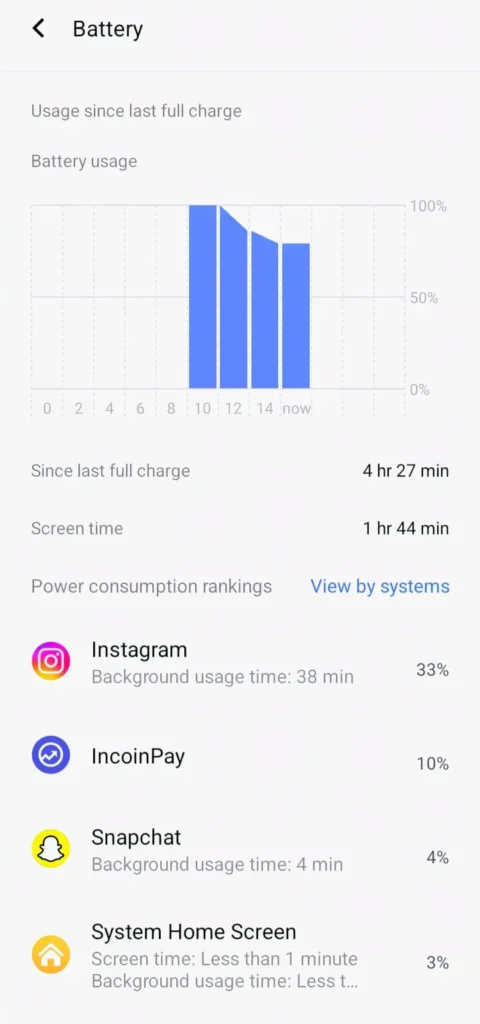
Many apps run even when you are not using them. Social media apps, shopping apps, and games keep working in the background.
I noticed apps like browsers and social media staying active for long periods in battery stats. They were silently using RAM and CPU.
Some apps check for updates frequently. Others keep syncing data like messages, ads, and content.
This uses RAM and slows down your phone.
Go to Settings then select Apps there will be an option Battery and restrict background usage for non-important apps.
Keep important apps active, but limit the rest.
Turn Off Auto-Start Apps
Some apps start automatically when your phone turns on. This increases startup time and uses memory.
When I restarted my phone before disabling this, it took time to become smooth. Even after unlocking, there was slightly some what lag.
After disabling auto start, the phone became usable much faster.
Disable auto-start for apps you don’t need all the time.
Reduce Notifications
Too many notifications slow down your system. Every notification uses CPU and background activity. Apps like shopping, news, and games send frequent alerts that are not always useful. I noticed my phone waking up multiple times just because of notifications. Turn off notifications for apps that are not important.
This reduces background activity and improves performance.
Clear App Cache
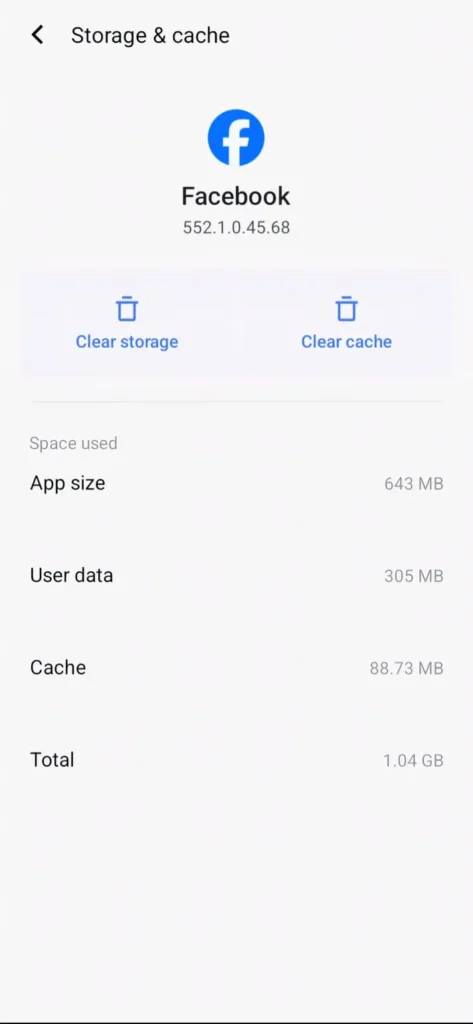
Cache helps apps load faster, but too much cache can slow them down. Over time, cache becomes heavy and outdated. This can cause apps to behave slowly. After clearing cache for browser and social apps, loading speed improved. Clear cache regularly for heavy apps. Do not clear app data unless necessary.
Disable Animations
Animations look smooth but use system resources. They can make your phone feel slower. After reducing animation scale, I noticed apps opening faster and transitions becoming quicker. This is especially useful on mid-range and older devices.
Disable in app animations or reduce animation scale in developer options.
Limit Location Access
Many apps track your location even when not needed. This uses battery and processing power. But Some apps request location permission without real need. I found a few apps accessing location even when closed. Set location access to Only while using the app.
This reduces background usage significantly.
Turn Off Auto Sync
Auto sync keeps updating accounts in the background. This uses internet and system resources. If you have multiple accounts, they sync data continuously. This creates unnecessary load on your device. Turn off sync for accounts you don’t use regularly.
Restrict Background Data
Apps use internet in the background. This affects performance and data usage. I noticed some apps consuming data even when not in use. Disable background data for non essential apps. This improves speed and saves mobile data.
Manage App Updates
Updating apps is important, but auto updating everything can slow your phone. When many apps update together, it can cause lag and heating. Instead, update apps manually once a week. Focus on apps you use daily.
Remove Bloatware Apps
Pre-installed apps use system resources even if you don’t use them. Some cannot be removed but can be disabled. I disabled unused apps and noticed more free RAM. Disable or uninstall unnecessary apps to improve performance.
Main Benefits of Changing App Settings
Changing these settings gives real benefits:
- These settings makes faster app opening when compared to previous.
- These makes Better multitasking at single time.
- Due to these settings you will observe less lag.
- Improved battery life heavily.
These improvements are noticeable even on mid-range devices.
Your phone feels lighter and more responsive.
Real Experience and Results
After applying these changes on my device, performance improved a lot.
Apps opened faster. Scrolling became very smoother. Battery lasted longer. Heating issues also reduced.
Even after long usage, the phone stayed stable.
The phone felt like new again without installing any extra apps. These is my real experience which is happening with my mobile.
Hidden Settings Most People Ignore
Some the settings are ignored but those will make a big difference:
- Adaptive Battery: Limits rarely used apps automatically.
- Data Saver Mode: Reduces background data usage.
- Animation Scale: Speeds up transitions.
These small changes improve overall performance of your device.
When These Settings Won’t Help
Sometimes settings alone are not enough.
If your phone is still slow, it could be because:
- Storage is almost full.
- Device is very old which cannot handle latest versions.
- Too many heavy apps installed,
In these cases, clearing storage or upgrading device may be needed.
Common Mistakes to Avoid
Many users make mistakes while optimizing apps:
- Clearing app data instead of cache.
- Disabling important system apps.
- Using too many cleaning apps.
These mistakes can cause more problems than benefits.
Always make changes carefully.
Conclusion
A slow phone does not always mean weak hardware. Most of the time, it is caused by poor app settings. By changing these 10 settings, you can boost your phone speed instantly. These are simple steps but very effective. Small changes in settings can create a big difference in performance. Even i follow these above settings for my android apps which made more changes. Now it is working perfect!. Optimizing your apps regularly keeps your device fast and smooth. These settings may look small, but together they create a big improvement in daily performance.
You can also check official Android guidelines from Google to manage app activity and improve performance.
Also Read: Game Settings That Improve Your Gameplay Instantly (Best Setup Guide 2026)
Also Read: Common App Problems Users Face Daily (And Fix Tips That Actually Work)
FAQs
1.What is the fastest way to speed up apps?
Disabling background activity and auto start apps gives the fastest improvement in speed.
2. Is clearing cache safe?
Yes, clearing cache is safe and mostly it also helps in improving app performance.
3. Should I disable all background apps?
No, only disable non-essential apps which you don’t use mostly. Keep important apps active.
4. Do app updates improve performance?
Yes, updates fix bugs and improve speed, but avoid too many auto updates so that you will be safe.
5. Why is my phone slow even with good specs?
Because of poor app settings, background activity, and unnecessary processes running in the system.