
Introduction
Six months after buying my mid range Android phone it started feeling like a three year old device. Slow, hot, and draining battery by afternoon. I assumed it was just what happens to budget phones over time.
Then I spent one evening going through exactly how I was using it. What I found was not a hardware problem at all. It was twelve small daily habits silently destroying my phone’s performance. Fixing them cost nothing and took one weekend. My phone has felt fast ever since.
Why Your Phone Gets Slower Over Time
A new phone feels fast because everything is clean and fresh. No extra data. No background processes. No accumulated junk slowing the system down.
Over time your usage habits change all of that. Apps accumulate data. Background processes multiply. The phone spends more time managing old junk than running what you actually need.
The hardware never changed. Only what you asked it to manage changed. Fix the habits and the speed comes back.
Bad App Habits That Slow Everything Down
1. Never Actually Closing Background Apps
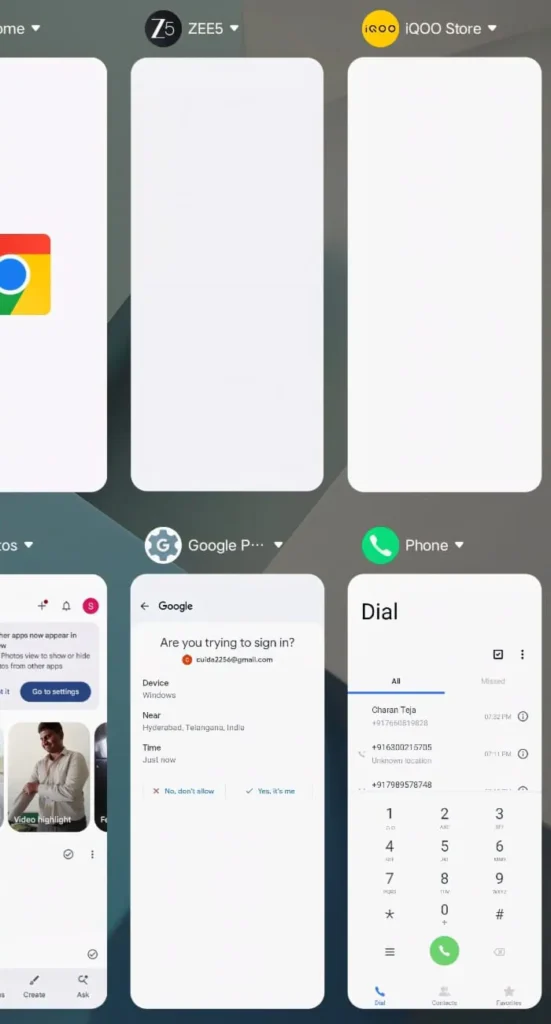
Most people think swiping apps away closes them completely. It does not. Many apps keep running silently in the background consuming RAM and processing power constantly.
Social media apps are the worst offenders. Facebook, Instagram, and TikTok refresh their feeds continuously in the background. They use your RAM, your processor, and your battery even when you are not looking at them.
Your phone has limited RAM. The more apps running in the background the less memory available for the app you are actually using right now. Everything slows down because resources are being divided among too many invisible processes simultaneously.
Go to your Developer Options and check how many background processes are running right now. Most people are shocked by what they find. Apps they have not opened in days are still actively running in the background consuming resources they never agreed to give.
Force stop apps you are not actively using throughout the day. Pay special attention to social media apps, streaming apps, and navigation apps. These three categories are the heaviest background resource consumers on any Android phone.
I force stopped all social media apps one evening after noticing my phone heating up constantly. My phone temperature dropped within twenty minutes. RAM usage dropped by almost 40 percent. The difference in daily performance was immediately noticeable from the very next morning.
2. Keeping Too Many Apps Installed
Most people install apps freely and never delete anything. Your phone slowly fills up with apps you opened once and forgot completely. Each installed app takes up more than just storage space.
Every installed app adds to your phone’s index. Your system constantly monitors all installed apps for updates, notifications, and background processes. More installed apps means more for your system to track and manage constantly.
Many apps add background services during installation that run even when the app is closed. These services check for updates, sync data, and send analytics back to the developer. You never see this happening but your phone feels every bit of it.
Go through your app list right now. Any app you have not opened in thirty days needs to go. Be honest with yourself about apps you downloaded for one specific purpose and never used again.
I deleted forty seven apps during one cleanup session. My phone storage freed up significantly. But more importantly my boot time dropped by almost thirty seconds and everyday navigation felt noticeably snappier immediately. Storage was not even the main benefit. Fewer background services was.
If you are struggling to decide which apps to keep and which to remove, read our guide on how to manage multiple apps efficiently on Android without losing the ones that actually matter to you.
3. Ignoring App Cache Buildup
Every app saves temporary files to load faster next time. Images, data, responses, and previews all get stored in a cache folder on your phone. This starts helpful and becomes a problem over time.
Cache files are supposed to be temporary. But apps rarely clean them automatically. They just keep accumulating silently. A social media app used daily can build a cache of over one gigabyte within just a few weeks of normal use.
When your storage fills up your phone slows down dramatically. Your operating system needs free space to create temporary files for basic operations. When that space disappears the entire system starts struggling with every single task.
Go to Settings then Apps and check the cache size of your most used apps individually. You will find numbers that genuinely surprise you. Clear cache on your heaviest apps every two to three weeks as a regular habit.
I found my music streaming app had accumulated 1.4 gigabytes of cache over three months. Clearing it freed that space instantly. My phone went from constantly showing storage warnings to having comfortable breathing room again within seconds.
4. Allowing Every App to Refresh in the Background
Background app refresh means apps update their content even when you are not using them. Your news app fetches new articles. Your email app downloads new messages. Your social apps refresh their feeds constantly.
Each refresh uses processor power, RAM, and mobile data simultaneously. Multiply this across fifteen apps all refreshing at different intervals and your phone is constantly doing invisible work you never asked for.
Most of this background refreshing provides zero real benefit. When you actually open the app it refreshes again anyway. All that background work was completely wasted processor time and battery drain.
Go to Settings then Apps and review background activity permissions for every app individually. Turn off background refresh for every app that does not genuinely need it. Email, messaging, and calendar apps may need it. Games, shopping apps, and lifestyle apps absolutely do not.

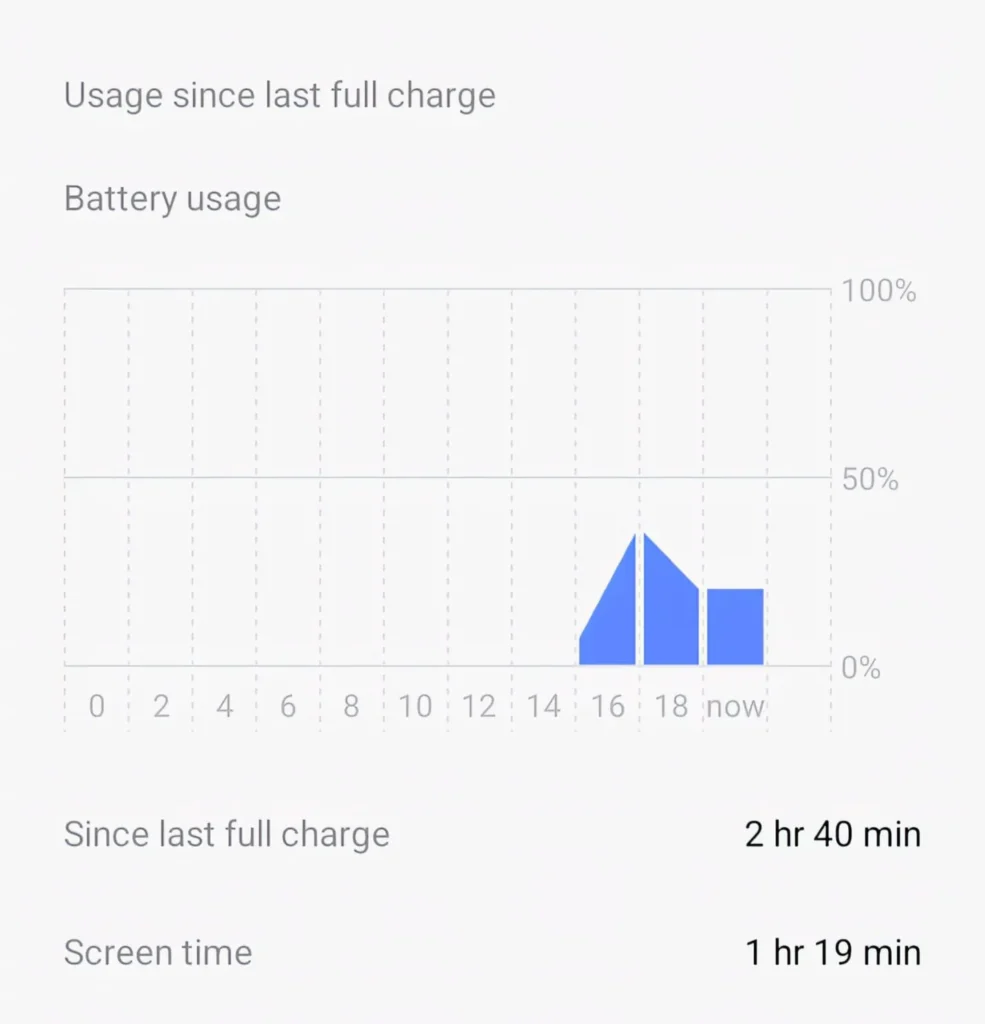
The difference after turning off unnecessary background refresh is significant and immediate. Your battery lasts longer. Your phone stays cooler. Your RAM stays freer for apps you are actually using right now.
5. Never Restarting Your Phone
Most people never restart their phones voluntarily. They only restart when something breaks or an update forces them to. This habit creates massive performance problems over days and weeks of continuous use.
Your phone’s RAM accumulates fragments of closed apps over time. Memory leaks from buggy apps slowly consume available RAM without releasing it properly. Background services multiply. Temporary files pile up in memory.
A restart clears all of this completely in one action. RAM gets fully cleared. Background services restart fresh. Temporary memory files disappear. The phone starts managing resources cleanly again from the beginning.
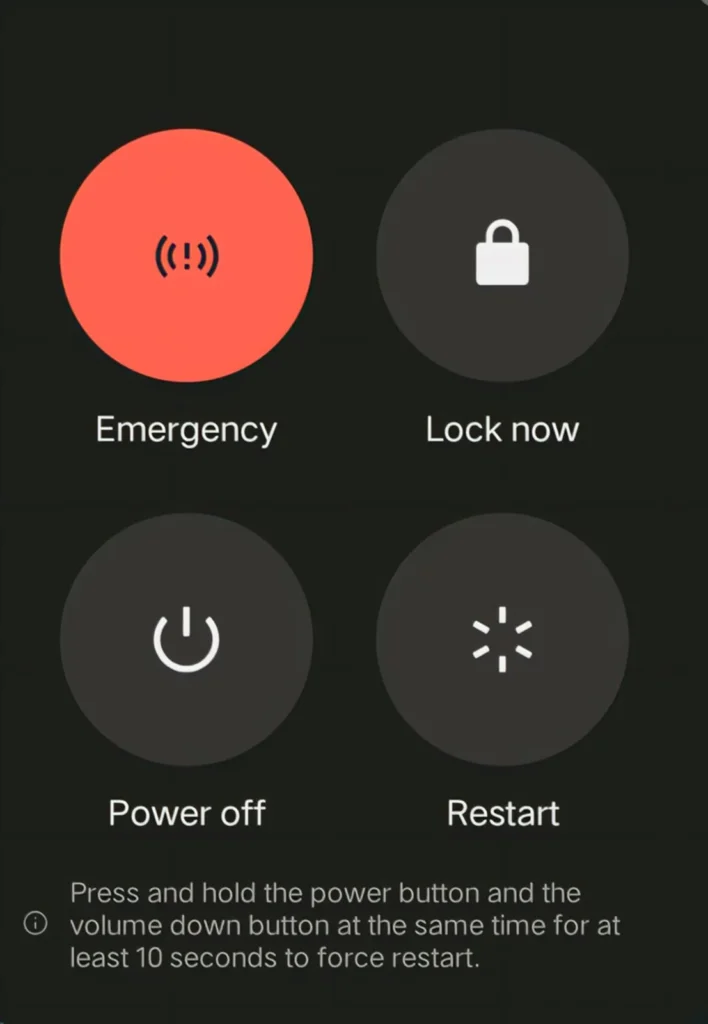
Restart your phone at minimum once every three days. Daily restarts are even better if your phone has been feeling slow. The entire process takes less than sixty seconds and the performance difference after is immediately noticeable.
I started restarting my phone every morning as a daily habit. My phone feels consistently fast throughout each day now. Before this habit it would slow down noticeably by evening from accumulated background activity all day long.
6. Keeping Notifications On for Every App
Most people allow every single app to send notifications without thinking. Shopping apps, gaming apps, news apps, social apps, delivery apps all sending constant notifications simultaneously. This creates more performance impact than most people realize.
Every notification your phone receives requires processing power to handle. The app wakes up briefly to generate and display the notification. With dozens of apps sending multiple notifications throughout the day this adds up to significant continuous processor activity.
Notification processing also keeps your screen turning on constantly. Each screen activation uses battery. Each app wake up uses RAM and processor briefly. Multiply this hundreds of times daily and the cumulative drain is genuinely significant.
Go to Settings then Notifications and review every single app. Be ruthless. Turn off notifications for every app where the notification adds no real immediate value to your life. Shopping discounts, game updates, social likes, and news alerts almost never need to interrupt you instantly.
I went from receiving over 200 notifications daily to fewer than 30 after one cleanup session. My battery life improved by almost two hours per day. My phone felt faster because it spent less time processing irrelevant interruptions constantly throughout the day.
Constant notifications are especially damaging during gaming sessions. If you play competitive games on your phone, read how game response delay during high server load affects your performance and what background activity has to do with it.
7. Using Live Wallpapers and Heavy Widgets
Live wallpapers look beautiful. Animated weather widgets and interactive home screen elements feel impressive. But every animation running on your home screen costs your phone real processing power every single moment the screen is on.
Your phone’s GPU renders these animations continuously. Your processor updates widget data constantly. Your RAM holds the rendering processes in memory permanently. All of this runs even when you are doing nothing on your phone at all.
On flagship phones this impact is minimal because the hardware is powerful enough to handle it easily. On mid range and budget phones this continuous rendering genuinely slows down everyday performance noticeably. The phone is too busy animating your wallpaper to respond quickly to your actual taps.
Switch to a static wallpaper immediately if your phone feels slow. Remove heavy animated widgets from your home screen. Replace them with simple static information widgets or no widgets at all.
My phone’s home screen scrolling went from slightly stuttering to perfectly smooth within seconds of switching from a live wallpaper to a static image. The processor simply had more resources available for actual tasks immediately.
8. Auto Downloading Media in Every Chat App
WhatsApp, Telegram, and every other messaging app automatically downloads every photo, video, and document sent to you by default. Group chats with active members send dozens of files every single day.
This creates two separate performance problems simultaneously. Your storage fills up with media you never asked for and never wanted. Your phone constantly runs background download processes whenever new messages arrive in any group.
Hundreds of unwanted photos and videos accumulate every week. Videos especially consume enormous storage space very quickly. When storage fills above 80 percent capacity your phone’s performance begins degrading noticeably in everyday use.
Go into WhatsApp Settings then Storage and Data. Turn off automatic media download for mobile data and WiFi both. Do the same inside Telegram, Instagram, and every other messaging app you use regularly.
You will still receive all messages instantly. Media simply will not download until you tap it deliberately. My storage usage dropped by over two gigabytes within the first week of turning off auto download across all my messaging apps.
9. Never Updating Apps and Operating System
Outdated apps cause more performance problems than most people realize. Developers release updates that fix memory leaks, improve efficiency, and patch bugs that slow down performance. Running old versions means keeping all those problems permanently.
An app with a memory leak gradually consumes more and more RAM over time without releasing it. Your available memory shrinks every hour the app runs. Eventually your entire phone slows down because one buggy outdated app consumed all available memory.
Operating system updates similarly fix system level performance issues and security vulnerabilities. Skipping them means your phone runs on an increasingly inefficient foundation that gets worse with every passing month.
Enable automatic updates for all apps through your app store settings. Install operating system updates within a few days of release rather than postponing them indefinitely. Updates exist specifically to make your phone run better and more securely.
10. Overloading Your Home Screen with Shortcuts
Most people fill every home screen page with app shortcuts and widgets. Four or five pages packed with icons and live widgets feels organized but creates real performance issues your phone handles silently.

Your launcher loads and renders every icon, widget, and shortcut on every home screen page during startup and when navigating between pages. More items means more rendering work. More widgets means more continuous background data fetching.
A heavily loaded home screen with multiple pages of widgets adds measurable time to your app switching speed. Your launcher consumes more RAM to hold all those shortcuts and widgets in memory simultaneously.
Keep your home screen to one or two clean pages maximum. Put only your most used apps on the main screen. Move everything else into the app drawer where it loads on demand instead of sitting in memory constantly.
My phone’s app switching became noticeably snappier after reducing from five home screen pages to two clean ones. The launcher simply had less to manage and responded faster to every single swipe and tap.
11. Streaming Everything Instead of Downloading
Most people stream music and videos constantly rather than downloading content they use regularly. Streaming looks convenient but it creates continuous background work your phone handles with every second of playback.
Streaming requires your phone to maintain a constant internet connection, buffer incoming data, decode that data in real time, and play it simultaneously. All four processes run concurrently using processor, RAM, and battery simultaneously every moment of playback.
Downloaded content requires only decoding and playback. Two processes instead of four. The processor load drops significantly. Battery consumption decreases noticeably. Your phone stays cooler during long listening or watching sessions.
Download your most listened to playlists on Spotify or your music app of choice. Download YouTube videos you watch repeatedly using YouTube Premium. Your phone handles downloaded content dramatically more efficiently than streamed content every single time.
I downloaded my three main playlists on Spotify after noticing my phone heating up during commutes. The heating stopped almost completely. Battery drain during one hour of music dropped by nearly 30 percent from that single habit change alone.
12. Using Power Hungry Browsers
Most people use Chrome as their default browser without questioning it. Chrome is powerful and feature rich but it is one of the heaviest RAM consuming apps on any Android phone. It keeps multiple processes running for each open tab permanently.
Ten open Chrome tabs means ten separate processes consuming RAM simultaneously in the background. Chrome pre loads pages it predicts you might visit next. It maintains background processes for syncing, extensions, and data management constantly.
Switching to a lighter browser makes an immediately noticeable difference on mid range phones. Firefox Focus, Brave, and Samsung Internet all consume significantly less RAM than Chrome while delivering the same core browsing experience for everyday use.
Close all browser tabs you are not actively reading right now. Set a personal rule of maximum five open tabs at any time. Consider switching your default browser to a lighter alternative and notice the difference within one day of regular use.
How to Fix All These Habits Together
Do not try to fix everything in one single day. Overwhelming yourself means fixing nothing properly. Pick the three habits causing the most damage to your specific phone first.
Start with clearing app cache, turning off unnecessary background refresh, and disabling auto media download. These three changes deliver the most immediate and noticeable performance improvement for most people.
In week two restart your phone daily, audit your installed apps, and clean up your home screen. By the end of two weeks your phone will feel meaningfully faster without any hardware change at all.
Make these habits permanent and your phone stays fast for years. Most people buy new phones when their old one slows down. The old phone was never the problem. The habits were.
Conclusion
Your phone does not slow down because it is old. It slows down because of how you use it every single day. Every habit on this list is something you can fix today completely for free.
Stop keeping dead apps running in the background. Delete apps you never use. Clear cache regularly. Turn off background refresh. Restart your phone daily. Control your notifications. Remove live wallpapers. Stop auto downloading media. Keep your apps updated. Simplify your home screen. Download instead of streaming. Switch to a lighter browser.
Many of the hidden features already built into your phone can also help manage performance automatically. Read about the everyday tasks on your mobile already being controlled by AI and which ones actively help your phone run better.
FAQ’s
1. How often should I clear app cache to keep my phone fast?
Clear cache on your heaviest used apps every two to three weeks as a regular habit. Social media apps, streaming apps, and browser apps accumulate cache fastest and benefit most from regular clearing. Set a reminder on the first of every month to do a full cache cleanup across all major apps simultaneously.
2. Will force stopping apps damage them or cause any problems?
Force stopping apps causes no damage whatsoever to the app or your phone. The app simply restarts fresh the next time you open it. The only minor inconvenience is that force stopped apps may take one or two extra seconds to load on first open because they rebuild their initial state from scratch.
3. Does restarting my phone every day actually make a noticeable difference?
Yes the difference is genuinely significant and immediate. Daily restarts clear accumulated RAM fragments, end memory leaking processes, and reset background services that multiply over continuous use. Most people who start daily restarts notice their phone feels consistently faster throughout each day compared to before the habit.
4. Which apps consume the most background resources on Android phones?
Social media apps consume the most background resources by a significant margin. Facebook, Instagram, TikTok, and Snapchat all maintain continuous background processes for feed refreshing and notification checking.
5. At what storage capacity does a phone start slowing down noticeably?
Most Android phones begin showing noticeable performance degradation when storage reaches above 80 percent of total capacity. The operating system needs free space to create system temporary files and manage basic operations efficiently.