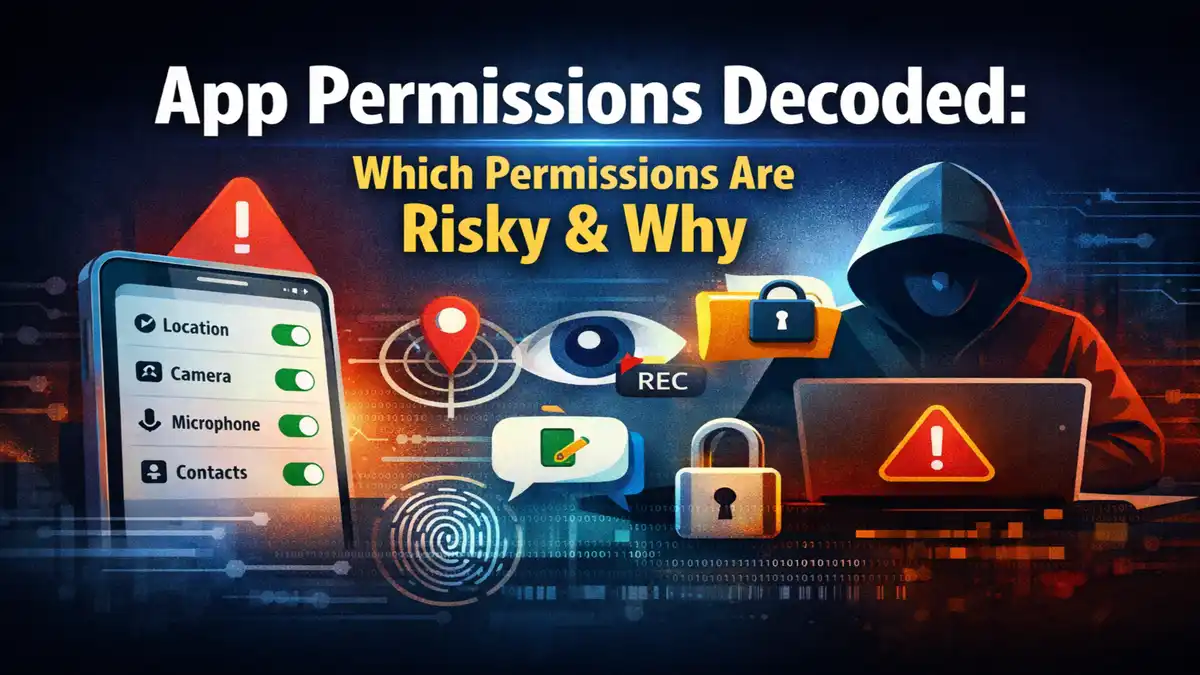
I did not start paying attention to app permissions because of a news headline or a privacy scare. It started when a relative handed me his Android phone and said the battery was draining too fast. When we opened the permission manager, the issue became obvious. A wallpaper app had continuous location access. A basic game had microphone permission enabled. Neither needed it to function.
That situation forced a closer look at how permissions actually work and why some of them carry real risk. This breakdown of App Permissions Decoded explains which permissions deserve scrutiny, how they are technically used by mobile operating systems, and how to evaluate them without guesswork.
How App Permissions Actually Work
Modern smartphones use sandboxing. Each app runs in isolation and cannot automatically access system hardware or personal data. If an app wants access to your camera, contacts, or storage, the operating system blocks it until you approve the request.
Android introduced runtime permissions in version 6.0, meaning apps request sensitive access while in use instead of at installation. iOS follows a similar permission model. In both systems, users can later revoke access from the privacy settings.
Permissions are generally grouped into:
- Low risk permissions minimal privacy impact.
- Dangerous permissions access to personal data or sensors.
- Special permissions advanced system level control.
The second and third categories are where most privacy and security concerns arise.
Permissions That Carry Real Risk
Not every permission is a threat. The risk depends on what data is exposed and whether the access aligns with the app’ s purpose.
1. Location Access (Precise and Background)
Location permission allows an app to determine where your device is. On Android and iOS, users can choose approximate or precise location, and in some cases allow background tracking.
Why this matters:
- It reveals daily movement patterns.
- It identifies home and workplace locations.
- It can be stored or shared for advertising analytics.
During one review session, I counted over 25 apps with Allow all the time location access on a single device. After switching most of them to “Only while using,” none of the apps stopped functioning.
Apps that legitimately require continuous location:
- Navigation services.
- Ride sharing platforms.
- Emergency safety apps.
If the core function does not depend on real-time tracking, background access is excessive.
2. Microphone Access
Microphone permission allows audio recording.
Why it is sensitive:
- Conversations may be captured.
- Audio can reveal personal or professional information.
- Background misuse increases exposure risk.
Operating systems now show visual indicators when the microphone is active. Even so, permission should only be granted if voice input is central to the app’s purpose.
Voice messaging, video calls, and recording apps require it. A casual offline game does not.

3. Camera Access
Camera permission allows an app to capture images or video.
Risk factors:
- Exposure of surroundings and documents.
- Potential background activation.
- Combined use with microphone.
The rule I follow is straightforward: if the app does not create or scan visual content, camera access should be disabled.
4. Contacts Access
Contacts permission provides access to saved names, numbers, and email addresses.
Why this is sensitive:
- It exposes your entire contact network.
- Data may be uploaded to external servers.
- It allows mapping of personal relationships.
Messaging apps use contacts to identify existing users. That is functional. However, I have disabled contacts access for multiple non communication apps without affecting performance. In those cases, the request served marketing goals rather than technical necessity.
5. SMS and Call Log Access
SMS permission allows reading and sending text messages. Call log access exposes call metadata.
Security implications:
- Access to one-time passwords.
- Insight into communication history.
- Increased account takeover risk.
Android restricts SMS access to specific categories of apps. If an unrelated app requests this permission, reconsider installation.
6. Storage and File Access
Storage permission allows reading or modifying files stored on the device.
Potential risks:
- Exposure of documents and downloads.
- Access to personal photos and videos.
- Data extraction without visibility.
Android’s scoped storage limits some of this access, but certain apps still request broad file management control. A photo editor needs gallery access. A simple utility tool does not need unrestricted file system permissions.
7. Accessibility Services
Accessibility services are designed for users who need assistance interacting with their devices. When enabled, an app can read screen content and perform actions on behalf of the user.
Why this permission requires caution:
- It can capture everything displayed on screen.
- It can simulate taps and input.
- It is commonly abused by malicious software.
This permission must be manually enabled in system settings, which is intentional. If an unfamiliar app asks for accessibility access, investigate before proceeding.
8. Overlay Permission (Draw Over Other Apps)
Overlay permission allows content to appear on top of other apps.
Risk scenarios:
- Fake login screens.
- Phishing attempts.
- Clickjacking attacks.
Some legitimate features use overlays, such as chat heads. However, unnecessary overlay access increases attack surface.
9. Device Administrator Access
Device Administrator permission grants elevated control.
Capabilities include:
- Locking the device.
- Preventing app removal.
- Wiping device data.
Enterprise security tools may require this level of access. Consumer apps generally do not.
How I Evaluate Permission Requests
When checking a device, I apply three checks:
- Does the permission directly support the primary feature of the app?
- Does the app continue working if access is limited to While using?
- Is the permission clearly explained in the app’s privacy policy?
If access fails the first check, it usually fails the rest.
Practical Steps to Reduce Exposure
- Review permission settings every few months.
- Remove unused applications.
- Restrict location to “While using the app” whenever possible.
- Disable microphone and camera access for apps that do not require them.
- Keep the operating system updated.
Most privacy risks on smartphones are not the result of advanced exploits. They stem from excessive permissions that remain unchecked.
Also Read: Game Optimization Techniques for Low End Devices
Also Read: Hidden Data Usage on Android: How Apps Use Data in Background
Frequently Asked Questions
1. What does dangerous permission mean in mobile apps?
A dangerous permission allows access to sensitive information such as location, contacts, microphone, or storage. Because misuse can directly impact privacy, these permissions require explicit user approval.
2. Is it safe to allow location access all the time?
Only apps that rely on continuous tracking, such as navigation or safety services, need background location. For most apps, limiting access to While using is sufficient.
3. Can an app misuse permissions even if it is from an official app store?
App stores review submissions, but approval does not eliminate all risk. Users should still compare requested permissions with actual functionality.
4. Will denying permissions break an app?
Some features may be restricted, but most apps continue functioning with limited access. If core functionality remains intact, the permission was likely unnecessary.
5. How often should app permissions be reviewed?
Checking permissions every few months helps reduce unnecessary background access. It also makes it easier to spot apps that no longer need certain privileges.