Introduction
If you have twenty apps open on your phone. Your phone starts slowing down. Everything feels sluggish and unresponsive. And You close a few apps and reopen them later. The same thing happens again. Your phone never feels as fast as it should.
Most people think this is just how phones work over time. They accept the slowdown. They never realize there are simple smart ways to manage multiple apps that completely change how their phone performs.
I used to struggle with this constantly on my old Android phone. Apps crashed randomly. Switching between them felt painful. Battery drained faster than it should. Then I learned how app management actually works and everything changed.
This article gives you every smart tip to manage multiple apps efficiently. Your phone will feel faster after applying even two or three of these today.
Why Managing Multiple Apps Matters
Your phone has limited RAM. RAM is the memory your phone uses to keep apps running. Every open app takes a piece of that RAM.
When RAM fills up completely your phone starts making difficult choices. It closes apps you were using. It slows down to manage the overload. Everything suffers as a result.
Managing apps properly keeps RAM available for what you actually need. Your phone stays fast. Apps open quickly. Switching between them feels smooth and instant.
Good app management also saves battery life. Background apps consume power constantly even when you are not using them. Controlling which apps run in the background directly extends how long your phone lasts each day.
1. Understand How Your Phone Manages RAM
Most people think closing apps always saves RAM. This is not completely true. Android manages RAM differently from what most people expect.
Android keeps recently used apps in memory on purpose. Having them in memory means they open faster when you return to them. Killing every app manually actually makes your phone work harder to reload them every time.
The problem only happens when too many heavy apps run simultaneously. Light apps sitting in memory cost almost nothing. Heavy apps with active background processes drain RAM and battery significantly.
Understanding this difference changes how you approach app management completely. You stop killing every app out of habit. You start targeting only the ones actually causing problems.
2. Identify Which Apps Are Actually Draining Resources
Not all apps affect performance equally. Some apps sit quietly in memory and cost almost nothing. Other apps run constant background processes that drain RAM and battery aggressively.
Go to your phone settings right now. Find Battery or Device Care depending on your phone model. Look at which apps consumed the most battery in the last 24 hours.
Then go to Settings and find Memory or RAM usage. See which apps are consuming the most active memory right now. These two lists together show you exactly which apps deserve your attention.
I did this on my phone once and found one social media app consuming 40 percent of my background battery usage. I had no idea it was doing that. One settings change stopped it immediately and my battery lasted two extra hours that same day.
3. Use the Recent Apps Menu Properly
Most people use the recent apps menu only to switch between apps. It is much more useful than just a switcher when you know how to use it properly.
Swipe up to access your recent apps. Look at each card carefully. Apps you have not used in hours should be closed from here. Apps you are actively switching between should stay open.
Do not swipe away every single app automatically. That habit hurts performance more than it helps. Close only apps you will not return to in the next thirty minutes.
Heavy apps like games, video editors, and camera apps should always be closed when you finish using them. These apps continue consuming significant resources even when sitting in the recent apps menu.
4. Restrict Background Activity for Specific Apps
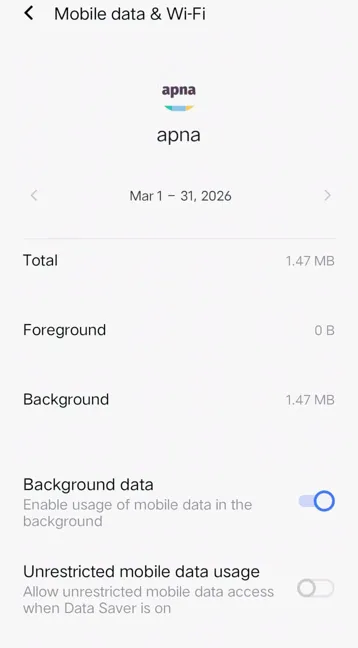
This is the most powerful tip on this entire list. Every Android phone lets you control which apps can run in the background. Most people never use this setting at all.
Go to Settings then Apps. Select any app that drains your battery. Find Battery and tap it. Choose Restricted or Optimized depending on your phone model.
Restricted means the app cannot run any background processes at all. It only uses resources when you are actively using it. The difference in battery life and performance for heavy apps is dramatic.
Do this for social media apps, news apps, and any app that sends frequent notifications you do not need. These apps are the worst offenders for unnecessary background activity. Restricting them changes your phone performance immediately.
5. Turn Off Auto Start for Unnecessary Apps
Many apps start themselves automatically when your phone boots up. You never asked them to do this. They just decided to start running immediately without permission.
Go to your phone settings and find App Management or Startup Manager. This shows you every app that starts itself on boot. Turn off auto start for every app that does not need to run immediately when your phone turns on.
Most apps do not need to start on boot at all. They work perfectly fine starting only when you open them manually. Disabling auto start for ten apps reduces boot time and frees up RAM from the very first moment your phone turns on.
This setting exists on most Android phones but many manufacturers hide it in different menu locations. Search for Startup Manager or Auto Start in your settings search bar to find it quickly.
6. Use Split Screen for True Multitasking
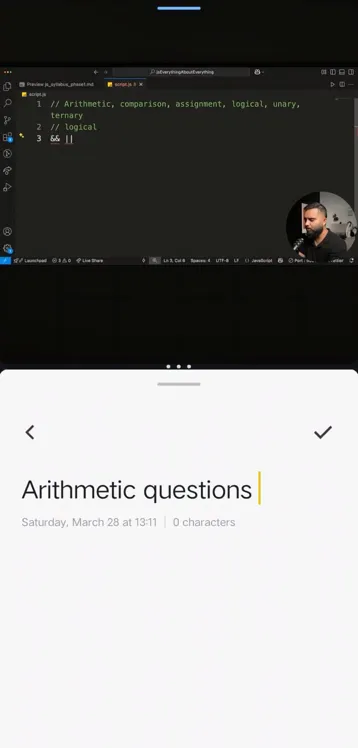
Android has a split screen feature that lets you use two apps genuinely simultaneously. Most people never use it even though it is one of the most useful productivity features on any Android phone.
Open your recent apps menu and long press on an app card. Select Split Screen or Open in Split View depending on your phone. Then select a second app for the other half of your screen.
Use split screen for tasks that genuinely need two apps at once. Reading notes while writing an email. Watching a tutorial while taking notes. Following a recipe while messaging someone. These combinations save significant time compared to constantly switching between apps.
Split screen works best on larger phones and tablets. On smaller screens the individual app areas become quite cramped. Test it on your device to see if the screen size makes it practical for your regular tasks.
7. Use Pop Up View for Quick App Access
Pop up view is a feature on Samsung and some other Android phones that lets you open an app in a small floating window. The main app you are using stays fully visible underneath.
Open your recent apps menu and swipe down on an app card. It opens in a small floating window you can move anywhere on your screen. Resize it by dragging the corners. Minimize it to a small bubble by tapping the top bar.
This is perfect for quick reference tasks. Check a contact detail while writing an email. Look up a price while shopping online. Check a message while watching a video. All without leaving your current app at all.
I use pop up view for calculator when I am managing expense tracking in a spreadsheet app. No app switching needed at all. The calculator floats above the spreadsheet and I tap between them instantly. That small workflow change saves me real time every week.
8. Organize Your Home Screen Strategically
Your home screen layout affects how efficiently you move between apps every day. Poor organization creates unnecessary friction. Smart organization makes app switching feel effortless.
Group similar apps into folders on your home screen. Social media in one folder. Productivity tools in another. Entertainment in a third. This reduces the visual clutter that slows down finding the right app when you need it.
Keep your most used five to seven apps on your dock at the bottom of the screen. These are the apps you open ten or more times daily. Having them always visible eliminates the need to search through pages or folders for your most critical tools.
Remove apps from your home screen that you open less than once per week. They just add visual noise and make finding important apps harder. Use the app drawer to access less frequently used apps instead of cluttering your home screen with them.
9. Use Digital Wellbeing to Understand Your App Usage
Most people have no idea how much time they spend in each app daily. Digital Wellbeing shows you the exact truth about your phone usage patterns.
Go to Settings and find Digital Wellbeing and Parental Controls. Look at your daily app usage breakdown. The numbers are often surprising and sometimes shocking.
Understanding which apps you spend the most time in helps you make smarter decisions. If you spend three hours daily in one social media app you might choose to restrict its background access less aggressively since you use it heavily. If you spend five minutes monthly in another app you might delete it entirely.
This data also shows you which apps you open most frequently throughout the day. Those are the apps that should be most accessible on your home screen. Organize your phone based on actual usage data rather than assumptions about what you use.
10. Clear App Cache Regularly
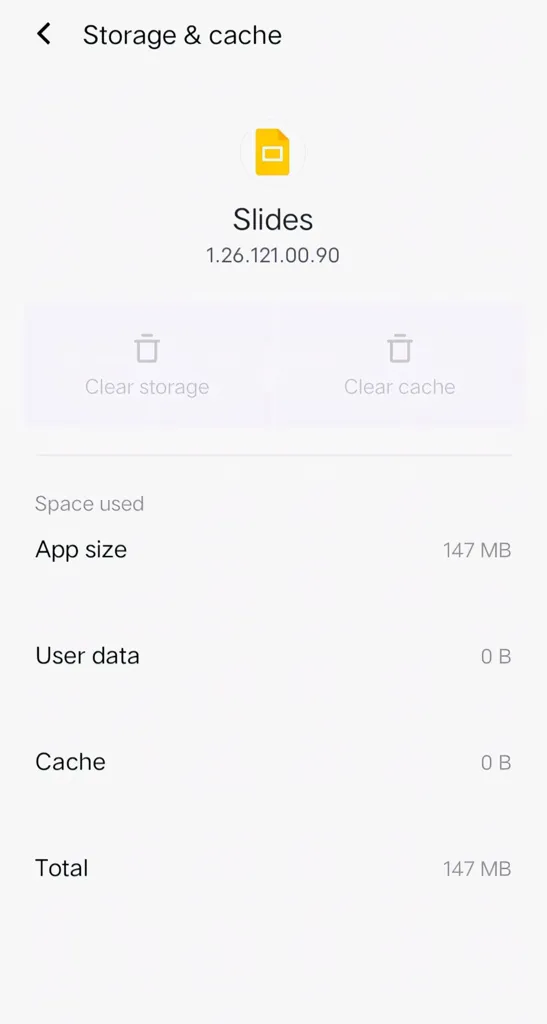
Every app builds up cached data over time. Cache is temporary storage that helps apps load faster. Over time cache can grow very large and actually slow things down instead of helping.
Go to Settings then Apps and select any app. Tap Storage and then Clear Cache. This removes temporary files without deleting your personal data or login information.
Do this monthly for your most used apps. Focus especially on browsers, social media apps, and streaming apps. These build up cache the fastest because of constant media loading.
I cleared cache on my browser once after noticing it had accumulated over 800MB of cached data. The browser loaded pages noticeably faster immediately after. The cache had grown so large it was actually working against the app instead of helping it.
11. Enable Developer Options for Advanced Control
Developer Options unlock hidden performance settings that most users never access. These settings give you deeper control over how apps run on your device.
Go to Settings then About Phone. Tap Build Number seven times quickly. Developer Options now appears in your main settings menu. Be careful inside this menu. Only change the specific settings mentioned here.
Find Background Process Limit inside Developer Options. This setting controls how many apps can run simultaneously in the background. Setting it to three or four prevents excessive background app accumulation without being too restrictive for normal multitasking.
Also find Window Animation Scale, Transition Animation Scale, and Animator Duration Scale. Set all three to 0.5x. This makes all app switching animations happen twice as fast. Your phone will feel significantly more responsive even without any actual performance change. This is one of the easiest ways to make any Android phone feel faster immediately.
12. Uninstall Apps You Stopped Using
Most phones have dozens of apps that have not been opened in months. These apps take up storage space and sometimes run background processes that cost battery and RAM for absolutely no benefit.
Go through your complete app list once every two months. For every app ask yourself one honest question. Did I open this in the last thirty days. If the answer is no uninstall it immediately without hesitation.
You can always reinstall any app from the Play Store if you need it again later. Keeping unused apps installed provides zero benefit and creates real ongoing costs in storage, performance, and potential background battery drain.
I uninstalled forty three apps during one cleanup session on my phone. My available storage jumped dramatically. My phone felt noticeably smoother immediately after the cleanup. Those unused apps were quietly affecting performance the entire time.
13. Use Lite Versions of Heavy Apps
Many popular apps have lite versions specifically designed for phones with limited RAM. These lite versions use dramatically less memory and battery than their full versions.
Facebook Lite uses a fraction of the resources that regular Facebook consumes. YouTube Go uses less data and memory than full YouTube. Many other popular apps offer similar lite alternatives designed for efficiency.
Even on phones with plenty of RAM and storage lite apps improve multitasking performance. Less resource consumption per app means more resources available for everything else running simultaneously.
Switch to lite versions of your most frequently used social media and communication apps. You lose very few features that you probably use regularly. You gain significantly better performance across your entire device as a result.
14. Schedule Heavy Tasks Intelligently
Some phone tasks consume enormous resources temporarily. Large app updates, cloud backups, photo uploads, and system scans all fall into this category.
Running these heavy tasks while you are actively multitasking between apps creates severe performance problems. Everything slows down simultaneously because the heavy background task is consuming the same resources your foreground apps need.
Schedule heavy background tasks for times when you are not actively using your phone. Overnight is ideal for most people. Set app updates to happen only on WiFi during nighttime hours. Schedule cloud backups for early morning. Let your phone do its heavy work while you sleep.
Your phone handles all these necessary tasks automatically. Your active multitasking sessions stay smooth because heavy work never competes with your foreground app usage.
15. Restart Your Phone Regularly
This sounds too simple to be worth mentioning. It is actually one of the most effective performance tips for managing multiple apps efficiently. Most people never do it.
Restarting your phone completely clears all RAM. Every background process stops. Every app cache gets refreshed. The phone starts fresh with maximum available resources.
Restart your phone at least once every two to three days if you use it heavily. Daily restart is even better for people who multitask intensively throughout the day.
I started restarting my phone every morning before my first use. The difference in how snappy app switching felt throughout the morning was immediately noticeable. That thirty second restart at the start of each day paid dividends in performance for hours afterward.
How to Put These Tips Together
Do not try applying all fifteen tips at once. Start with the three that address your biggest pain points right now.
If your battery drains too fast start with restricting background activity, disabling auto start, and uninstalling unused apps. These three changes alone can add two hours of battery life per day.
If your phone feels slow when switching between apps start with the animation speed changes in Developer Options, clearing app cache, and restarting your phone daily. You will feel the difference within the first hour of use.
If you struggle to be productive across multiple apps simultaneously start with split screen, pop up view, and home screen organization. These three changes transform how efficiently you move between the apps you need most.
Also Read: Everyday Tasks Controlled by AI in Mobile You Didn’t Even Notice
Also Read: Anti-Cheat Systems in Mobile Games Explained: How Games Stop Hackers
Conclusion
Managing multiple apps efficiently is not complicated. It just requires understanding how your phone actually works and making a few smart adjustments.
Restrict background activity for heavy apps. Disable unnecessary auto start. Use split screen for genuine multitasking. Clear cache regularly. Uninstall apps you stopped using. Restart your phone consistently.
These habits compound over time. A phone managed well today performs significantly better three months from now than a phone managed carelessly. Every smart choice you make about app management adds up to a meaningfully better daily experience.
Your phone is capable of performing much better than it currently does. These tips unlock that performance without spending a single rupee on new hardware. Start with two tips today and feel the difference by tonight.
FAQ’s
Does closing all background apps actually make your Android phone faster?
Not always and sometimes it makes things slower. Android keeps recently used apps in memory to open them faster when you return. Killing every app forces your phone to reload them from scratch each time which uses more resources than keeping them cached. Only close heavy apps like games and video editors when you finish using them completely.
How much RAM do I actually need for smooth multitasking on Android?
Six gigabytes of RAM handles comfortable everyday multitasking with most popular apps running smoothly. Eight gigabytes gives you comfortable headroom for heavier multitasking with games and demanding apps. Four gigabytes works for basic use but you will notice limitations when running several heavy apps simultaneously for extended periods.
Will restricting background app activity stop me from receiving notifications?
Setting apps to Optimized usually maintains notification delivery while reducing unnecessary background activity. Setting apps to Restricted can delay or stop notifications from those specific apps. Keep messaging and email apps on Optimized rather than Restricted if receiving timely notifications from them matters to your daily routine.
Is it safe to enable Developer Options on my Android phone?
Yes enabling Developer Options does not harm your phone in any way. Only change the specific settings you understand and intend to change. Avoid experimenting randomly with unfamiliar settings inside the Developer Options menu as some settings can affect how your phone behaves in unexpected ways until you reset them.
How often should I clear app cache on my Android phone for best performance?
Clear cache for your most used apps once every three to four weeks for best results. Browser cache benefits from more frequent clearing every one to two weeks if you browse heavily. System level cache can be cleared once every two to three months. Never clear app data instead of cache unless you specifically want to reset an app completely back to its original state.