Introduction
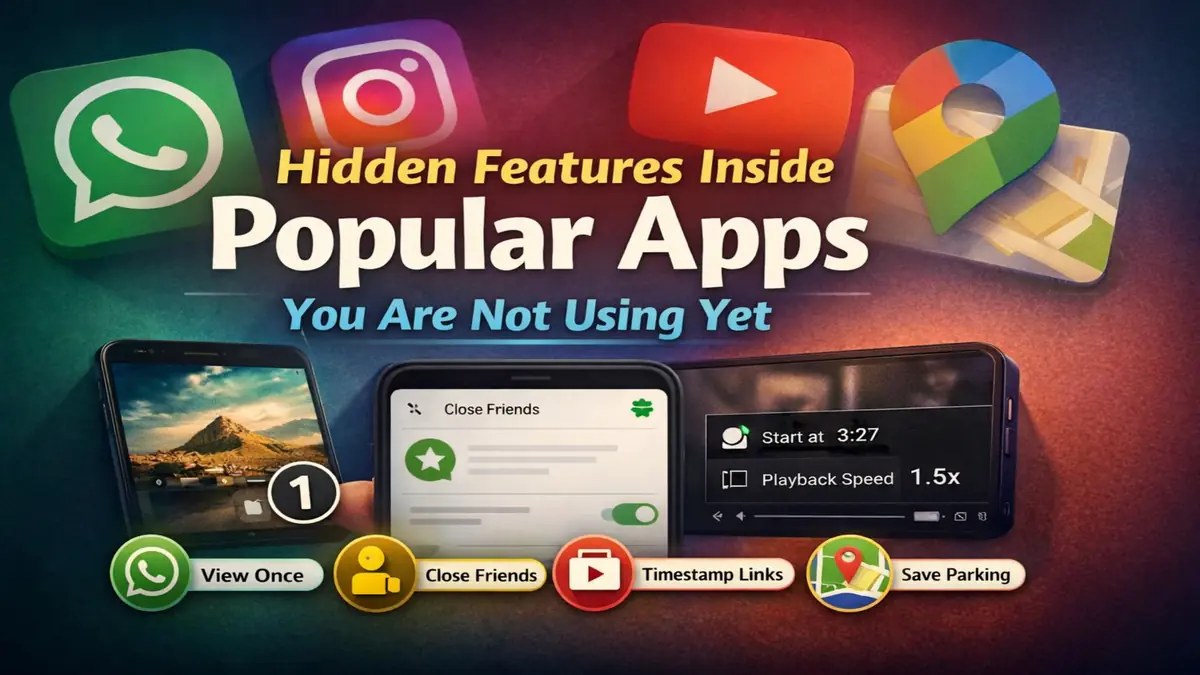
You use the same apps every single day. You open them, do your thing, and close them. You think you know everything about them. But you are missing so much. Every popular app has powerful hidden features. Most people never find them.
I used WhatsApp for four years without knowing half its features. A friend showed me one trick once. I spent the next hour finding everything else I had missed.
This article shows you the best hidden features inside popular apps on your phone. These are not hacks or downloads. Everything is already sitting inside your phone right now.
Why These Features Stay Hidden
App developers build dozens of features into every update. They cannot show everything on the main screen. The interface would become too confusing.
Most hidden features sit inside settings menus nobody opens. Some activate with specific gestures. Some are turned off by default and never advertised loudly.
Finding these costs you nothing. No update needed. No premium plan required. They are just waiting for you to discover them.
WhatsApp Hidden Features
WhatsApp is the most used messaging app in the world. Most people use maybe thirty percent of what it can actually do. The rest stays hidden in plain sight.
1. View Once Media
Most people send photos that stay in chats forever. Screenshots happen. Private photos get saved without permission. View Once solves this problem completely.
Tap the small circle icon next to the send button when attaching any photo or video. Select View Once before hitting send. The receiver sees that media exactly one time only.
After they close it the photo or video disappears permanently from the chat. It cannot be saved. It cannot be screenshotted on most devices. It simply vanishes after one view.
I use this every single time I share bank statements, ID documents, or personal photos. They disappear after one view and I never worry again. This one feature alone changed how I share sensitive information completely.
It works for both photos and videos of any length. The sender gets notified when the receiver opens it. You know exactly when they saw it and that it is now gone forever.
2. Pinned Messages in Groups And Personal Chat:
Long group chats become impossible to manage. Important information like meeting links, addresses, and deadlines gets buried under hundreds of messages. Everyone asks the same question again and again.
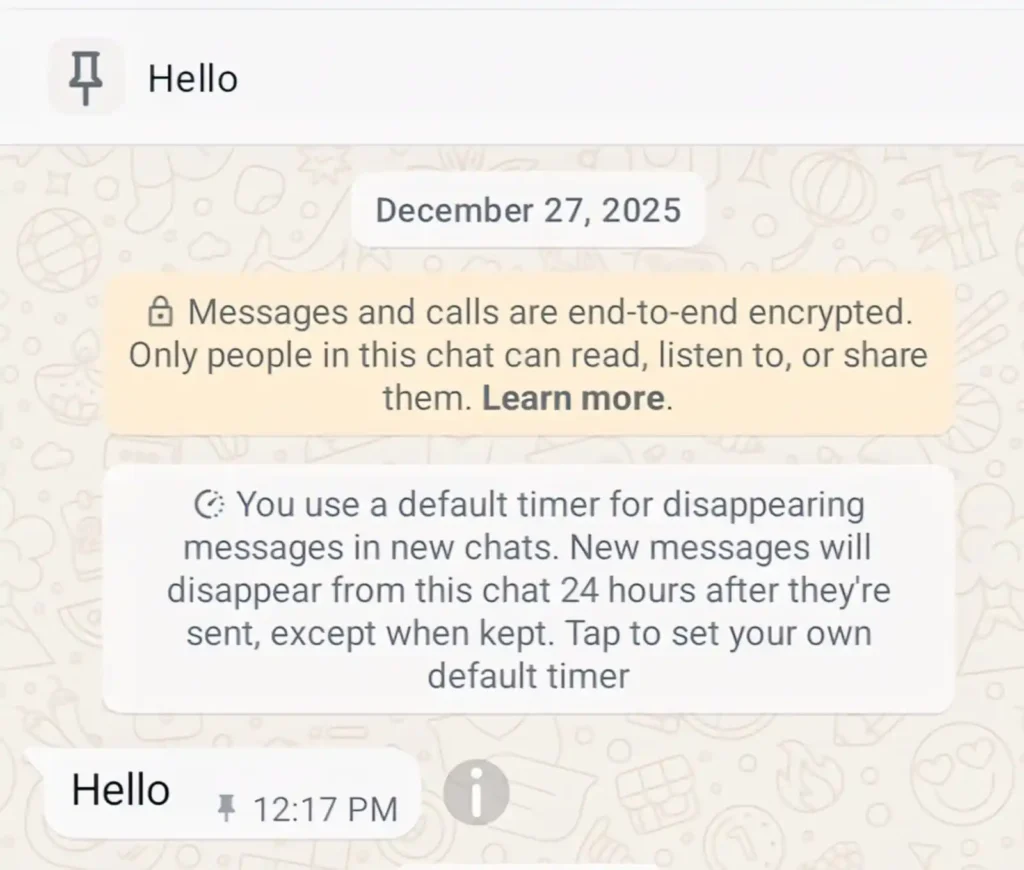
Pinned messages fix this problem permanently. Long press any message in any chat. Tap the pin icon that appears. That message locks to the top of the conversation for everyone to see always.
You can pin up to three messages in any single chat. Pin your group rules, important dates, shared documents, or anything that needs to stay visible always. Nobody can miss pinned information because it sits right at the top every single time they open the chat.
I manage a study group of twenty people. Before pinning I answered the same location question fifteen times every week. After pinning the address nobody asks anymore. The time saved is genuinely significant.
3. Message Yourself as a Personal Notebook
This sounds too simple to be useful. It is actually one of the most practical hidden features on WhatsApp. You can open a chat with yourself and use it as a personal notes space.
Search your own phone number in WhatsApp. Open that chat. Start sending yourself anything you want to save quickly.
Voice notes for ideas you have on the go. Photos of receipts, documents, and things you want to remember. Links you want to read later. Quick text notes when you have no time to open a proper notes app.
Everything syncs across all your devices automatically. Your notes are accessible on your phone, tablet, and WhatsApp Web simultaneously. I use this as my main quick capture tool every single day and it has replaced three separate apps I used before.
Instagram Hidden Features
Instagram looks simple from the outside. Underneath it has powerful tools for managing your audience, your privacy, and your content. Almost nobody uses them properly.
1. Close Friends for Private Stories
Most people post Stories to all their followers or nobody at all. Close Friends gives you a third option that most users completely ignore. Share with a specific private group only.
Go to your profile and tap the three lines in the top right corner. Select Close Friends from the menu. Add specific people to your private list manually.
When posting any Story tap Close Friends instead of Your Story at the bottom. Only those exact people see it. Everyone else on your follower list sees absolutely nothing and gets no notification.
This is not just for personal content. Use it for exclusive updates to your most loyal followers. Use it for content you want to test before posting publicly. Use it for genuinely private moments that are not meant for your full audience.
I keep a Close Friends list of about fifteen people. Behind the scenes content, personal updates, and honest opinions go there. My main Story stays polished and public. My Close Friends Story stays real and private. Both audiences get exactly what they want.
2. Restrict Without the Drama of Blocking
Blocking someone on Instagram is obvious. They notice immediately. It creates confrontation and drama. Restricting is completely invisible and much more powerful.
Go to any profile that bothers you. Tap the three dots in the top right corner. Select Restrict from the options that appear.
Their comments on your posts now become visible only to them. They think their comment is publicly visible. Nobody else can see it at all. Their direct messages go silently to your Message Requests folder instead of your main inbox.
They have absolutely no idea anything changed. They think your relationship is completely normal. You never see their unwanted comments or messages without blocking them or creating any conflict.
This is the cleanest solution for managing difficult followers, ex partners, or toxic acquaintances. Zero drama. Zero notification. Complete control with no confrontation required from your side.
3. Hidden Word Filters for Comments
Negative comments drain your energy and ruin your day. Manually deleting them one by one takes forever. Hidden word filters remove them automatically before you ever see them.
Go to Settings then Privacy then Hidden Words. Add any words, phrases, or emojis you want filtered out. Instagram removes any comment containing those words automatically.
You never see those comments at all. They are hidden before they reach your notification. Your comments section stays positive and clean without any manual work on your part.
Add specific words relevant to your content and audience. Customize the list as you learn what kind of negativity appears on your posts. The filter works silently every single day completely automatically.
YouTube Hidden Features
YouTube is the second largest search engine in the world. Most people use it like a basic video player. The hidden features inside it make it a completely different and more powerful tool.
1. Precise Timestamp Link Sharing
You watch a video and find one specific moment that is perfect to share. Sharing the whole video means the other person has to find that moment themselves. Timestamp sharing sends them directly to the exact second.
Pause the video at the exact moment you want to share. Tap the Share button. Enable the small checkbox that says Start At with the current time shown next to it.
Copy that link and share it anywhere. Anyone who opens it lands on exactly that moment in the video instantly. No instructions needed. No asking them to skip to a certain time.
I use this constantly when sharing tutorial videos with friends. They land exactly where the important part begins. They never have to search through a twenty minute video to find the thirty second section that actually matters.
2. Playback Speed Control for Every Video
Watching videos at default speed is often either too slow or too fast. Speed control lets you decide exactly how fast information enters your brain. Most people never touch this setting.
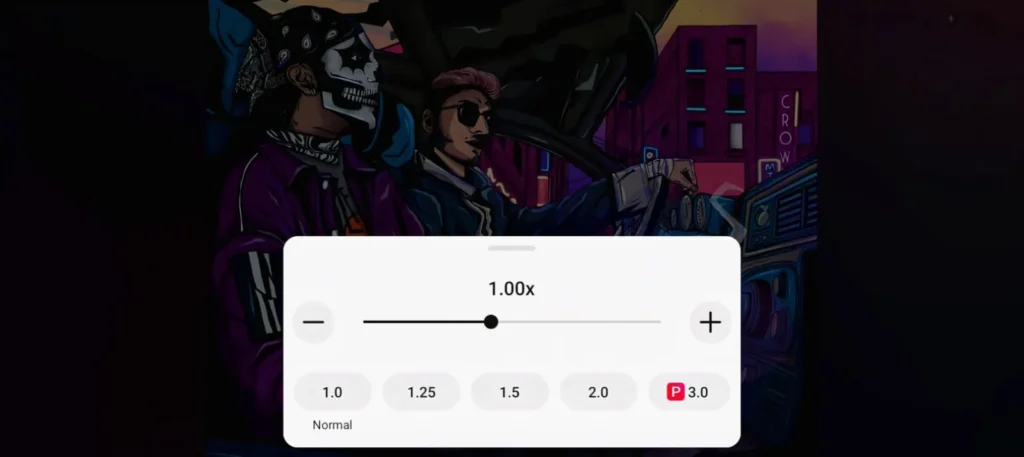
Tap the three dots in the top right corner of any playing video. Select Playback Speed from the menu. Choose anywhere from 0.25 times speed all the way up to 2 times speed.
Slow down complex tutorial steps to 0.75x so you can follow every detail. Watch long lecture videos at 1.5x speed and finish them in two thirds of the time. Speed up slow talking videos at 2x and save enormous amounts of daily time.
I watch almost every educational video at 1.5x speed now. A two hour documentary takes eighty minutes. Over one month of regular watching I save several hours of time without missing any content at all. This single habit changed how much I learn every week.
3. YouTube Chapters for Instant Navigation
Long videos feel overwhelming when you only need one specific section. Chapters break long videos into clearly labeled sections. Navigation becomes instant instead of painful.
Look at the progress bar at the bottom of any video. Small white dots appear at certain points along that bar. Each dot marks the beginning of a new chapter created by the video maker.
Tap any white dot to jump directly to that chapter instantly. Alternatively tap the video title below the player to see the full chapter list with timestamps. Select any chapter and land exactly there.
This works on any video where the creator added chapter timestamps in their description. Tutorial videos, long reviews, and documentary style content almost always have chapters. Stop scrubbing blindly through long videos forever starting today.
Google Maps Hidden Features
Google Maps looks like a simple navigation app from the outside. It is actually one of the most feature rich apps on any phone. These hidden tools make it dramatically more useful in everyday life.
1. Save Your Parking Location
You park in an unfamiliar area. You walk away confidently. Twenty minutes later you have absolutely no idea where your car is. This happens to millions of people constantly.
Open Google Maps while you are still parked. Tap the blue dot that shows your current location on the map. A menu appears with the option Save Parking. Tap it immediately.
A parking pin gets dropped on your exact location permanently. When you return later just open Maps and tap the saved parking marker. It gives you walking directions back to your exact car from wherever you are.
You can also add a note like Level 3 Row B and set a parking meter timer at the same time. Everything stays saved until you manually remove the pin. I have used this in every unfamiliar city I have visited and it has saved me every single time without exception.
2. Offline Maps for Entire Cities
No internet in a new city means no navigation. Roaming charges abroad make data expensive. Offline maps solve both problems completely and permanently.
Search any city name in Google Maps. Tap the city name card that appears at the bottom of the screen. Look for the Download button and tap it.
Choose the area size you want to save using the selection box. Tap Download and wait for the map to save to your phone. That entire area now works fully without any internet connection.
Turn by turn navigation works offline. Business locations load offline. Even estimated travel times work offline using your GPS alone. Download maps for every city before you travel and never worry about connectivity again.
3. Street View Drop Anywhere
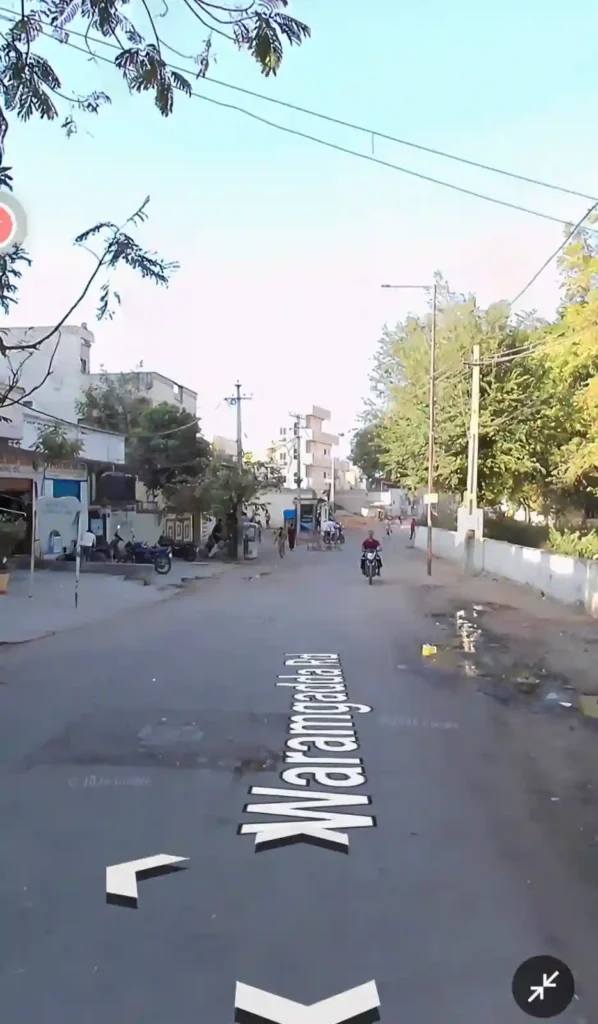
Most people use Street View only by searching a specific address. You can actually drop into Street View at any point on the entire global map. Any road anywhere in the world.
Tap and hold any point on the Google Maps map. A small card appears at the bottom showing a Street View thumbnail of that exact location. Tap that thumbnail to enter Street View instantly.
Walk virtually through neighborhoods before you visit them. Check what a restaurant entrance actually looks like so you can find it easily. See the real condition of a road before you drive on it.
I do this before every first visit to a new place. I know exactly what the building looks like from the street. I know which side the entrance is on. I arrive confidently like I have been there before every single time.
Gmail Hidden Features
Gmail is the most used email app in the world. Most people use it to send and receive emails and nothing else. The hidden features inside it make managing communication dramatically faster.
1. Schedule Emails for Perfect Timing
Timing matters enormously in professional communication. Sending an email at midnight looks desperate. Sending it at 9am Monday looks professional and planned. Schedule Send makes perfect timing effortless.
Write any email completely as normal. Instead of tapping the Send button tap the small arrow next to it. Select Schedule Send from the options that appear.
Choose any specific date and time you want the email to arrive. Gmail holds it in your Scheduled folder and sends it automatically at exactly your chosen moment. You can edit or cancel it anytime before the scheduled time arrives.
I write important work emails on Sunday evenings when I have time to think clearly. I schedule them to arrive Monday morning at 9am. Recipients think I wrote them fresh that morning. My response rate on scheduled emails is noticeably higher than emails sent at random times.
2. Undo Send Before Anyone Reads It
You tap Send and immediately see the spelling mistake. Or worse you sent it to the wrong person entirely. Gmail gives you a short window to completely take it back. Most people never enable this.
Go to Gmail Settings by tapping your profile picture. Select General Settings then find Undo Send. Set your cancellation period to the maximum thirty seconds available.
After every send a small Undo bar appears at the bottom of your screen. Tap it within your set time and the email returns to your drafts folder completely unsent. Nobody received it. Nobody saw it. It simply comes back to you silently.
I have used this feature to catch mistakes that would have been genuinely embarrassing in professional settings. Enabling it takes thirty seconds. The peace of mind it gives is worth far more than that setup time.
3. Confidential Mode for Sensitive Emails
Regular emails can be forwarded to anyone. They can be downloaded, printed, copied, and shared forever. Confidential Mode removes every single one of those abilities completely.
Compose any email as normal. Tap the lock icon at the bottom of the compose window. Set an expiry date after which the email becomes completely unreadable.
Optionally add an SMS passcode that the recipient must enter before they can even open the email. The recipient cannot forward it. Cannot copy the text. Cannot download any attachments. Cannot print it. The email simply expires on your chosen date as if it never existed.
Use this for sharing passwords temporarily, sending sensitive documents, or any information that should not live permanently in someone else’s inbox. The control it gives you over your own information after sending is something regular email simply cannot offer.
How to Start Using These Features Today
Do not try all fifteen features at once. Your brain cannot absorb everything together and nothing will actually stick. Pick three that solve your most immediate daily problems first.
Start with WhatsApp View Once for private sharing, Gmail Undo Send for professional safety, and Google Maps Save Parking for everyday practicality. These three solve real problems you probably face every single week.
Use each one consistently for seven days before adding more. By the end of one month all fifteen will feel completely natural. Hidden features only help you when they become automatic habits.
Also Read: AI Photo Enhancements in Gallery Apps: Transform Your Photos Instantly
Also Read: Hidden AI Features in Android You Didn’t Know Existed (2026 Guide)
Conclusion
Every app you use every day is hiding powerful tools from you. Not on purpose. Just because nobody showed them to you before today.
WhatsApp has better privacy than you ever used. Instagram has better audience control than you ever touched. YouTube has better learning tools than you ever tried. Google Maps has better navigation than you ever explored. Gmail has better communication control than you ever knew existed.
These features are already on your phone right now. You paid for this device. You deserve to use everything it can actually do.
Start with one feature today. Try it in your very next use of that app. Then come back and learn one more tomorrow.
FAQ’s
Do I need to update my apps to access these hidden features?
Most features mentioned work on current versions of these apps already installed on your phone. Keep apps updated through your app store always. Updates bring additional hidden features that most users never discover on their own.
Will these hidden features slow down my phone or drain battery?
None of these features run continuously in the background consuming resources. They activate only when you use them directly. Features like offline maps and sleep timer actually reduce battery consumption compared to normal usage patterns.
Do these features work the same on Android and iPhone?
Most features work identically on both platforms since they are controlled by the app developers directly. A small number may appear in slightly different menu locations between Android and iOS. The core functionality remains identical across both platforms.
Can I reverse any of these features if I do not like them?
Yes every single feature mentioned can be turned off or reversed completely anytime. None of them make permanent irreversible changes to your apps or your phone. Return to the same settings menu and disable anything that does not work for your personal needs.
Why do app companies not advertise these powerful features more loudly?
Companies focus advertising budgets on features that attract completely new users to the platform. Existing user features get discovered through community sharing and word of mouth instead. Most people simply never dig deep enough into their settings to find what is already waiting there for them.